Sometimes Steam has a problem connecting to Servers. When Steam won’t connect to the server, you will have to try out some troubleshooting to find the problem and fix it.
In this article, I will explain the probable causes that trigger the issue and discuss how to connect to the Steam servers.
Also read: Why Is Steam Running Slow? How To Fix?
Why Steam Is Having Trouble Connecting To The Steam Servers?
- An unstable Internet Connection can cause this issue.
- If Steam Servers are down, then it can trigger this problem.
- If Steam lacks certain permissions, then it can lead to this error.
- Your steam account might be banned for violating the rules.
Solution 1: Update Windows
Outdated Windows versions can cause a lot of difficulties to the users.
In that case, Updating Windows to the latest version may solve the problem. Follow the steps to update Windows:
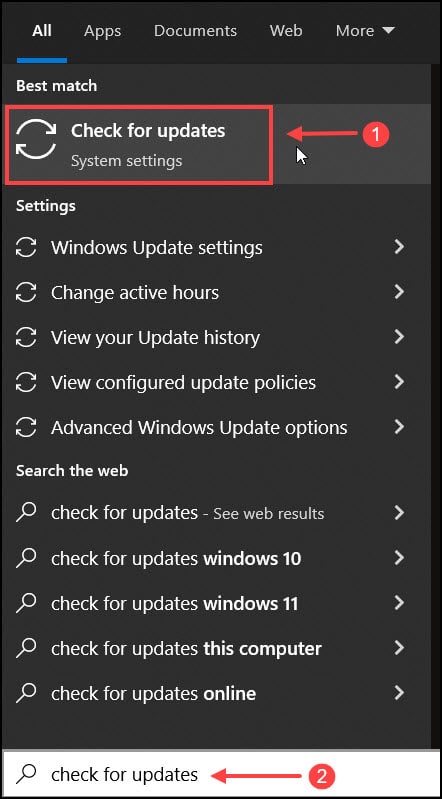
- Press the Windows key and type Updates.
- In the resulting list, click on Check For Updates.
- Click on Check for updates option.
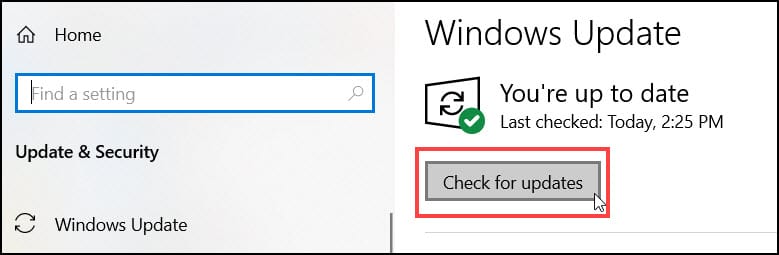
- If any updates are available, then download and install the updates.
- After installation check if the problem is solved.
Solution 2: Reset WinSock
Winsock is a programming interface and supporting program that handles input/output requests for Internet applications in Windows.
Resetting it will undo all configurations made to the Winsock. Resetting Winsock can potentially solve the Steam connection issue.
So, to reset Winsock follow the steps below:
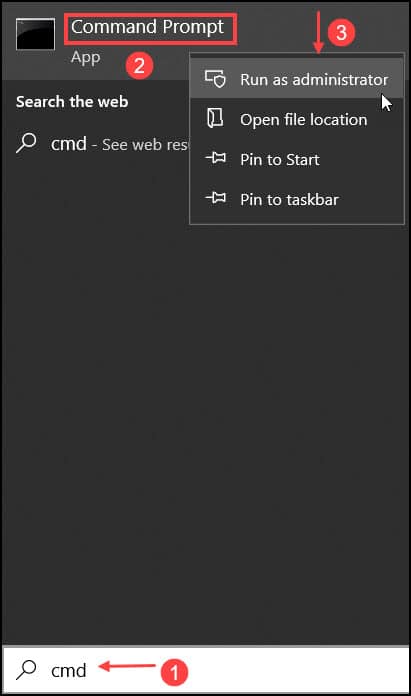
- Click on Start then search for Command Prompt.
- Right-click on the first entry and select Run as administrator.
- Type the following commands in the window and press Enter after each of them to run it:
a) netshwinsock reset
b) netshintip reset reset.log hit
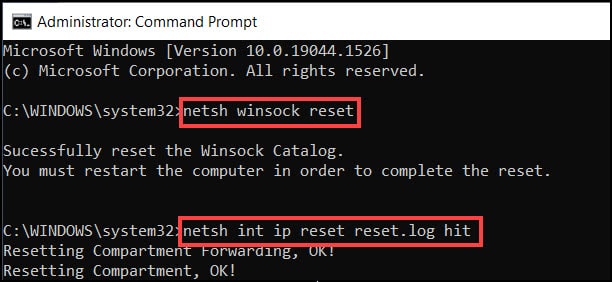
- Press Enter after typing the commands. Wait for the “winsock reset completed successfully” message or something similar to that.
- Close Command Prompt and restart your PC.
Check if still Steam is not connecting to servers. If yes, then move to the next solution.
Solution 3: Allow Steam Through Firewall
Steam can have trouble connecting if it is blocked by the Firewall. In this case, you will have to allow Steam through it to solve the connection issues.
Here is how you can do it:
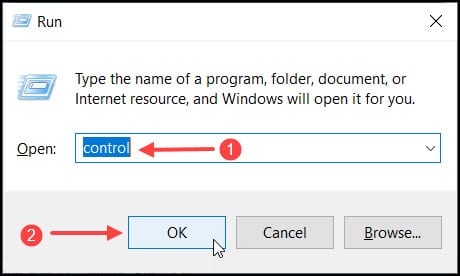
- Press the Windows + R keys to open the Run command.
- Type Control and press enter to open Control Panel.
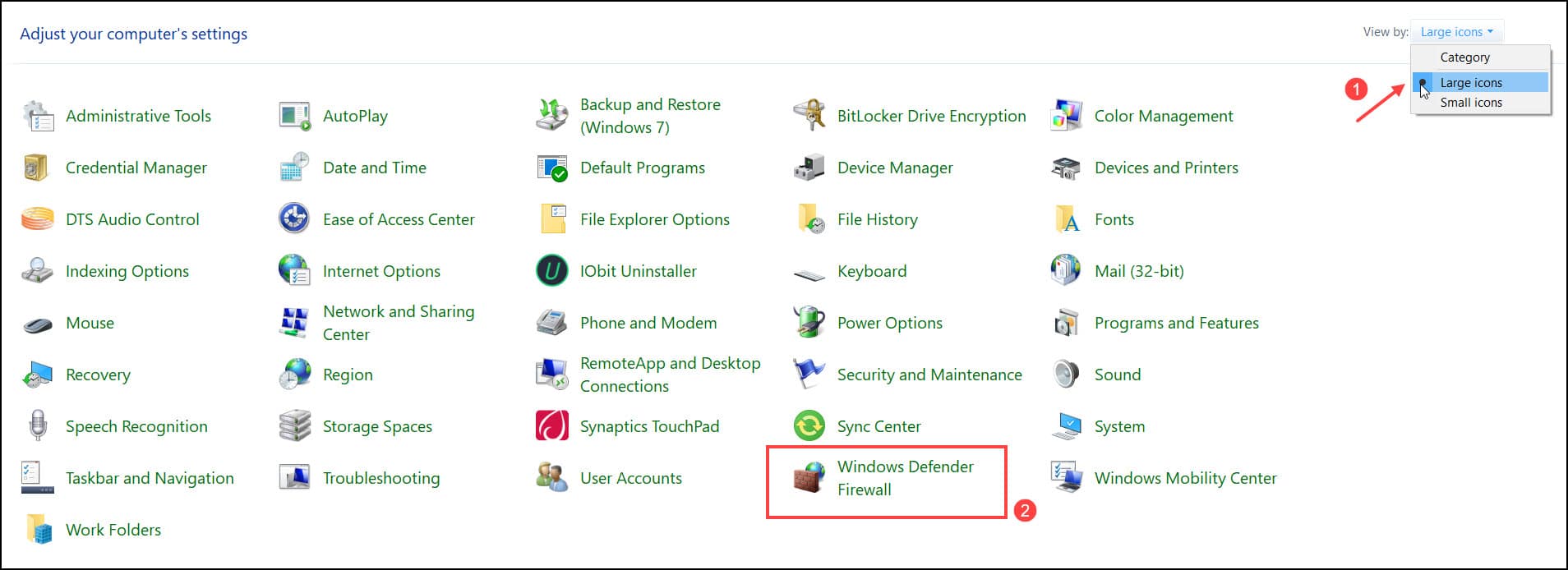
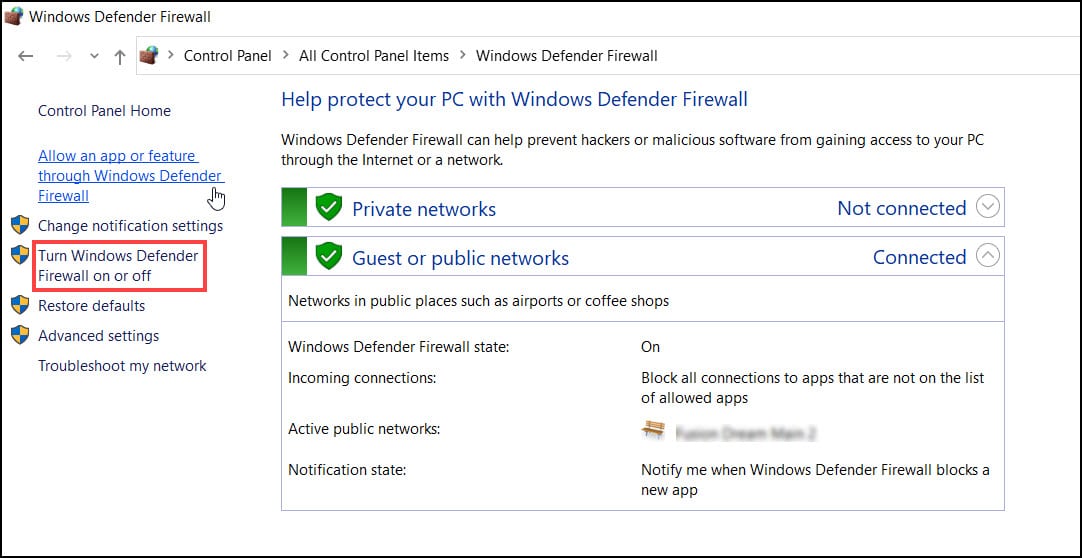
- After opening it, change the View by to Large icons and open the Windows Defender Firewall.
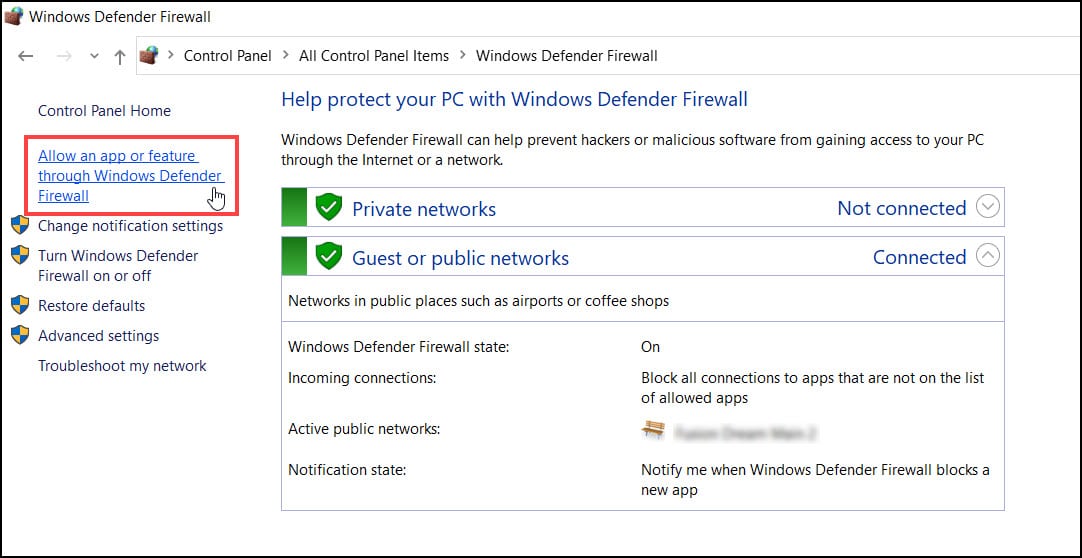
- After opening it, click on the Allow an app or feature through the Windows Firewall option from the left panel.
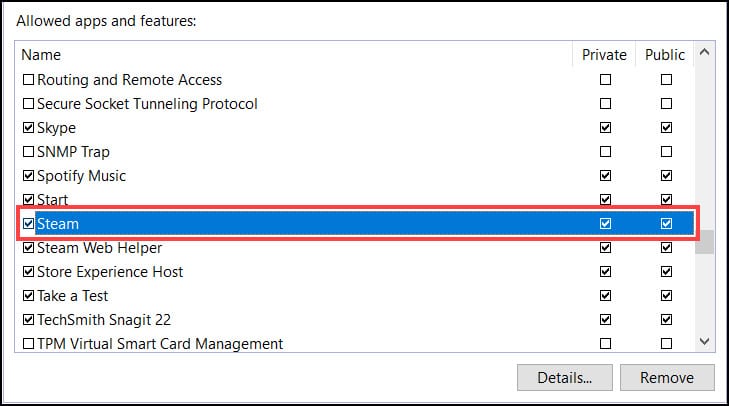
- Find Steam and check all its respective boxes.
- Click on Ok and restart your computer.
After restart, launch steam and log in. Check if still Steam is having trouble connecting to the Steam servers.
Solution 4: Temporarily Disable Antivirus and Firewall
If still Steam won’t connect to the server, try disabling your Antivirus and Firewall.
Here is how you can disable Windows Firewall:
- Go to the Start menu and enter Windows Defender Firewall in the search box.
- Select the top option and click on the Turn Windows Defender Firewall on or off option.
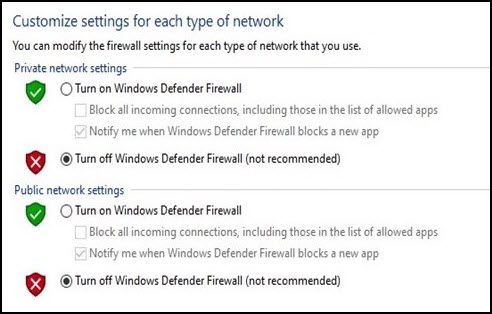
- Next click on Turn off Windows Defender Firewall (not recommended option) for both Private and Public network settings.
To disable Windows Security, follow the steps given below:
- Type Windows Security in the Windows search bar and select the appropriate option.
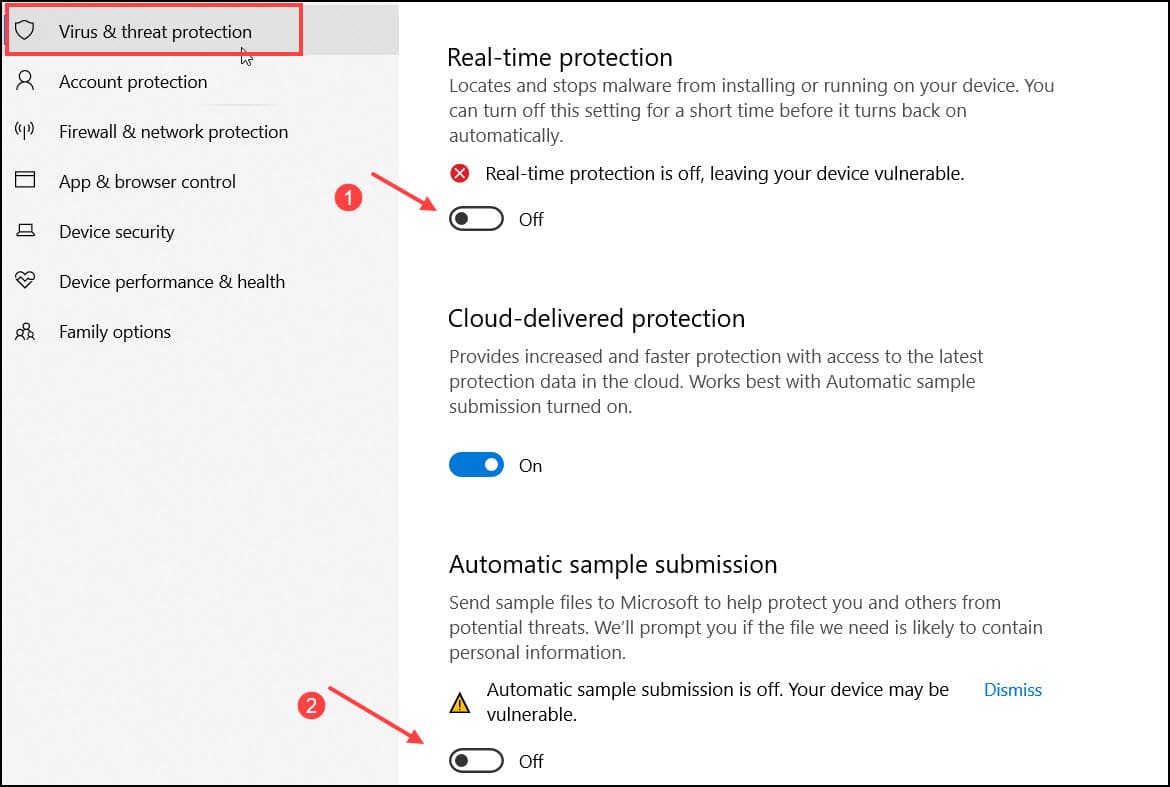
- Next, select the Virus and threat protection option.
- Click on the Manage settings option in the Virus & threat protection settings option.
- Turn off the Real-time protection toggle to disable Windows Defender.
Now go and check if the problem gets resolved or not. If solved then the issue is triggered due to your antivirus.
Solution 6: Reinstall Steam
If none of the above solutions work, try reinstalling Steam. This method has solved the problem for many.
Here is how you can uninstall Steam:
- Click on Start Menu and search Control Panel and select the first display option.
- After opening the Control Panel, change the View by to Category.
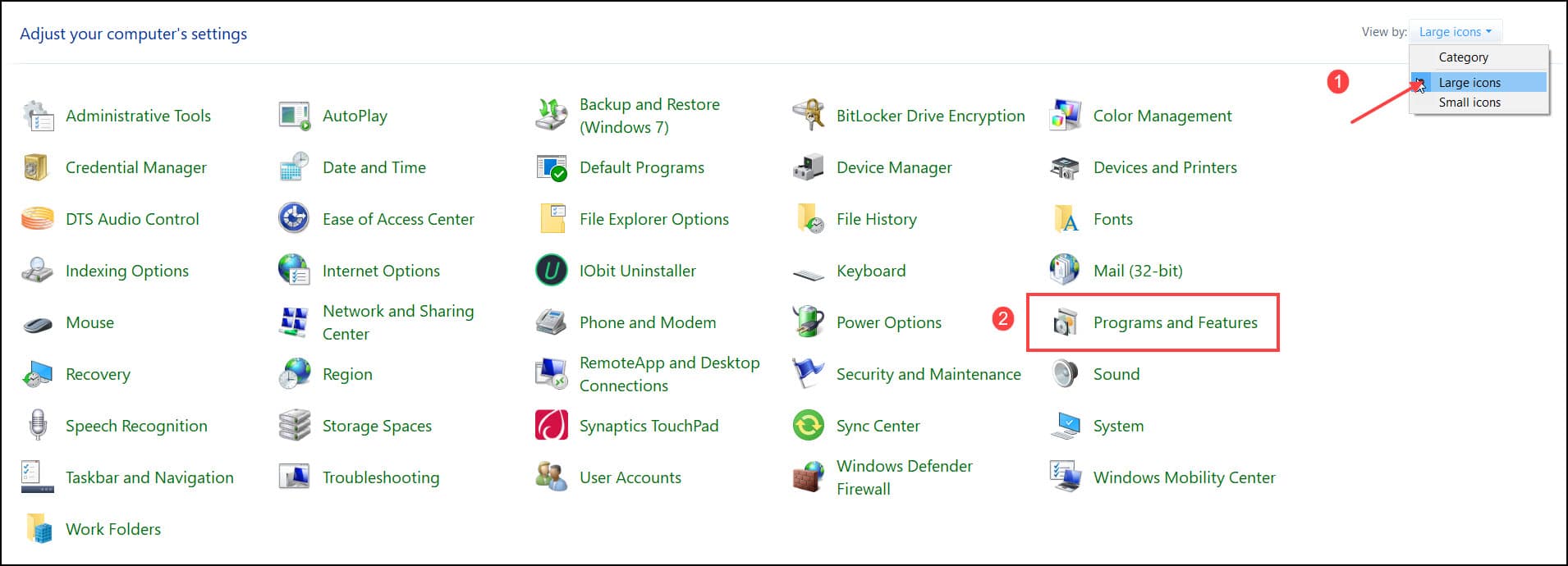
- Click on Uninstall a program under the Programs section.
- Locate Steam on the list and right-click on it. Click Uninstall and Confirm.

Follow the instructions for the uninstallation Wizard finish the process. Restart your PC.
After PC starts, go to the Steam website and click on the Install Steam button to download it. Once it’s downloaded, run the installer and follow the instructions on your screen.
Also read: How To Delete Steam Cloud Saves? – Ultimate Guide
Conclusion
So, there you have it. Now you know what to do when Steam cannot connect to the server.
If you still have questions regarding this issue, ask us in the comment section.


