If you have entered a wrong password multiple times, then you will find a locked out Windows account.
It will prohibit you from logging in for an uncertain amount of time.
If this is your problem then go through this article to know what to do when the referenced account is currently locked out.
Why The Referenced Account Is Currently Locked Out And What To Do?
Let us now see the root cause and the solutions when the referenced account is currently locked out.
Also, check What To Do If You Are Unable To login To Windows After Password Reset
1) Wait For Some Time
When you find the referenced account is currently locked out, wait for some time.
By default, your locked account is supposed to stay locked for 30 minutes.
In most cases, Windows requires 30 minutes to do so, but if you have used the wrong passwords multiple times then the time can be up to 24 hours.
So, allow a few hours and then try to log in with the correct password.
2) Update The Local Group Policy Editor
If you can log in a few hours after the referenced account is currently locked out error, then follow the next steps to avoid such problems in the future.
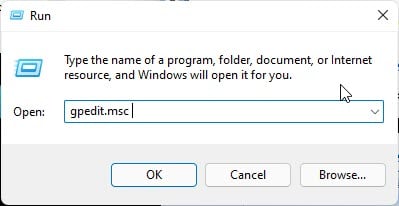
- Press Windows + R keys to open the Run utility. Copy & paste: gpedit.msc in the Run command box and press Enter.
Navigate to the following path:
Computer Configuration > Windows Settings > Security Settings > Account Policies > Account Lockout Policy
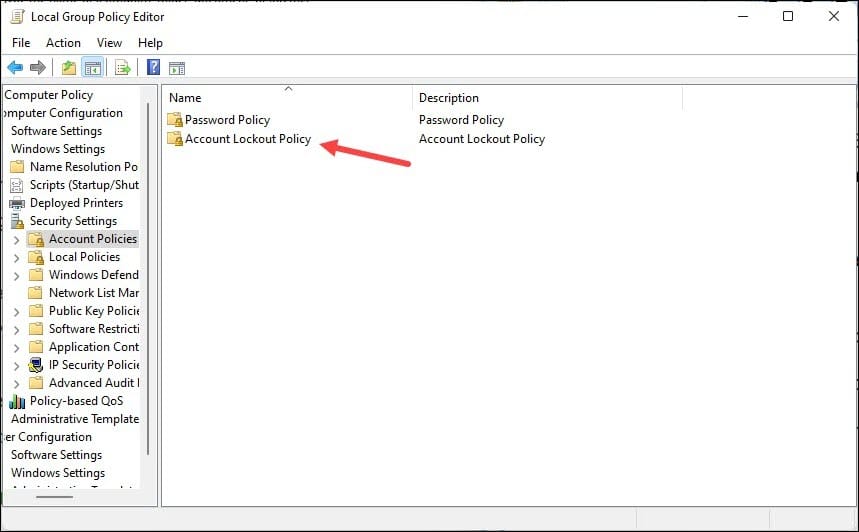
- Double click on Account lockout threshold Policy and set the value to 0.
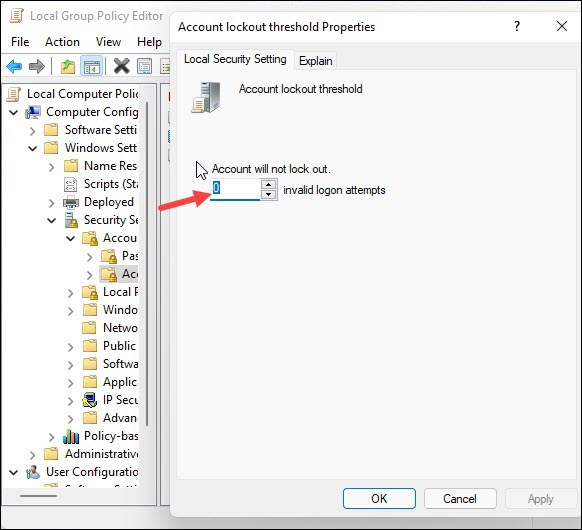
- Click on the OK button to apply your changes and restart your device.
3) Change Account Password Settings
After successfully logging in and performing the above steps, you can also set the password to the ‘never to expire’ option.
This is going to help you to avoid the referenced account is currently locked out error in the future.
Follow the given steps to do so:
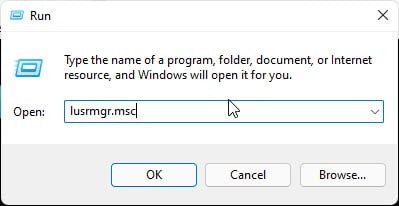
- Open Run and enter lusrmgr.msc in the command box and press the Enter key.
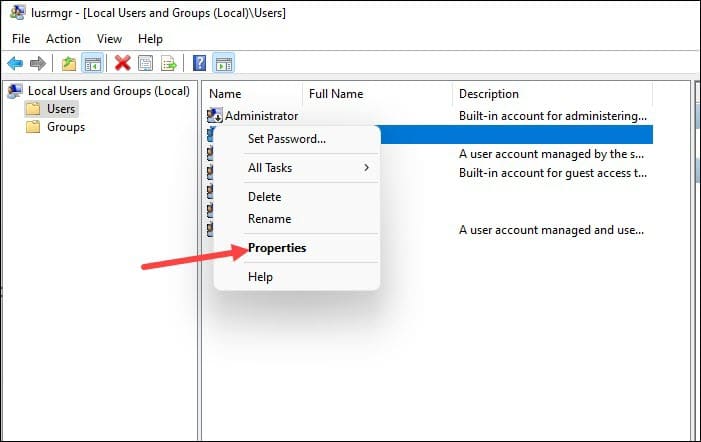
- From the displayed window click on Users and right-click on your locked account.
- Select Properties as shown in the picture below.
- Check the Password never expires box from the General tab.
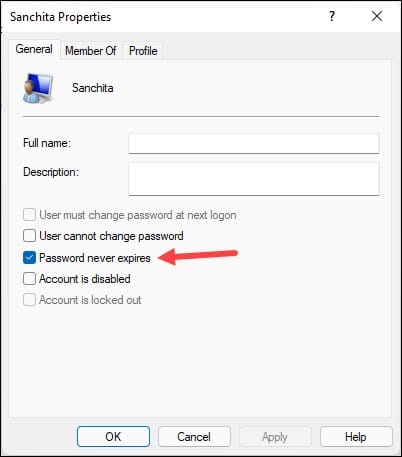
- Save the changes by clicking on the OK button.
4) Clear Cache From Windows Credentials
Clear the cached credentials from your device. Sometimes the cache gets corrupted and creates such problems.
So, to avoid that in the future, clear cache from Windows Credentials.
To do so, follow the given steps:
- Enter Credential Manager in the Windows Search bar and select the top result.
- Next click on Windows Credentials as shown in the picture below.
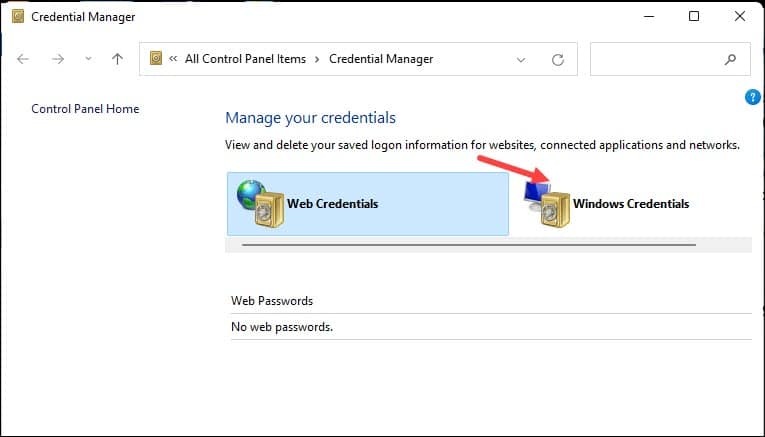
- From the Generic Credentials section, look for cached credentials and click on the arrow right beside it.
- Select Remove to delete it from your system.
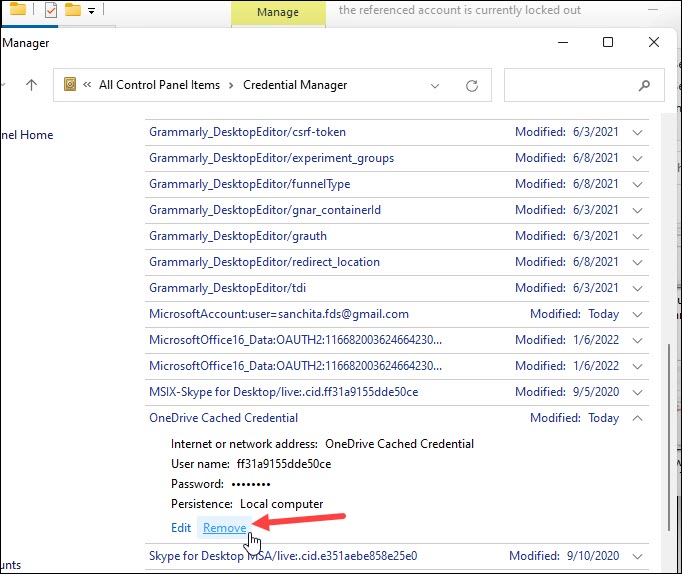
After doing so, restart your PC, and hopefully, you will be able to sign in to your account without any problem.
Closing Up
So, now you know what you should do to avoid the referred account is currently locked out error.
For any other tech-related queries, ask us in the comments section provided below.


