With the right knowledge and troubleshooting techniques, conquering the infamous runtime error will not disrupt your workflow.
So, instead of searching for the right solution, go through the easy fixes mentioned here. Fixing this error will enhance overall productivity and efficiency and unveil a path for smooth document processing and uninterrupted workflow.
What Is A Word Runtime Error?
A runtime error in MS Word is a type of issue in Word that occurs while the program runs, not when you are starting it up.
The causes of this particular error include:
- Incompatible applications
- Corrupt or missing files
- Malfunctioning add-ins
- Insufficient resources
- Dearth of memory
- Third-party application interferences
- Malware
Want to fix the Black Screen Glitch in Microsoft Word? Then follow this guide.
Easy Fixes To Fix Word Runtime Error?
There are several approaches to fixing the runtime error in MS Word. Try out these steps, and soon, you will be able to identify and address the issue causing the Word runtime error.
1. Start Word in Safe Mode
Starting Word in safe mode will turn off the add-ins and start Word with the bare minimum functionality. If a conflicting add-in causes an error, this will help identify it.
Here is how you can do this easy step :
- Press Windows + R and open the Run dialogue box.
- Then type “winword /safe” and press Enter.
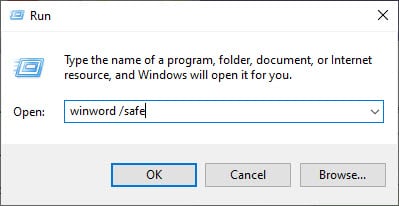
- Doing this will allow the Word to open in Safe Mode.
2. Disable Add-Ins
By disabling add-ins, you can create an environment where Word will run only with its essential features. If the runtime error disappears after disabling it, then it will be a proven fact that add-ins are the main culprit.
This is how you can go ahead and turn off add-ins:
- Press the Windows + R to open Run Utility.
- Type “winword.exe/a” in the Run command box and press Enter.
- Doing this will open Word in Safe Mode without Plugins.
- As shown previously, you can also use “winword /safe” to start Word in Safe Mode.
- If Word starts in safe mode, click the File button followed by Options.
- Choose Add-ins, then click on the Go button beside the Manage tab.
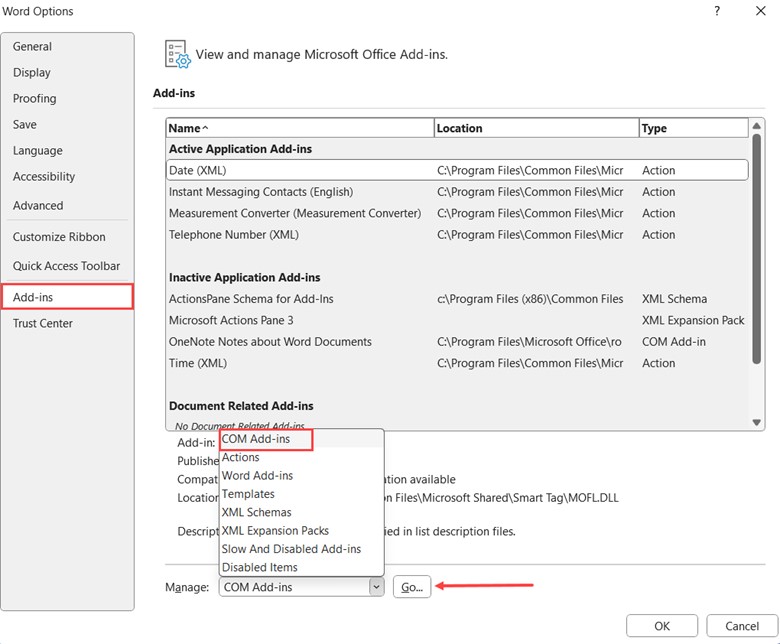
- From the dialog box, uncheck the checkboxes following the Add-ins.
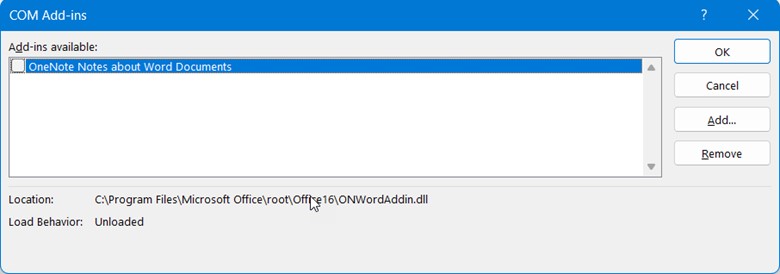
- Doing this will turn off the add-ins.
- To save the changes, click on the OK button.
3. Repair Word From The Control Panel
Repairing Word from the Control Panel will be a valuable step in the troubleshooting process, especially if disabling add-ins and Safe Mode didn’t help you resolve the issue.
The Control Panel has an option that repairs installed applications, including MS Word. This process can fix problems that occurred during the application’s installation or due to file corruption.
Here is how you can do it:
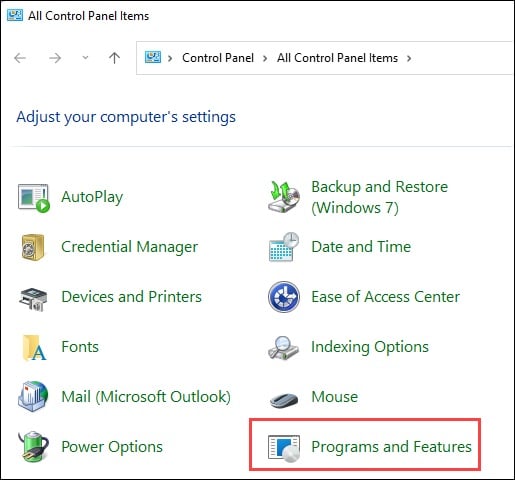
- Open Control Panel using Windows Search.
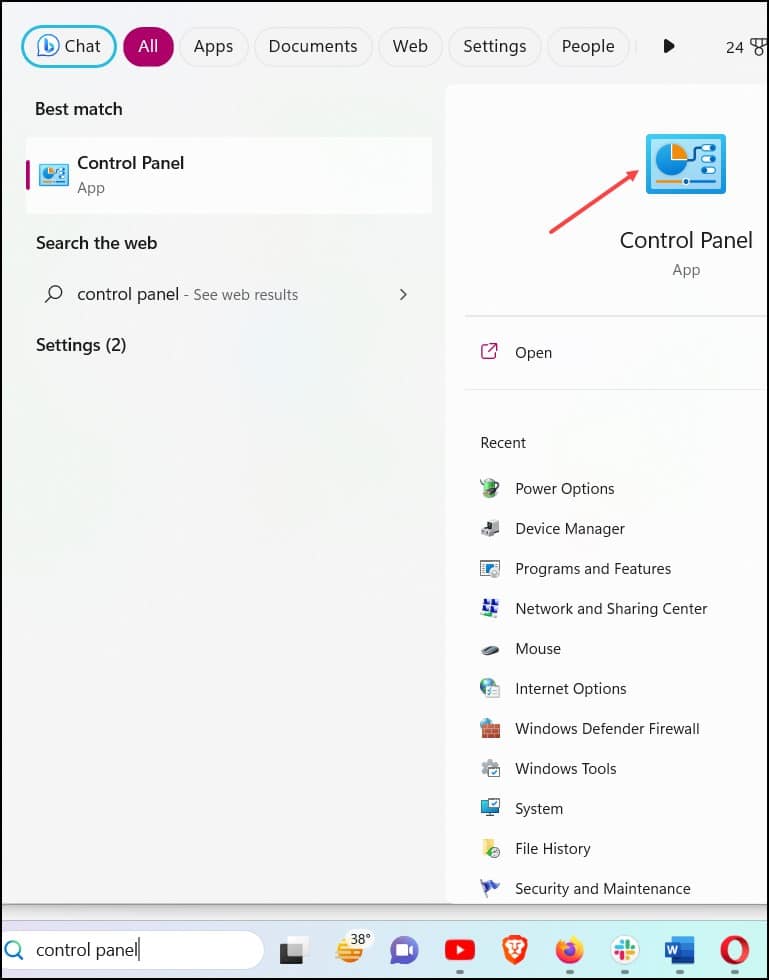
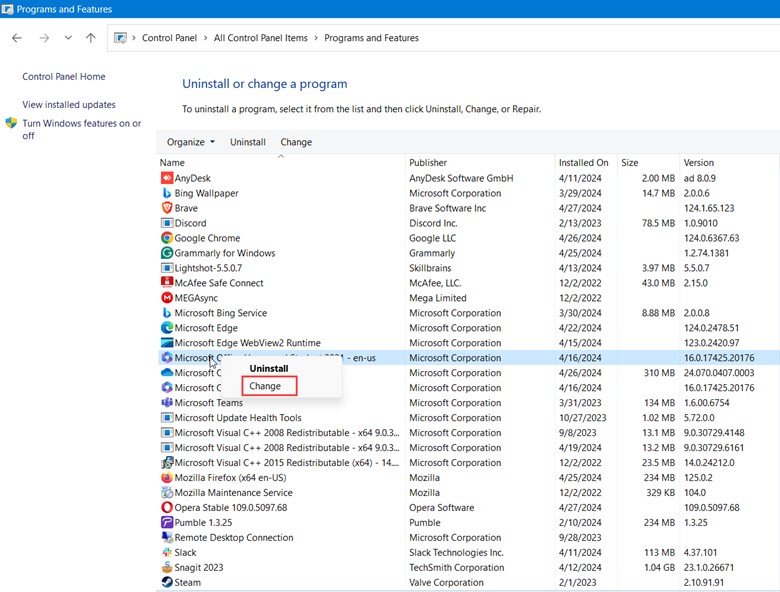
- Open Programs and Features and right-click on Microsoft Office from the app list.
- Select the Change option.
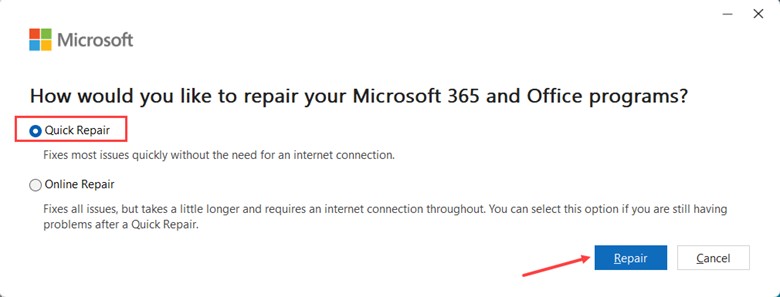
- Choose Quick Repair and then click on the Repair option.
- Follow the onscreen instructions and complete the process.
4. Change DCOMCnfg.exe Settings
The DCOMCNFG.exe tool configures DCOM settings, including security permissions for launching and activating DCOM objects. If these security permissions aren’t set correctly, they can result in runtime errors or other issues.
Changing DCOMCNFG.exe settings will help fix issues related to COM permissions, which can potentially cause runtime errors in specific applications.
This is how you can change it:
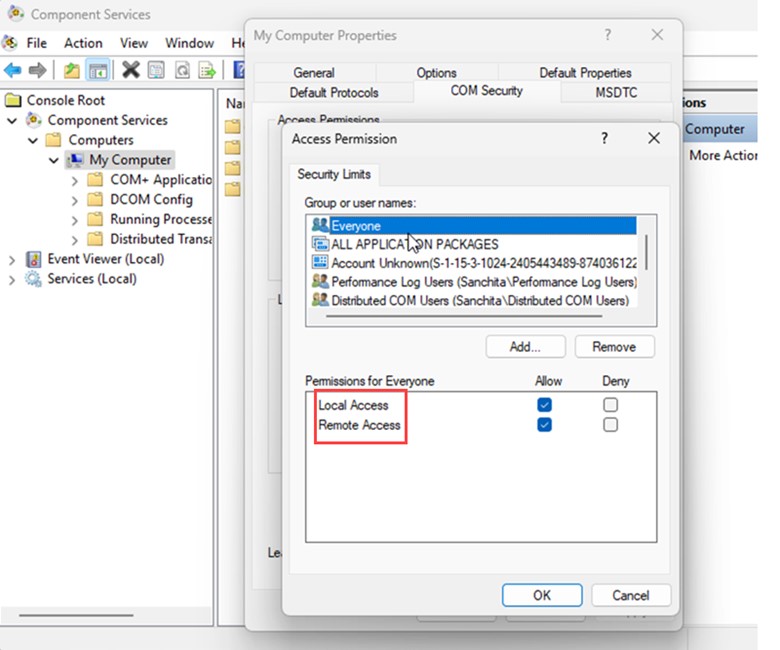
- Search “DCOMCnfg.exe” in the Search bar and hit Enter.
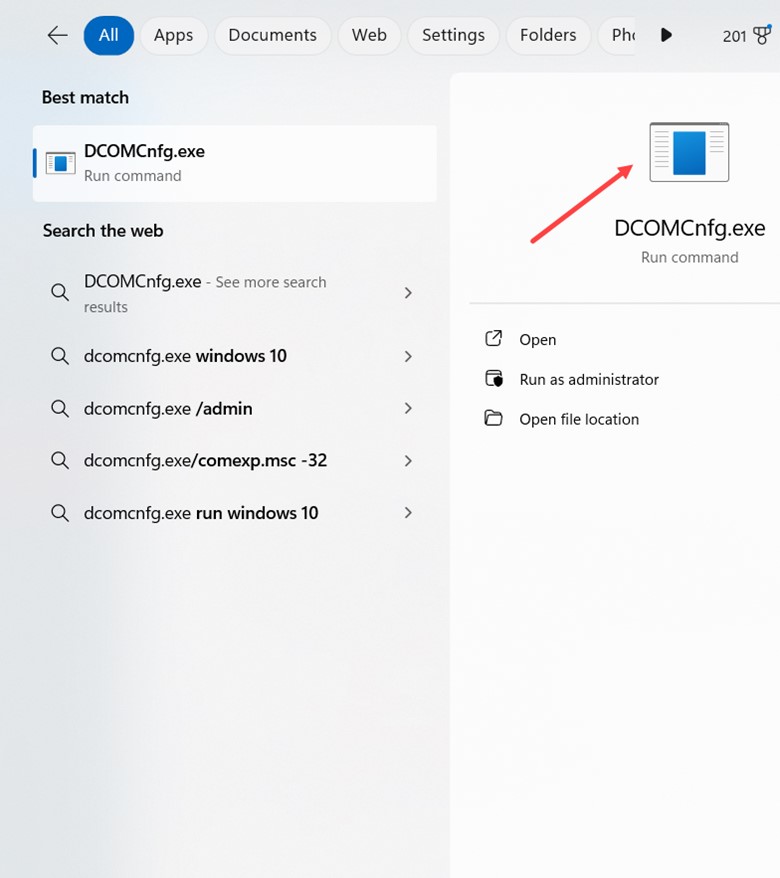
- Now, expand the Component Services, then select Computers.
- Right-click on “My Computer” and click on Properties.
- Click the “COM Security” tab, and under Access Permissions, click Edit Limits.
- Finally, select Everyone from the groups and ensure that Local and Remote Access is set to Allow.
5. Enable All Macros Settings
If disabled macros cause a runtime error in Word, enabling all macro settings will help you fix it.
To enable macros settings, follow the steps mentioned below:
- Open Word and click on the File tab.
- Then select “Options”.
- On the left, click on Trust Centre > Trust Centre Settings.
- On the left, click Macro Settings and select the “Enable all Macros” option.
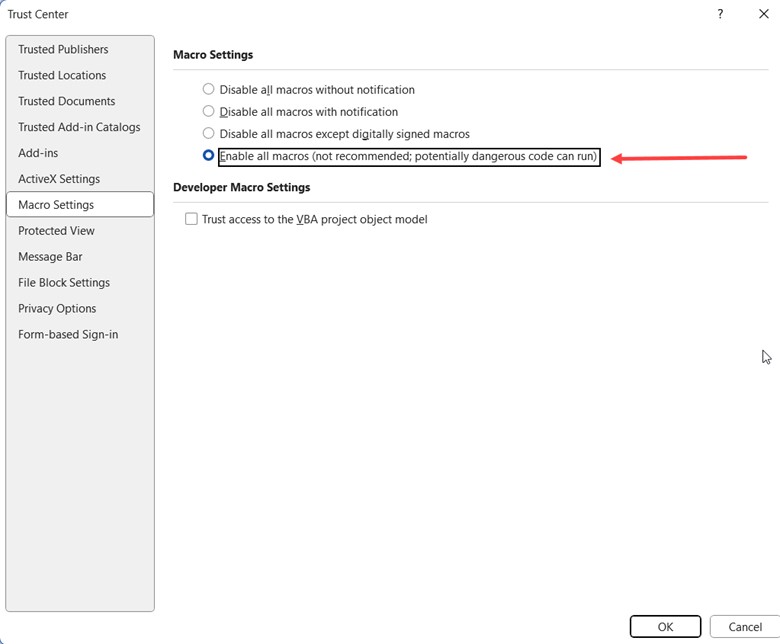
- Click OK, close Word, and check if the issue is fixed.
6. Check For Updates
Checking for updates and updating the system can help fix bugs, system errors, and runtime errors in Word. Therefore, checking and installing the latest patches and updates is essential to help resolve the runtime errors in Word.
To do that, follow the steps:
- Open Windows Settings.
- From the left Panel, select Windows Update. Then, choose Advanced Options.
- Next, turn on the toggle for Receive Updates for other Microsoft products option.
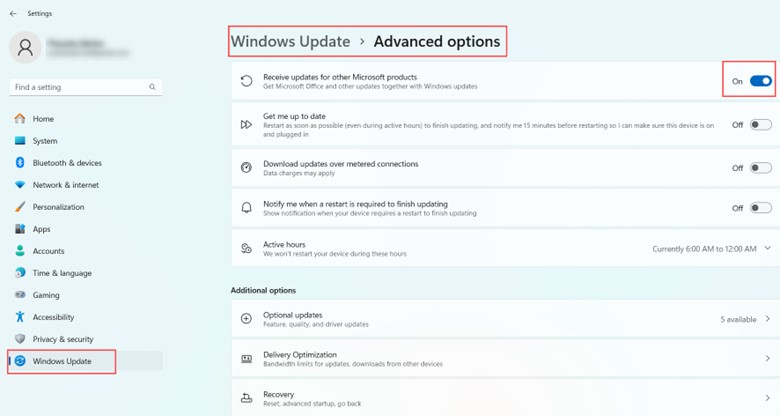
- Install updates, if any. Once done, restart your PC and re-launch Word.
7. Check The Profile7.dot file in Word Options
To ensure your user profile settings are correct and up to date, check the Profile7.dot file in Word options.
This is how you can do it:
- Open Word Options.
- On the left side, click on Add-ins.
- Use the Manage drop-down and select Word Add-ins.
- Click Go.
- On the Templates tab, ensure the Profile7.dot file check box is selected.
8. Change Settings in The File Block Settings
The File Block Settings in Word control the types of files that users can open or save within the program. By changing these settings, potentially harmful or incompatible files can be prevented from causing runtime errors.
Here’s how to do it:
- Go to the Word and click on “Options”.
- On the left, click Trust Centre.
- Next, select Trust Centre Settings.
- Next, click on File Block Settings.
- Uncheck the box for Word 95 Binary Documents and Templates.
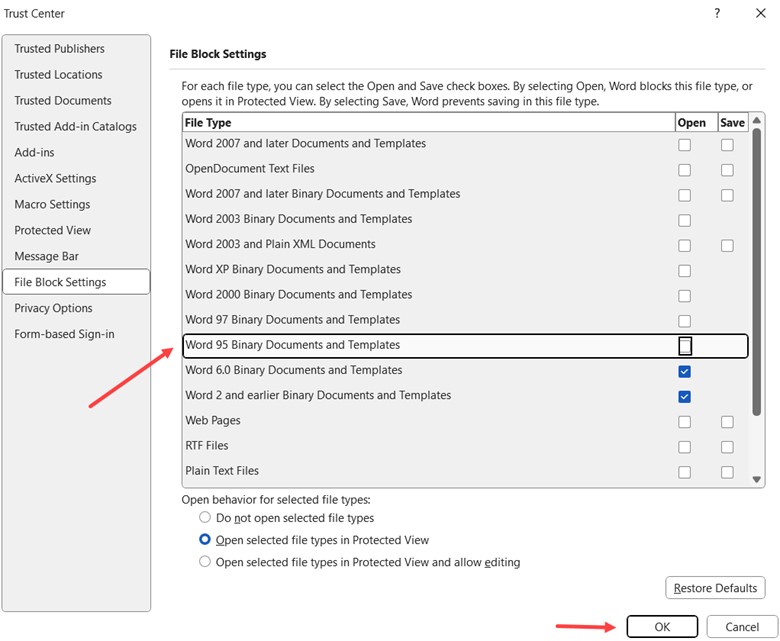
- Next, go to Protected View.
- Uncheck the box to “Enable Protected View for files originating from the Internet”.
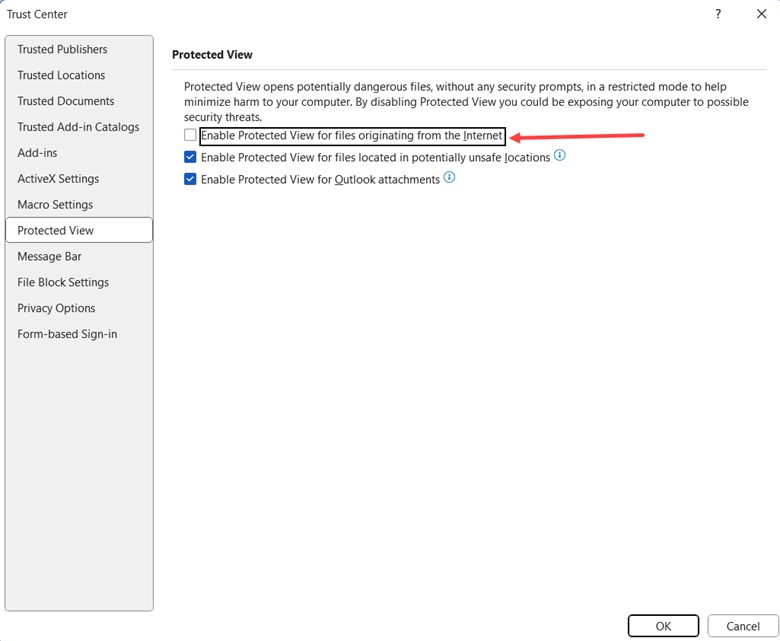
- Click OK.
- Close down Word and check again.
9. Reinstall Office
Reinstalling MS Office is the last resort. If all the above troubleshooting steps fail, go ahead and do it.
It will resolve any issues with the Office installation or configuration, so here are the steps for doing it:
- Open the Run utility by pressing Windows + R.
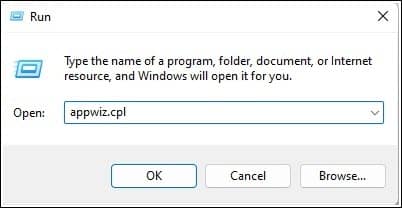
- Enter appwiz.cpl in the Run dialog box and then press Enter.
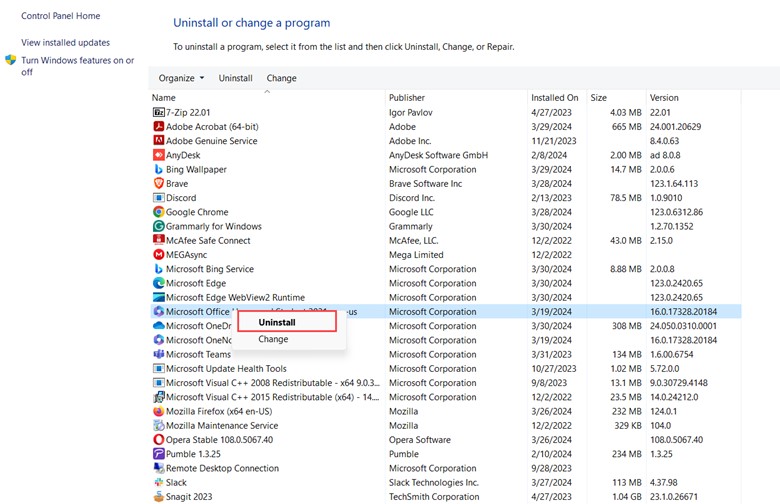
- Find Microsoft Office from the installed apps.
- Right-click on it and select the Uninstall option.
- Follow the onscreen instructions to finish the process.
- Reinstall Word and check.
Best Practices To Avoid Word Runtime Error In Programming:
Follow these best practices to reduce the occurrence of runtime errors, enhance code quality, and improve the reliability and performance of their software applications.
- Ensure every occurrence of an array is within bounds
- Memory management
- Validate and sanitize input
- Implement proper error-handling mechanisms
- Employ clear and consistent naming conventions
- Plan and outline algorithms beforehand
Frequently Asked Questions (FAQs)
- How Do I Locate The User Library Folder To Fix Word Runtime Errors?
To locate the user library folder on MacOS and address Word runtime errors, hold down the “Option Key” while clicking “Go” and then navigate to the relevant directories.
- How Can I Recover And Repair Word Documents Affected By Runtime Errors?
You can use specialized Word repair software to repair Word documents affected by runtime errors, thereby ensuring that critical data is not lost.
- What Should I Do If None Of The Above Solutions Work For Fixing Runtime Errors In Microsoft Word?
If none of the above solutions work to fix the runtime errors in MS Word, then contact Microsoft Support for further assistance.
Final Words
Tackling runtime errors in Microsoft Word will be manageable if you follow the correct troubleshooting techniques. So, go forth and explore the solutions, and begin the quest for error-free Word documents.

