 Today, Avast Antivirus and Internet Security are used by several users all over the world. It helps in protecting personal as well as business computers.
Due to certain reasons, some users want to turn off Avast temporarily but it is not recommended by experts.
Users can pause Avast on their own risk caused by viruses, malwares and unauthorized applications.
Let’s discuss the method of how to stop Avast from running–
Steps To Disable Avast Temporarily
Before discussing it, you must know that Avast shields help in protecting the computer system from virus attacks and other problems.
Depending on your requirements, you can disable it for a few minutes to permanent.
- Right click on Avast icon on the taskbar
- Select Avast shields control
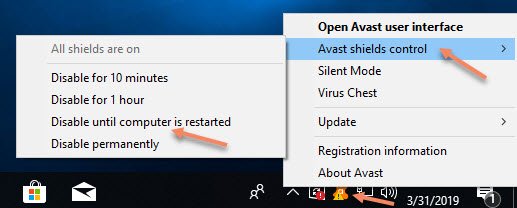
Choose the options to make the necessary changes. Here you can also select disable permanently for turning it off.
It will then ask you for the confirmation related to your action.
- Select ‘Yes’ and proceed
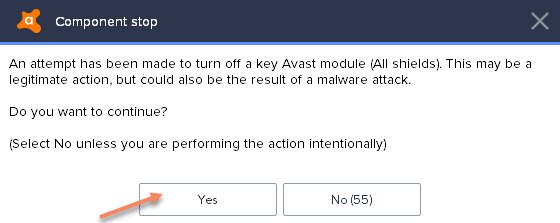
In case you want to verify whether it has been disabled or not, you need to open the antivirus.
It will show ‘All antivirus shields are off’ that means you’re not protected from Avast. Needless to say, it is the procedure of how to stop Avast from running in the background.
Note that you can also choose a specific shield and turn it off.
Steps To Stop A Specific Avast Shield
- Right click on Avast icon
- Select ‘Open Avast user interface’
- Choose Protection tab
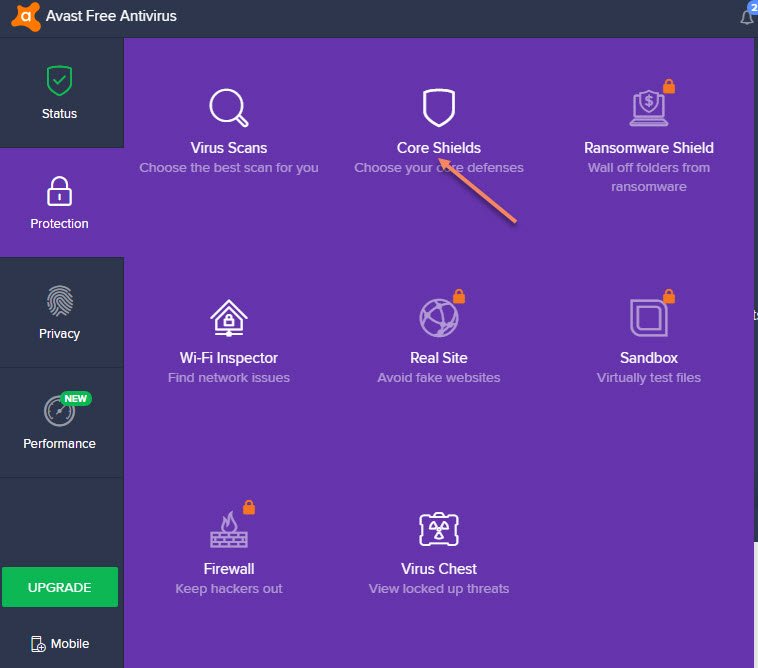
- Go to Core Shields
- Select the shields that you want to disable
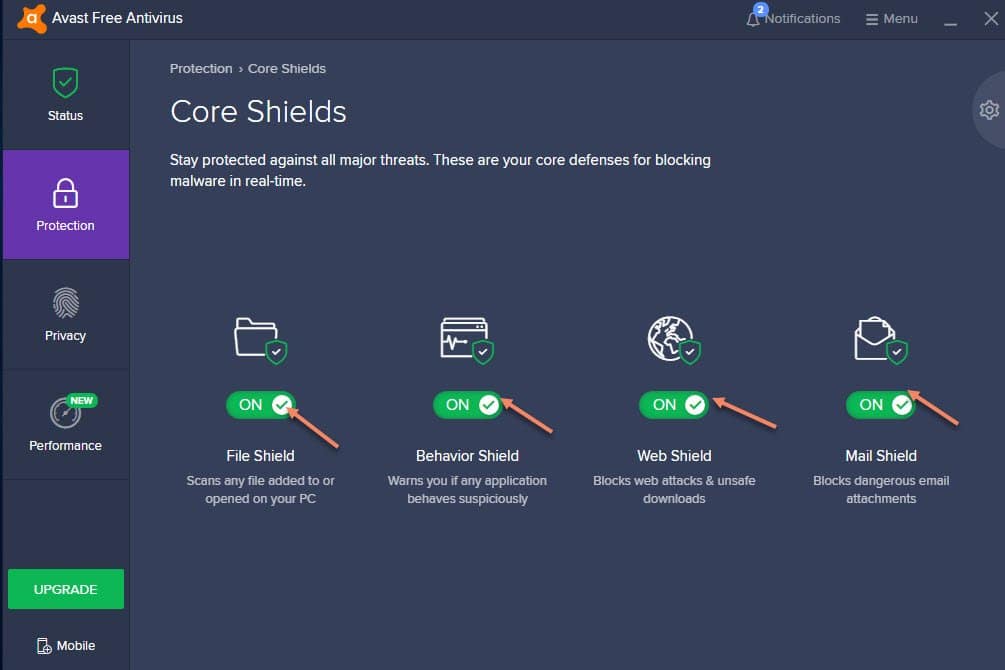
It will ask you to select the duration of turning it off. You can also make the changes permanent by choosing the respective option.
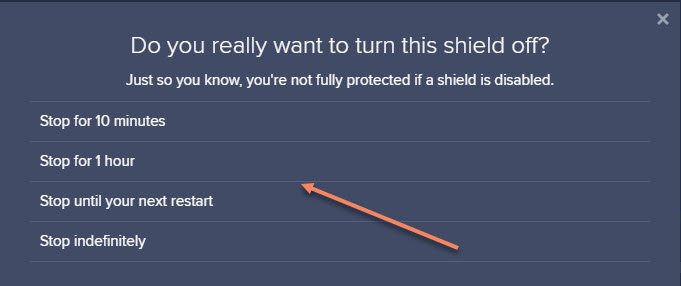
Now, close the antivirus window and reboot the PC.
This has definitely solved your query on how do I turn off Avast specific shields. In case you want to turn it on, you need to follow the same steps.
Steps To Disable Avast On Startup
Some users want to stop the antivirus from running on startup. It could be done by following a few simple steps-
- Right click on the taskbar
- Choose Task Manager
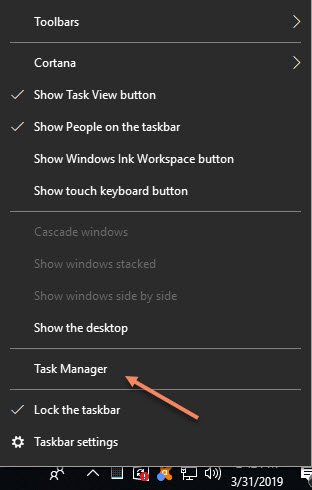
- Go to Startup tab
- Select the preferred desktop app
- Click on ‘Disable’
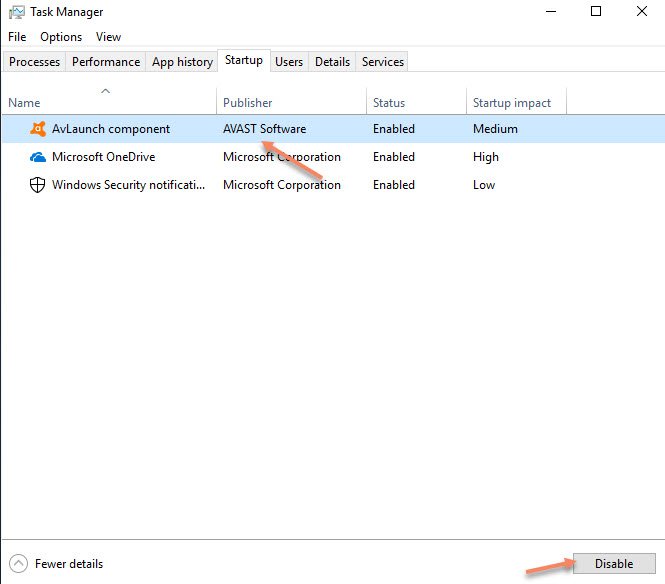
It’s done.
Now, it will not run automatically when you turn on your computer.
Note:
According to the reports, there are users who don’t want to receive any popup messages when they allow Avast to run in the background.
If you are not interested in such warning and important messages, you can disable the same.
Steps On How To Prevent Avast Pop Ups
- Open Avast antivirus as mentioned above
Go to the Menu tab and choose Settings
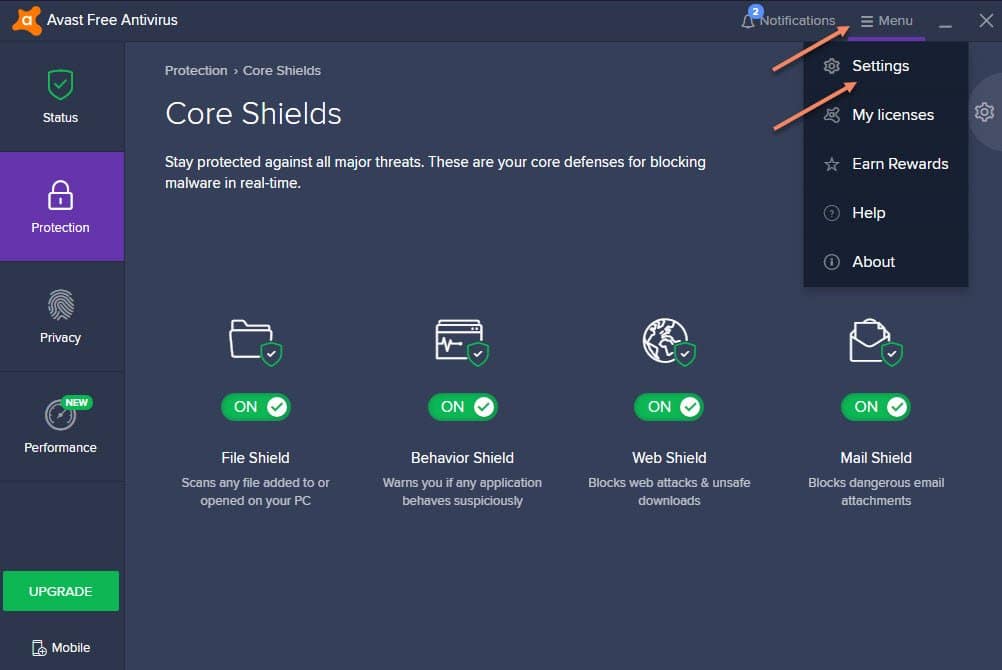
- Untick the option to turn off all pop-ups, alerts and messages
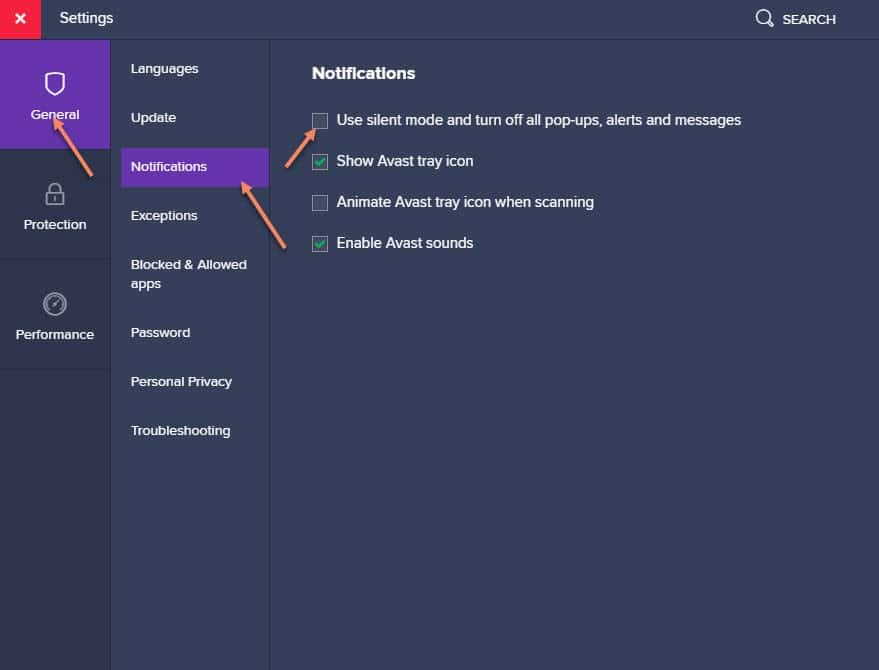
- Close the window to save the changes
Now, you won’t get any messages related to antivirus scanning, updates and related information.
Conclusion
This is all about the steps with which you can stop Avast from running temporarily, permanently and in the background.
Hope this information has solved all your queries.
In case you need more support, you can use the below box to type your message and comment.

