Google Chrome has come very far from just a browser. Google has been developing Chrome to be complete in every way possible. Rightly so, as most of the apps available these days have an online version, and most people use a computer to surf the internet.
Bad video quality in Chrome can put a dent in the user experience of the users who use Google Chrome for media consumption. If you too see pixelated videos in Google Chrome, here are some of the simple solutions that you can try in order to solve this error.
How To Fix Poor Video Quality In Google Chrome?
If you see bad video quality in Google Chrome, try one of these solutions to troubleshoot this error.
Solution 1: Adjust Video Resolution
By default, YouTube and other content hosting websites use cookies to save the information about the resolution that you used to play the videos the last time you logged into the service. If you used a low-resolution video the last time, there is a chance that this is being retained.
You might also be shifted to a lower resolution if you do not have good internet speeds. This change is made when you have set the video resolution at Auto.
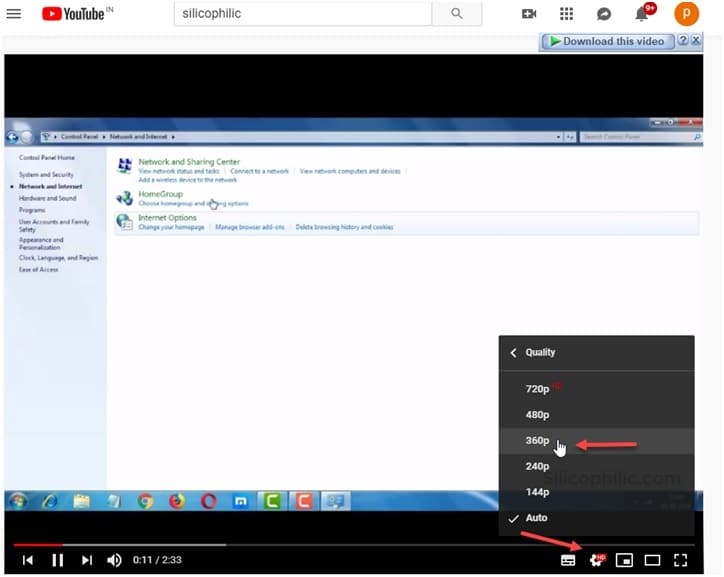
If you see YouTube videos pixelated in Chrome, you can start by adjusting the video resolution to a higher value.
Solution 2: Update Google Chrome
Sometimes, newer functions do not work properly on older versions of Google Chrome. If you are running an older version of Google Chrome, there is a chance that the browser may not have the proper resources to run videos at higher resolutions.
Simply visit chrome://settings/help by pasting this in the address bar of Google Chrome or click on Help > About Chrome from the settings menu.
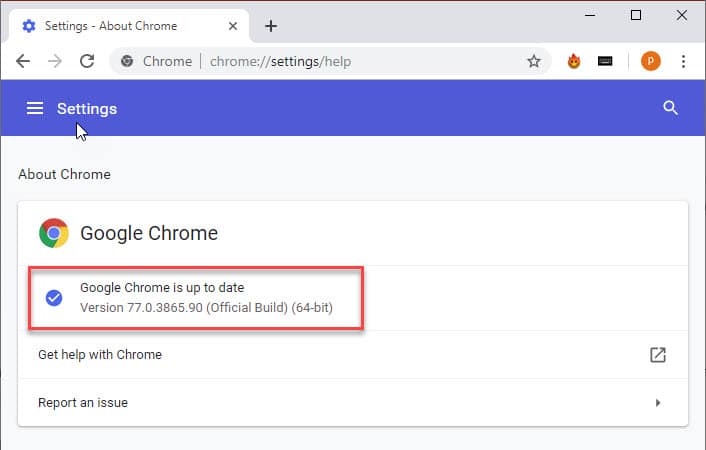
Once you open this page, Chrome will look for any pending updates automatically, and update the browser to the latest version.
Also read: Chrome update error 12
Solution 3: Turn Off Hardware Acceleration
Chrome has a built-in feature that helps improve the performance of the browser by utilizing idle hardware resources. Hardware acceleration is a very useful feature. However, it comes with its problems as not all users can benefit from this feature.
You can turn off hardware acceleration in Google Chrome, and check if the poor video quality is resolved.
Solution 4: Adjust Data Saver Settings
There is a limiter option in some websites, where the media is played on a lower resolution if you have data saver mode enabled. This data saver will limit the video resolution to a lower value in order the match the maximum limit of data consumption.
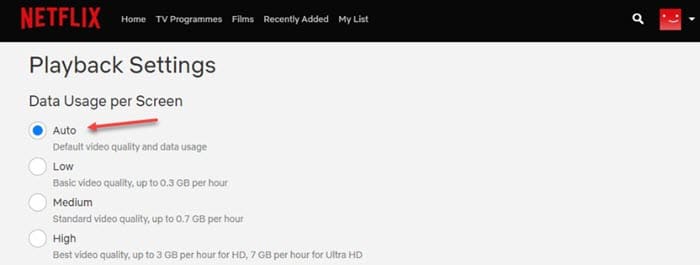
To check if this is the case for you, check the settings section of the website where you are seeing pixelated video. Navigate to the data saver section and remove the limiter or set it to a higher value.
Solution 5: Turn Off Lite Mode In Google Chrome (Android Only)
In the mobile version of Google Chrome, there is a feature called Lite Mode, which works quite similar to the method provided in solution 4. The Lite Mode is like a data saver and will all the websites to load stripped down version of the websites in order to consume less data.
To access the Chrome video quality settings, click on the three vertical buttons in the top right corner of the browser, and click on the entry where the amount of data saved is mentioned.

This will redirect you to the Lite Mode page. Here, turn off the toggle next to Lite Mode to turn off the data saver.
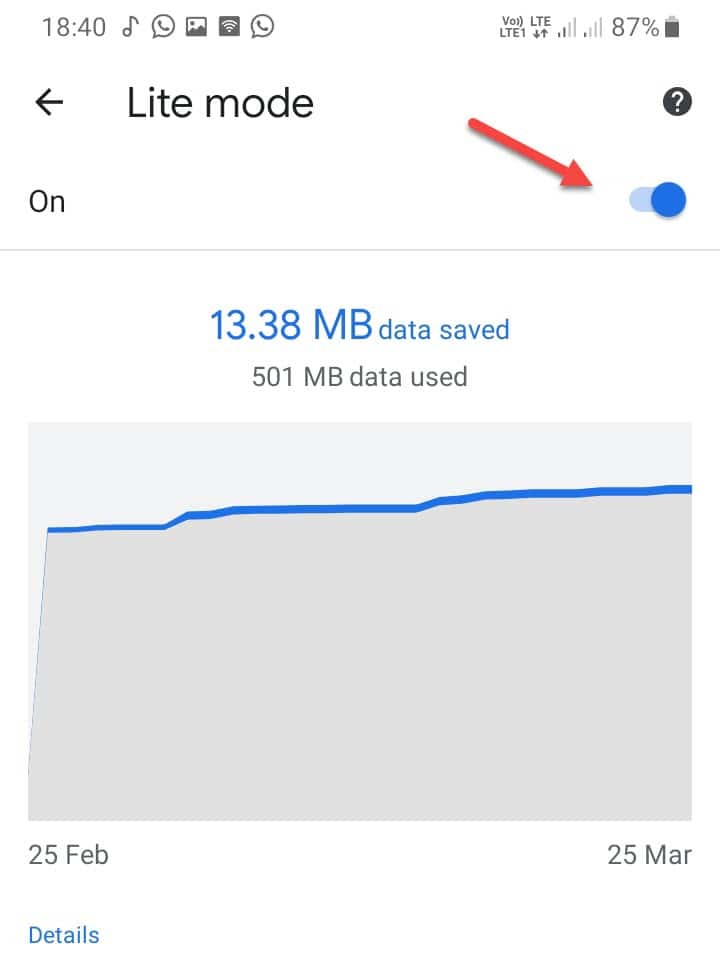
Now the video in question should load normally.
Wrapping Up
So, there you have it. Now you know how to access Chrome video quality settings and solve if you see poor video quality in Chrome. Comment below if you found this useful and to discuss further the same.

