Google Chrome is one of the most popular web browsers on all the available platforms. It has earned this reputation thanks to its increased focus on speed and security, making the browsing experience better. The app itself also receives regular updates, making it feel fresh and new.
Some users, however, have reported that they cannot update Google Chrome to the latest built. The updates fail every time they attempt to do so, and get an error message that says, ‘Update failed (error: 12)’
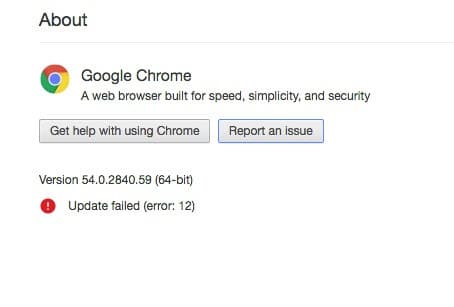
Google Chrome Update Errors; Can’t Update Chrome
There are many different errors associated with Google Chrome updates. Here are some of the common error codes which you may see while attempting to update Chrome:
- Update failed: Updates are disabled by the administrator
- Update failed (Error: 3 or 11) An error occurred while checking for updates: Update server not available
- Update failed (Error: 4 or 10) An error occurred while checking for updates: Update check failed to start
- Update failed (Error: 7 or 12) An error occurred while checking for updates: Download failed
- This computer will no longer receive Chrome updates because Windows XP and Windows Vista are no longer supported
- Google Chrome may not be able to keep itself updated.
- Other errors that mention that “Update failed“
How To Solve Google Chrome Update Failed (Error: 12)
Error 12 reflects the fact that Google Chrome cannot download the required files from the appropriate servers. This can be resolved by manually download the latest files; however you can also try these fixes provided here.
Solution 1: Force Close Google Chrome
If you see that Chrome won’t update with error code 12, you need to force close and restart Google Chrome and then attempt the update again.
- Open the Task Manager from the WinX menu, or by using the keyboard shortcut Ctrl + Shift + Esc.
- Under the Processes tab, locate and click on Google Chrome.
- Right-click on Google Chrome to reveal the context menu, and select End task. Else, you can also select the End task button at the bottom right corner of the task manager.
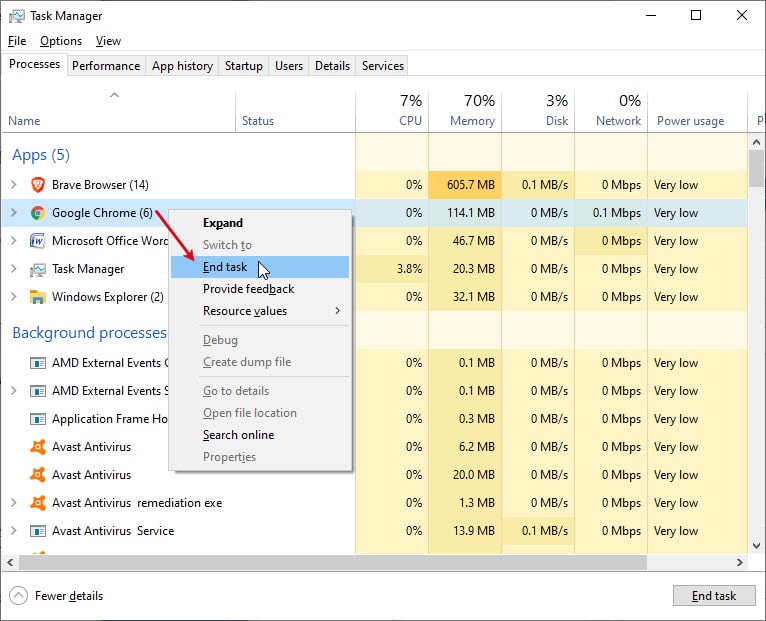
- Now, click on File > Run new task.
- Type chrome.exe and press Enter. Make sure to check the box next to Create this task with administrative privileges.
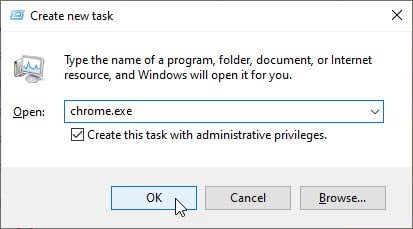
- Now attempt updating Chrome again.
You should be able to update Chrome this time, solving your error.
Solution 2: Review Antivirus Blocks
Your antivirus may be set up to block any unnecessary downloads. However, sometimes these can malfunction, therefore also blocking any required downloads. This can be the reason that you may be facing the Google Chrome update failed error 12 message.
Turn off the antivirus shields for a while, and then attempt to download the updates to your Google Chrome software. This should solve your error, and you should be able to download the updates.
Solution 3: Manually Install The Latest Updates
If you see the update failed (error: 12) message and can’t update Chrome, you can try performing a clean reinstall of the Google Chrome browser. This will also help you in case you have a corrupt Chrome installation. A fresh install will reset all the broken files and settings, and form the data libraries again.
- Uninstall the Chrome application from the Control panel. Then remove the residual files as well. To remove the residual files, you can use a third-party junk file cleaner like CCleaner.
- Then download a fresh copy of the latest Google Chrome installer from the Google website and run the installer.
- Wait for the installer to finish the updated version of the browser.
Conclusion
Google Chrome with the latest updates is one of the most secure browsers over the internet. However, if you saw that the Google Chrome update failed (error: 12) message, now you know how you can solve this and get the latest version of the browser. Comment below if you found this useful, and tell us your favorite Chrome feature.

