High ping or latency in Valorant is quite common. But there are things that can be done to fix it.
Here we have shown how to reduce high ping in Valorant, so keep reading!
Also read: What To Do When Valorant Is Not Launching But Open In The Background!
How To Fix High Ping In Valorant?
Ping in Valorant can be high because of connectivity issues, improper settings, outdated network drivers, improper Firewall ports, and various other reasons.
Follow the solutions given below to fix the high ping in Valorant.
1) Restart The Router Or Modem
If the internet connection is not stable then you can experience high ping in Valorant.
So, restart the router or the modem and this can primarily fix the issue.
Turn off the router or the modem and disconnect the power cable.
Wait for a few minutes before reconnecting everything and turning on the router or modem.
After a fresh restart check if the problem is solved. If not then update the network driver.
2) Update The Network Driver
Due to network connectivity issues, you may encounter lag or latency while gaming.
To reduce this, update the network drivers following the steps below:
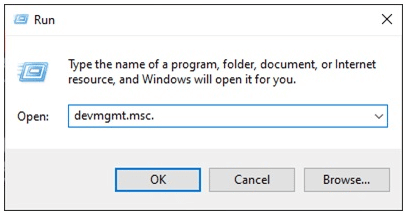
- Press the Win + R keys to open the Run dialog box.
- Enter devmgmt.msc in the Run command box and press Enter.
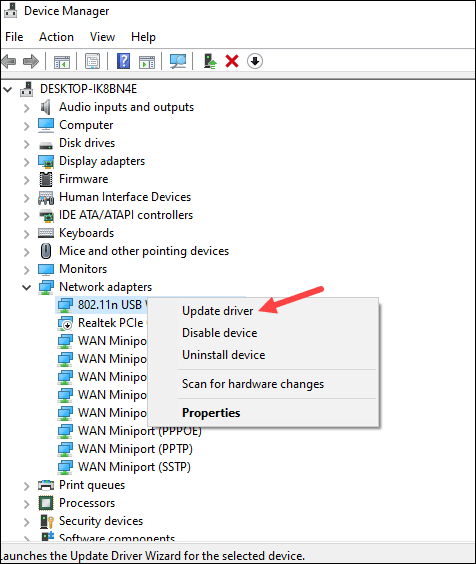
- Expand the Network adapters section and right-click on your network adapter.
- Select Update Driver option.
- If after updating the network drivers you get the same error, then go to the next solution.
3) Close The Processes Using Network Bandwidth
When ping is high in Valorant, close all the programs that may be using your network bandwidth, like Steam, Discord, or Chrome.
Close the programs following the steps given below:
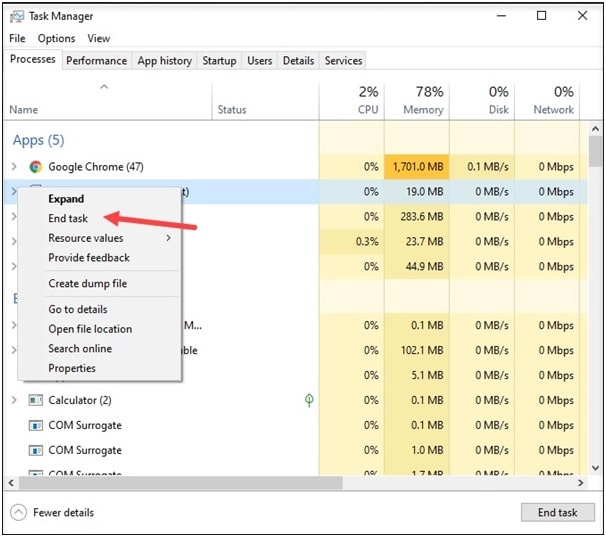
- Right-click on your Taskbar and open Task Manager.
- Check the Network section to find the tasks consuming bandwidth.
- Right-click on each task and select the End task option.
- After completing the process, restart the PC.
4) Set Valorant To High Priority
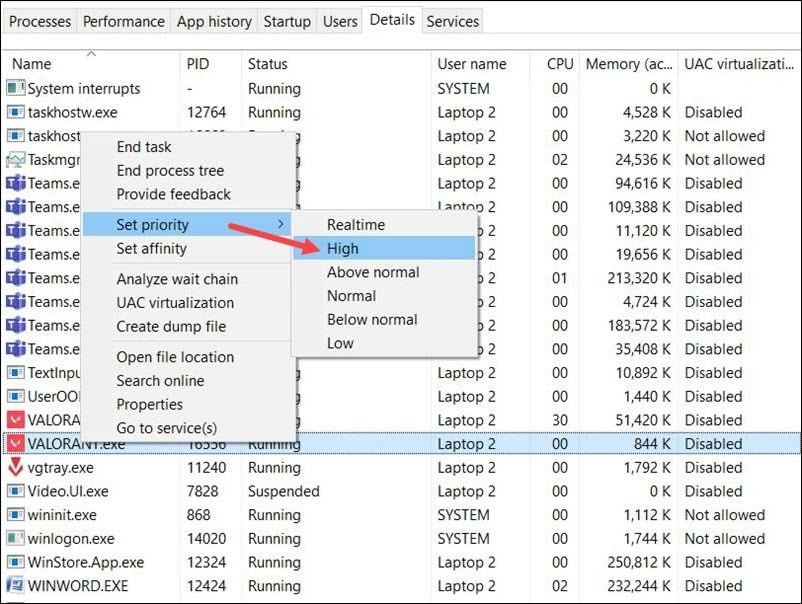
To reduce ping in Valorant, set Valorant to high priority in the Task Manager.
- To do so, open the Task Manager and click on the Details tab.
- Find Valorant and right-click on it. Set the priority to high.
5) Check The Firewall Ports
Incorrect Firewall port settings can be the reason for the Valorant high ping.
So, change the port and check if this can fix the problem. To do so, follow the steps given below:
- Enter Windows Firewall in the Windows search bar and select the top option.
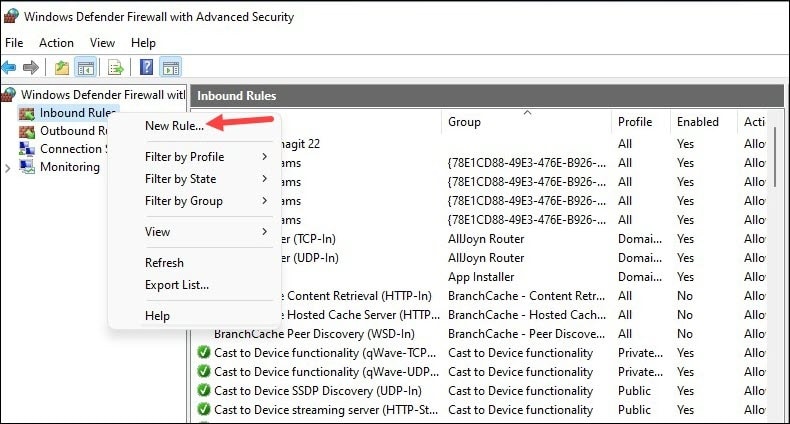
- Click on Advanced settings and from the left panel, highlight Inbound Rules.
- Right-click on it and click on the New Rule option.
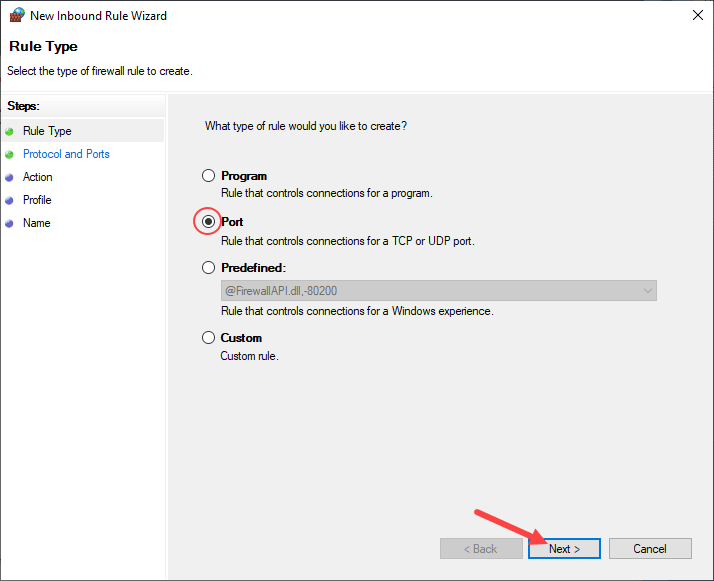
- Click on the radio button for Port and click on the Next button.
You can then click on TCP or UDP and enter the port number into the Specific local ports field. Click on the Next button to continue.
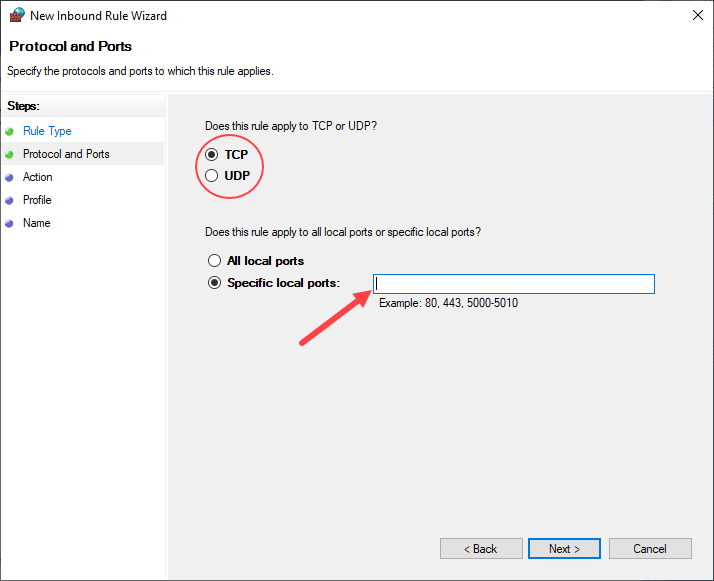
You can use the following ports:
7000 – 7500 UDP (VALORANT Game Client)
2099 TCP (PVP.Net)
8393 – 8400 TCP (Patcher and Maestro)
5222 TCP (PVP.Net)
5223 TCP (PVP.Net)
80 TCP (HTTP Connections)
443 TCP (HTTPS Connections)
8088 UDP y TCP (Spectator Mode)
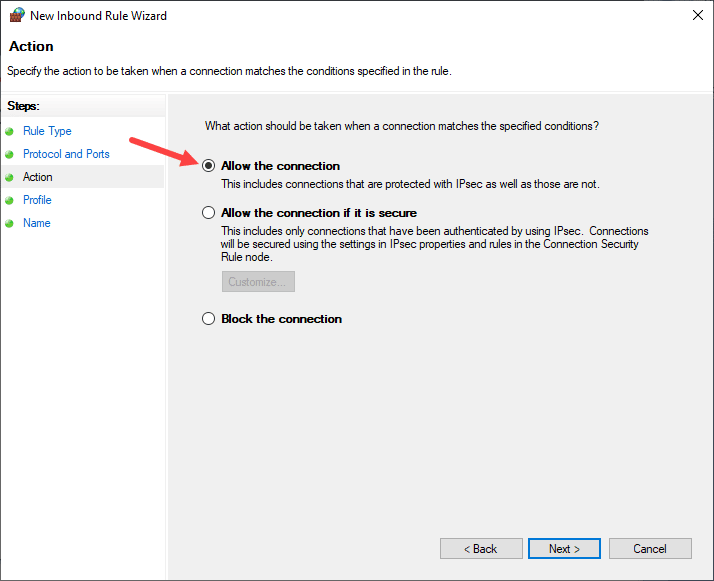
- From the next window, select Allow the connection and click on the Next option to finish the process. This should solve the problem.
6) Change DNS
You can also change the DNS if the above methods could not solve the problem.
To do so, follow the steps given below:
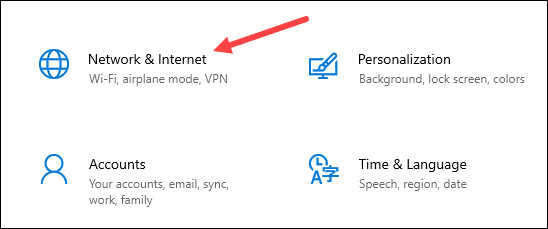
- Press the Win + I keys and open Windows Settings. Click on the Network & Internet option.
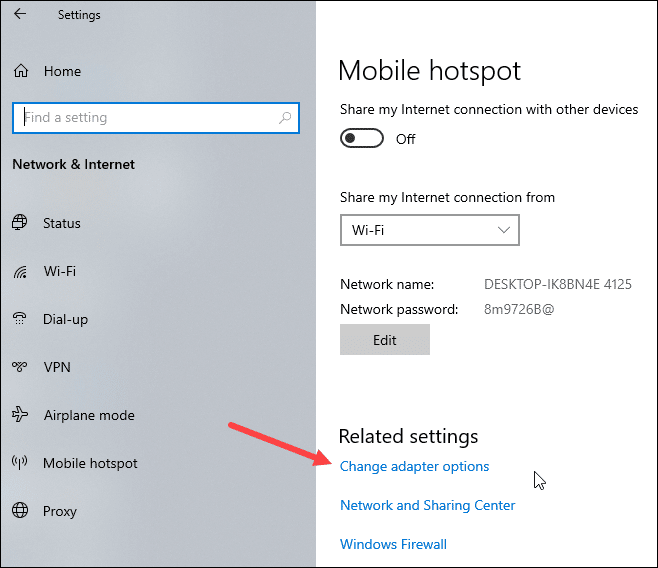
- Next, select Change Adapter Options.
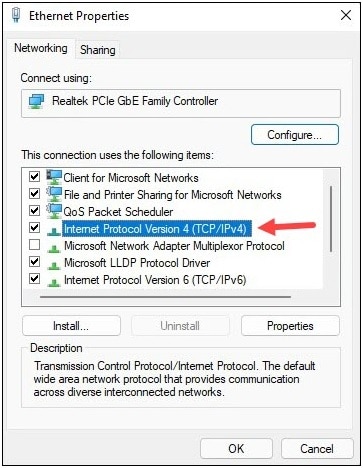
- Right-click on your Network Connection and open its Properties.
- Select Internet Protocol Version 4 [TCP/IPv4] and open its Properties.
- Set the value of the Preferred DNS Server address to 8.8.8.8 and the value of the Alternate DNS Server address to 8.8.4.4.
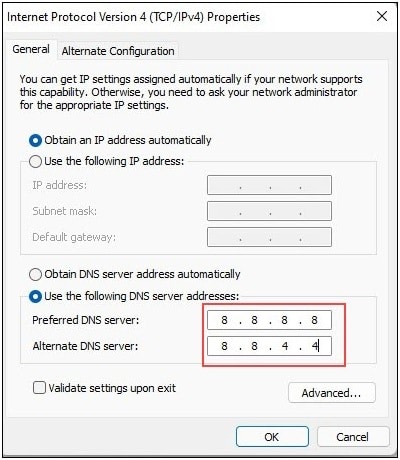
- Save the changes by clicking on the OK button.
Frequently Asked Questions [FAQs]
- How to fix high ping in Valorant?
You can fix high ping in Valorant by upgrading your internet plans, setting Valorant to high priority in the Task Manager, changing DNS, and checking the Firewall ports.
- Why is Valorant ping so high?
Ping in Valorant can be high because of improper settings, connectivity issues, outdated network drivers, or improper Firewall ports.
- Is 100 ping good for Valorant?
No! Generally, ping under 100 is preferred for any multiplayer game. However the game is still playable up to 150 ping. Ping between 100 and 150 is considered average.
Final Words
So, there you have it. Now you know how to reduce ping in Valorant.
For further queries, ask us in the comments section below.


