Pandoras provides you a personalized listening experience continuously evolving with your taste.
You can experiment with creating your favorite music, genre, artists, and podcasts. It keeps you updated about the latest releases.
This is your own personalized music experience that you may carry wherever you go.
With the advanced voice mode, you will be able to play, adjust volumes, pause use voice commands to thumb up music. In this article, I am going to how to download music from Pandora.
Also read: How To Download Music From YouTube?
How To Download Music From Pandora
Pandora allows you to enjoy a free subscription to enjoy the online music radios that you can access through your web browser or your mobile app.
Pandora also offers you various kinds of subscriptions. With the free version, you will be able to listen but cannot download.
For downloading Pandora’s offline music without limits, you can use a third-party download or extension to do the job with ease.
Today I am going to show you how to download music from Pandora using these tools.
Process 1: Use Chrome Extension To Download Pandora Music
If you are browsing with Google Chrome, you will get a Pandora extension from the Chrome web store. With the help of this extension, you will be able to download from Pandora.
The extension provided by chrome is free and you will also not encounter any bugs or advertisements.
All you need to do is to install the extension and then proceed to download the Pandora playlist directly. Follow the process mentioned below to accomplish the task.
Step 1: First of all, go to the Chrome web store and install the Pandora download links from the store.
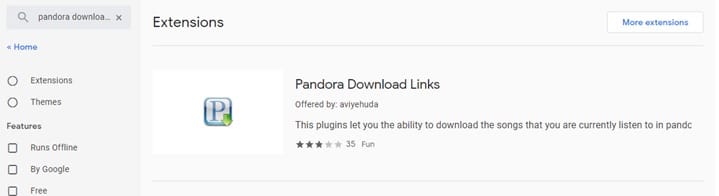
Now add this extension to your Chrome web browser.
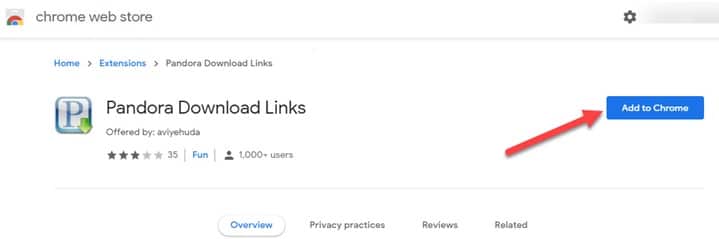
Step 2: Now visit the Pandora website and sign into your account. Listen to any pandora radio you wish to and check the download option button.
Step 3: Click on the button and save the playlist to your device. Now enjoy the Pandora music offline anytime you wish.
Process 2: Use Tuneskit Audio Capture
You will get the offline mode only on PANDORA, Premium, Pandora Plus with a subscription.
But to download songs from pandora, we can take the help of an amazing tool like Tuneskit audio Capture Pandora downloader.
This is a professional streaming audio downloader that fantastically converts any streaming audio to some common audio formats!
So, it makes it quite easy to download your pandora music and save it in your comfortable MP3 formats.
This tool is also capable of capturing and downloading your favorite pandora music on windows as well as mac.
After that, you can easily play the recorded music on any player you like.
Besides, it is compatible with popular most browsers like Chrome or Safari.
This will enable you to record as much pandora music as you wish when playing the music in different tabs. Follow the steps mentioned below:
Step 1: First of all, you will have to launch Tuneskit Audio capture and then you will get a window to get a displayed window with the list of programs.

Step 2: Check that your web browser is added to the list. In case you find that your web browser is not there, you will have to add the browser by clicking on the “+” option. You can drag and drop the browser to the window also.
Step 3: Now choose the format option for setting up the output formats like MP3, FLAC, WAV, M4B, OR AAC. You also have privileges to adjust the sample rate, bit rate, or audio channel.
There are also options like high quality, small size, or customized. After you are done, save the settings done.
Step 4: Go to the starting window and choose any browser such as Chrome. This time the browser will get automatically opened.
Step 5: Now visit Pandora’s site and sign in. You will be able to play different tracks in multiple tabs at the same time.
This tool is going to segregate the tracks and into separate tracks. You are free to record and then download as much track as you want to.
Step 6: After you have finished downloading you need to quit the browser and hit the STOP option.
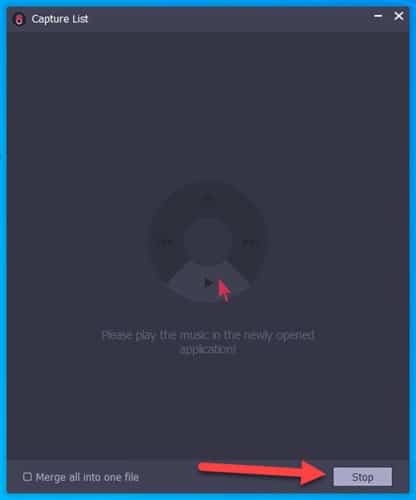
Step 7: There will be an Edit option provided for trimming the tracks you have recorded.
You will be able to track all the downloaded tracks in the history folder once you have clicked on the save option.
You can now check the quality of the recorded music by playing them.
Concluding
So, I hope by now, you can find out the best possible way to find how to download music from Pandora issue from the given article.
If you still have queries related to the recording software, please communicate with us in the comments section provided below.
Feel free to shoot us a mail with your ideas or suggestions. We always look forward to hearing back from you.


