Twitch is one of the most specialized streaming networks for gamers. Because of its live steaming feature Twitch has bagged a pleasing of professional enthusiastic gamers so far.
Besides having83700concurrent live channels, twitch has hit 2331978 peak views according to the current data.
But sometimes you may come across Twitch media playback aborted error problem.
Why Do You Get Twitch Media Playback Aborted Error Message?
If the video format is not supported in the browser, you get this twitch media playback aborted error message. Multiple reasons are contributing to this issue.
Most of the time cookies are responsible for the error. Another reason may be your outdated browsers.
Sometimes HTML gets disabled from the settings and this may play a vital role to pop up this error message. This is applicable for Linux, Windows, and macOS as well.
Let us find out some feasible solutions to fix the mentioned error. Hope the provided options will help you rectify the error.
Solution 1: Reset your Browser
Resetting your browser can sometimes fix the Twitch media playback aborted error. Let us demonstrate the resetting with Chrome.
Many users suffering from the same problem have reported getting benefited following this process.
Here I am mentioning the detailed steps as a guideline to reset your browser to the default values. Follow the steps given below:
Step 1: Open Chrome and then click on the hamburger menu to choose Settings.
Step 2: Now go to the Advanced menu options and find the Reset and Cleanup window.
Now move on to Restore Settings to their original defaults and hit the button.
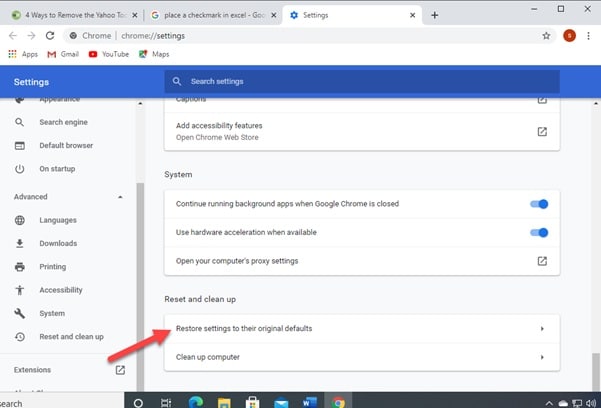
When the procedure gets completed, give Google Chrome a fresh restart. Now check for any improvements by launching Twitch.
Solution 2: Check For Outdated Browsers And Update Them
Sometimes your outdated browsers may be the reason for Firefox this browser does not support video playback issues. If this is the situation, we recommend you update your browser. Here I am providing you the basic guideline for updating the browser.
- Google Chrome
For macOS and Windows
Step 1: Open Google Chrome and then click on the hamburger menu. Now the context menu will get displayed. This time choose Help and from there move on to About Google Chrome.
Step 2: When you are inside this tab, automatic scanning will commence for any latest version available. When the downloading task will get completed, you will be prompted to get it installed.
After the installation gets completed, Chrome will automatically restart. After that, get back to twitch and begin to stream to check whether the error code exists. Return to Twitch and stream normally to see if the error code has been resolved.
- Linux
Step 1: For Linux, go to the terminal window and enter the following command:
sudo apt update
Step 2: Then hit the enter button to run the command, wait till the process gets completed. Once the task gets completed, proceed to run the following command and then hit the Enter button for installing the recent version of your Google Chrome:
sudo apt-get –only-upgrade install google-chrome-stable
Step 3: When the installation process gets completed restart your browser to check whether the problem is still there.
- Mozilla Firefox
For macOS and Windows
Step 1: Open your Firefox and then click on the hamburger menu and select the Help option. Then from the available context menu, choose the Firefox Help option.
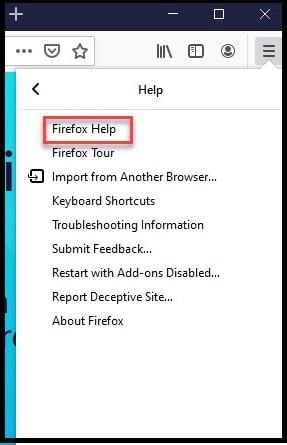
Step 2: After that hit the Restart button in case you find the latest version available.
Next, click on the Help entry from the available options, then click on About Firefox from the context menu.
Step 3: Wait till the entire process gets completed. After the installation gets completed, Firefox will automatically restart.
After that, get back to twitch and begin to stream to check whether the error code still exists. Return to Twitch and stream normally to see if the error code has been resolved.
Linux
Open a terminal on the Linux distribution and type the below-mentioned commands:
$ Sudo apt-get update
$ Sudo apt-get install firefox
Once the Firefox builds is updated to the latest, open Twitch and see if the problem is now resolved.
When the installation process gets completed restart your browser to check whether the problem is still there.
Solution 3: Remove Cookies From The Browser
Cookies may be the reason for the Twitch media playback aborted error message. Most of the time you search for many other reasons and end up with the twitch cookies issue.
Your browser may have saved some bad cookies that restrict the streaming. In this case, you may proceed to delete the entire cookie folder from the browser, or you may remove only the Twitch cookies.
When you get to remove the folder, it consumes much lesser time but, in this case, you will get signed out from the websites. You can take a chance to detect and remove the twitch cookies only though it may be a bit tiring.
If you wish to delete all the cookies go to the Settings and then move on to the Advanced settings options. Then select Clear Browsing Data for clearing browser history and next choose Cookies And Other Site Data as shown in the image.
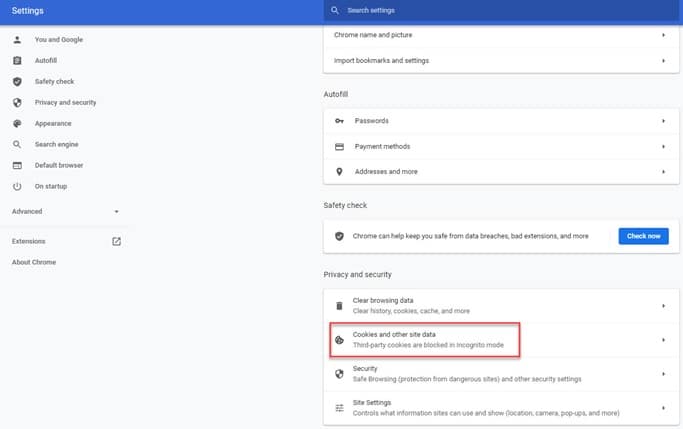
If you focus to delete only Twitch cookies, go to the cookie cleanup window and then search for Delete Every Twitch. Now proceed to remove the particular cookie.
If the problem is related to cookies, this way it will get erased. Check whether this has done any improvement.
Solution 4: Enable The Media Autoplay Option
When you find it difficult to fight the Firefox this browser does not support video playback option, you may try this process to enable the media autoplay option. For this I am mentioning the basic steps:
Step 1: Go to Mozilla Firefox and open it. Then enter about:config in the address bar of the browser and press Enter.
Step 2: Now, from the available options, find and enable the media.autoplay.enabled option. After enabling the option check whether your problem is solved.
Solution 5: Use Software Rendering Option
You can also try this process to enable software rendering in order to check Twitch not working on Firefox issue.
Follow the steps mentioned below to complete the process:
Step 1: Go to the Control panel and find the Advanced options.
Step 2: Now search for the Use Software Rendering Option Instead Of GPU Rendering. Enable the option in case it is not enabled.
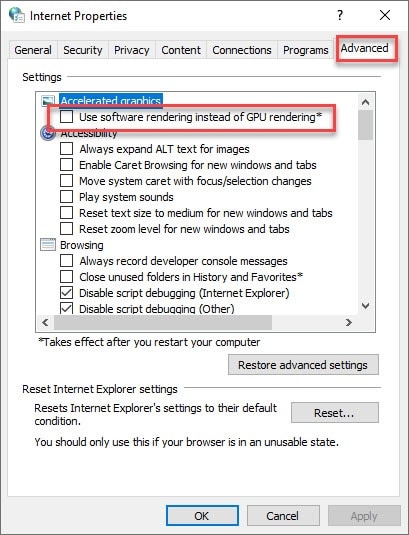
Now close the window and launch your Twitch to check if the issue still persists.
Wrapping Up
So, hopefully, by now, you can freeze the reason when you get Twitch media playback aborted error message.
Shoot us a mail or come up with your ideas or suggestions as we are always eager to hear from you.


