Looking to take screenshots of your amazing gameplay moments on Steam but don’t know how to?
Here we have given a detailed guide on how to take screenshot on Steam. So, read this article and learn the Steam screenshot button without delay!
How To Screenshot On Steam?
It is really easy to take Steam screenshots on your Windows PC. Start a Steam game and press the F12 key on your keyboard and that’s it!
F12 is the default Steam screenshot button. When you launch your Steam client, look at the right-side panel. Here, besides Activity, you will find Screenshots.
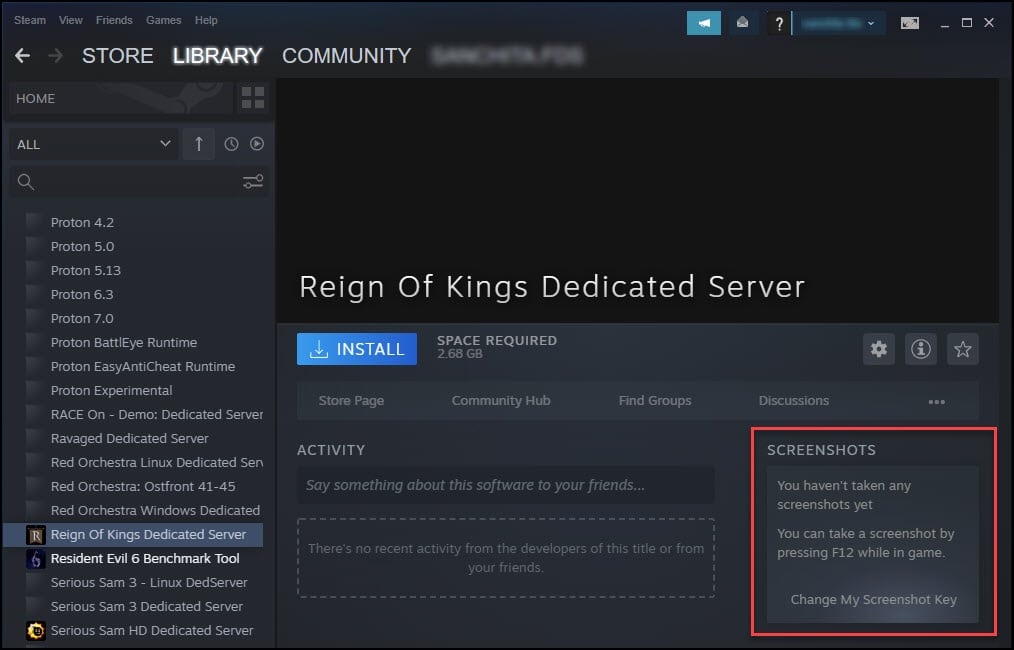
It is mentioned there that ‘You can take a screenshot by pressing F12 while in the game‘.
Every time you take a screenshot in Steam you will get a pop-up notification about it.
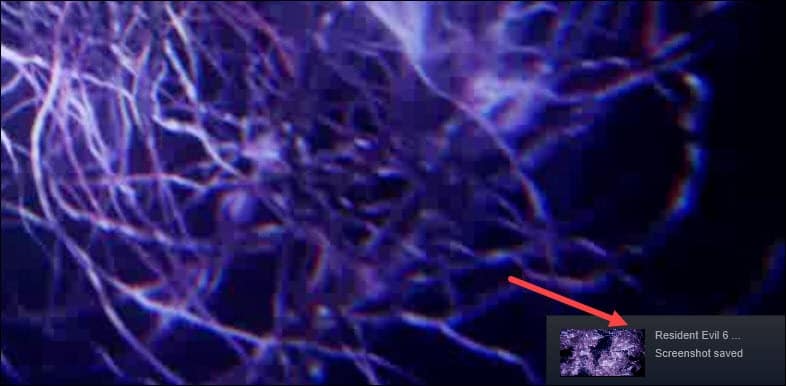
Whenever you take an in-game screenshot you will see a pop-up message for the same.
How To Change Steam Screenshot Key?
To change the default Steam Screenshot key, follow the steps given below:
- Just under the Screenshots heading you will find the Change My Screenshot button as shown in the picture below.
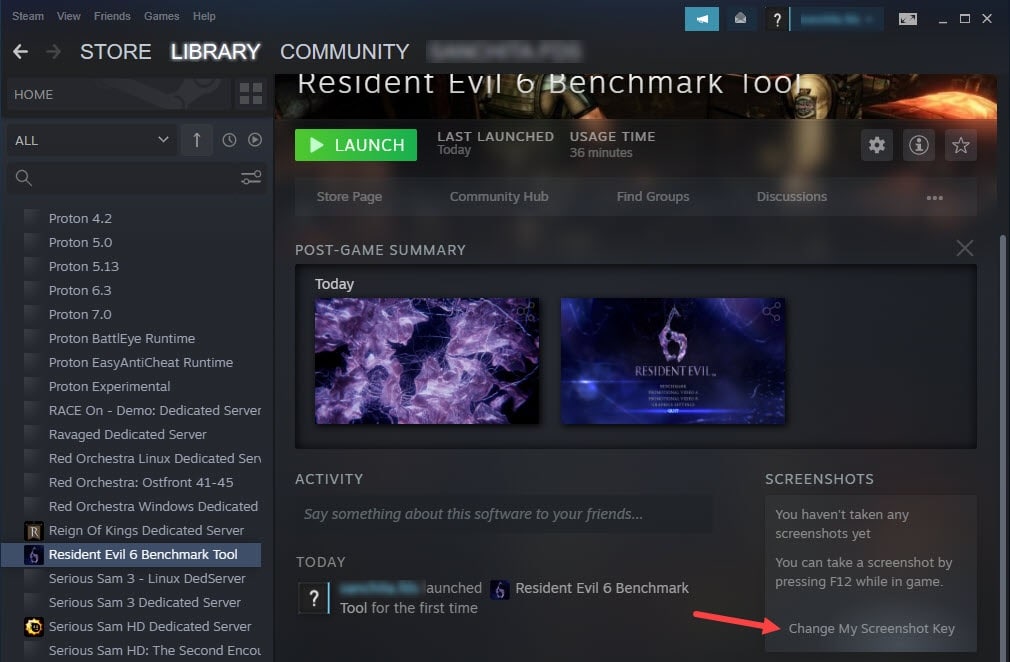
- Click on the option. Then click on the Screenshot shortcut keys option.
- Now press any key of your choice from the keyboard and click on the OK button.
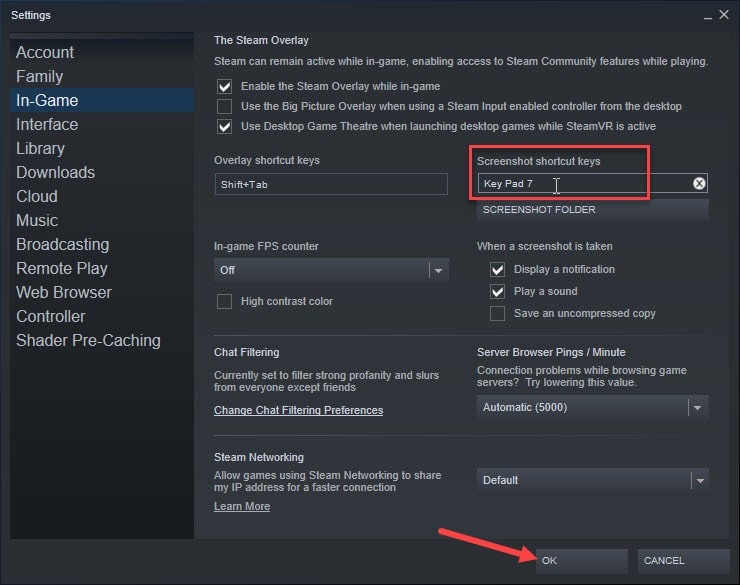
- Like here I have pressed key 7 from my keyboard. So, 7 will be my Steam screenshot key from now onwards.
How To Make Steam Screenshots Better?
In Steam, you will get options to make the screenshots better.
Follow the steps to save the screenshots in crisp JPG format:
- Launch Steam and click on the Steam option. Select Settings.
- From the Settings window, click on the In-Game option.
- Then check the box for Save an uncompressed copy under When a screenshot is taken option.
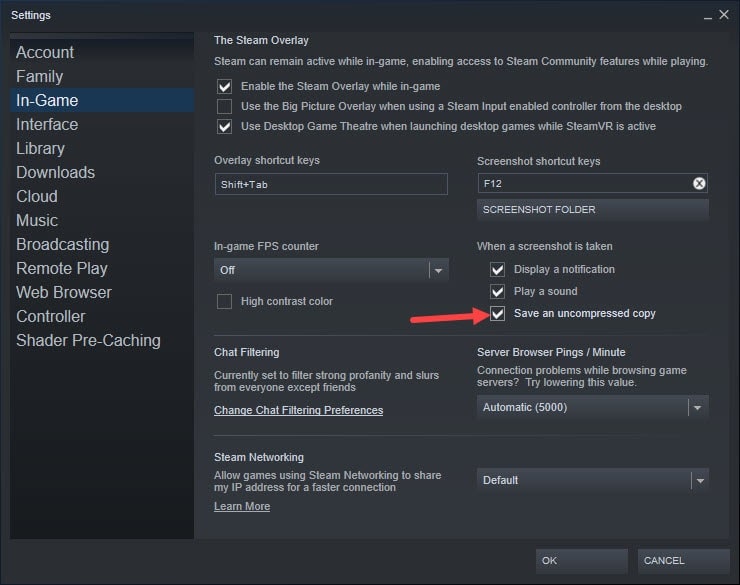
- Now the screenshot will be saved in crisp PNG file format. Normally the screenshots are saved in JPG format.
Where To Find Steam Screenshots?
By default, the Steam screenshots are stored on your PC in the Steam installation directory.
You can find the screenshots easily from Steam. Follow the steps to view the screenshots:
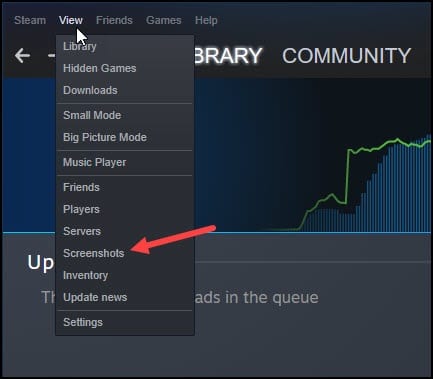
- Open Steam and click on the View tab.
- From the drop-down menu, click on the Screenshots option.
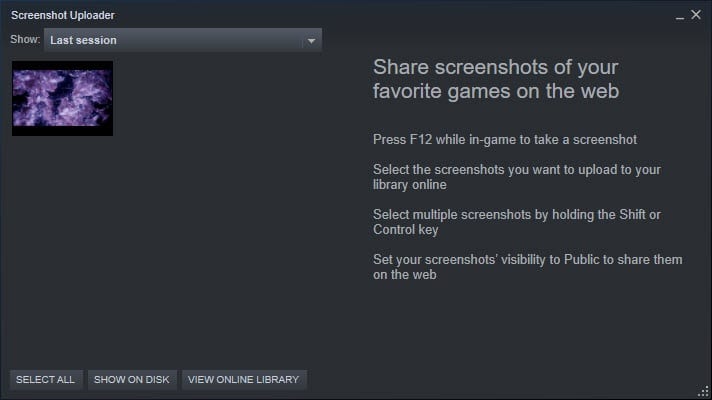
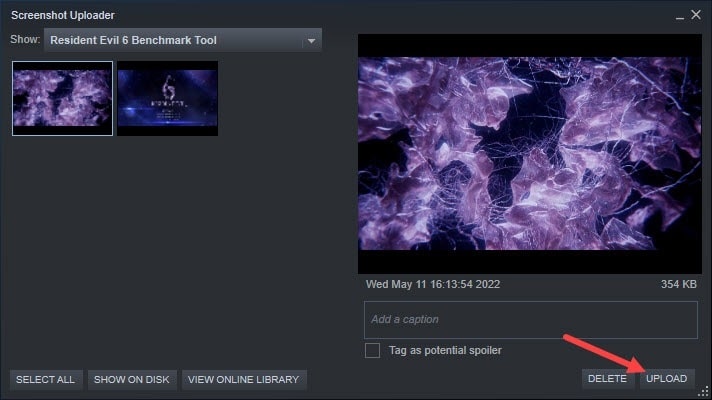
- Click on the drop-down menu beside the Show button and find all your screenshots there.
- From Steam Overlay you can select a specific folder to store all your screenshots.
To do that, open Steam settings and click on the In-Game option. From the Steam Overlay, click on the screenshot folder.
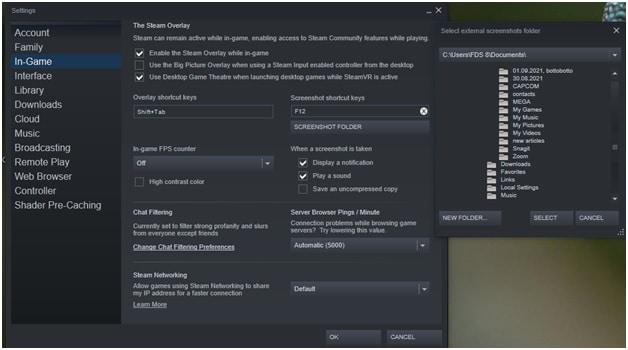
- Select a location where you want to save your Steam game screenshots.
How To Share Your Steam Screenshots?
Steam provides you the option to share your in-game screenshots. To do so follow the steps given below:
- Open Steam screenshots from the View tab. Select the screenshot you want to share and click on the Upload button as shown below.
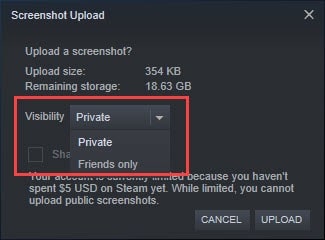
- Check the box for Share to Facebook, Twitter, or Reddit.
- By clicking on the Visibility tab you can select the Private or Friends Only option.
Frequently Asked Questions [FAQs]
Here we have answered some of the commonly asked questions regarding this topic. Hopefully, it will clear this topic further for you.
- How to take screenshots on Steam?
Press the F12 key to take screenshots on Steam. This is the default key for taking screenshots on Steam and it can be changed from the settings.
- Where is my Steam screenshot folder?
Steam screenshot folder is in the Steam directory. You can follow the steps provided in this article to access that folder easily through Steam.
- What is the Windows Shortcut for screenshot?
Prtsrc key or the Print Screen key is the Windows shortcut for screenshot.
Closing Up
From the above article, hope it is clear how to take screenshots on Steam using the Steam screenshot button and where to find the screenshots.
If you have any more questions related to this topic, ask us in the comments section given below.


