Converting your Microsoft Office documents to the PDF format is an integrated feature within Windows 10. Windows 10 PDF printer is a virtual printer that is built into the operating system, that allows you to convert documents any app to the PDF format quickly.
However, there have been some reports among users of an error where they see Microsoft print to PDF missing on Windows 10, thus not allowing them to convert their files to PDF. Let us take a deeper look at why you may be facing this error, and how to solve it easily.
Windows 10 PDF Printing Issues; Print To PDF Missing
The virtual print to PDF printer was introduced in Windows 10, so you will not find this feature on older versions of Windows. You may see PDF printer missing if you accidentally deleted the printer on your computer, or some recent Windows Update broke important system files on your computer.
If you see Microsoft Print to PFG missing on your computer, follow these solutions closely to enable the Microsoft print to PDF virtual printer easily.
Method 1: Use Add A Printer
Step 1: Enable From Windows Features
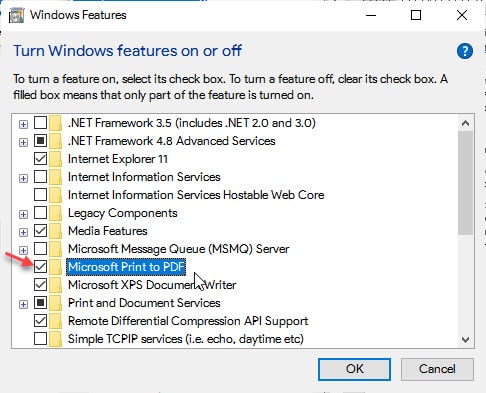
There are a ton of Windows features which work together to ensure the proper functioning of Windows 10. Such additional features can be toggled from the Turn Windows features dialog. Follow these steps for the same:
- Bring up Windows Search by using the keyboard shortcut Win + S or clicking on the search bar.
- Type turn windows features on or off, and press Enter to launch the Windows Features dialog.
- In Windows Features, check the box next to Microsoft Print to PDF.
- Click on OK to enable the feature.
Step 2: Add Printer In Settings
Once you have enabled the virtual printer, you will need to add it to your Windows 10 device. This can be don’t via the Settings app, follow these steps for the same:
- Open the Settings app using the keyboard shortcut Win + I.
- Go to the Devices
- In the left pane menu, select Printers & Scanners.
- From the right column, click on the Add a printer or scanner
Windows should list the virtual printer here. - If Windows fails to list the printer, click on ‘The printer that I want isn’t listed’ option.
- In the next window, make sure the radio button next to ‘Add a local printer or network printer with manual settings’ option is selected, and click on Next.
- Click on Use an existing port radio button.
- From the drop down menu, select FILE: (Print to File) option and click on Next.
- In the Add Printer dialog, select Microsoft under the Manufacturer section.
Windows will now look for any devices connected and show you your printer in the list beside. - Under the Printers section, select Microsoft Print to PDF and click on Next.
- Select Use the driver that is currently installed (recommended) option in the next window.
- Type a name for this printer and click on Next to add this printer to your computer.
Alternative Method: Use SFC And DISM Scans
If the settings menu failed to add a printer or feels too long for you, there is another method that you can try to restore missing Microsoft print to PDF virtual printer. This method takes advantage of the fact that the Windows 10 PDF is an integral part of Windows.
To restore system files and folders, there is a built in tool in Windows. Run the DISM and SFC scans, which are used primarily to scan and repair broken system files. If the Print to PDF printer is missing from your computer, you can use these scans to restore the virtual printer.
Wrapping Up
So there you have it. Now you know how to troubleshoot if you see Microsoft print to PDF missing from your computer. Did you find this useful? Comment below if you did, and to discuss further the same.

