Is crackling or popping sound coming out from your Windows 10 laptop and PC when you listen to music or watch movies? Even you face similar problem with your headphones, right?
No more worries! I have come up with the solution of Windows 10 sound crackling and it is really easy to follow.
Before that, let me explain why this happens-
Reasons For Windows 10 Sound Crackling
Unfortunately, there is no fixed reason for our laptop speakers popping or crackling problems. It can be caused due to many reasons such as outdated sound driver, incorrect audio device settings or interfere from hardware parts.
How To Fix Crackling Speakers On Laptop?
Here, I have explained three simple ways of fixing your audio popping Windows 10 with ease. Alternatively, if you are having issue with microphone you can check out the article about microphone boost here.
1) Change Sound Format
It is possible that sound format on your laptop needs to be changed-
Step-By-Step Procedure
Right-click on ‘Sound Icon’ located at the bottom right corner of the main screen
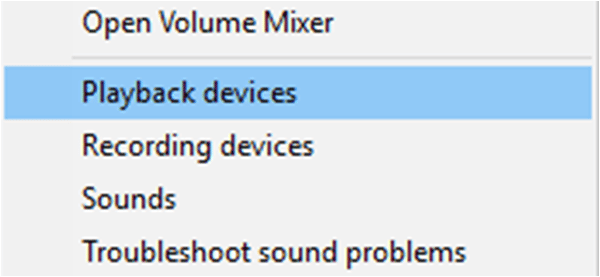
Select ‘Playback Devices’ and you’ll see ‘Sound’ wizard on the main screen
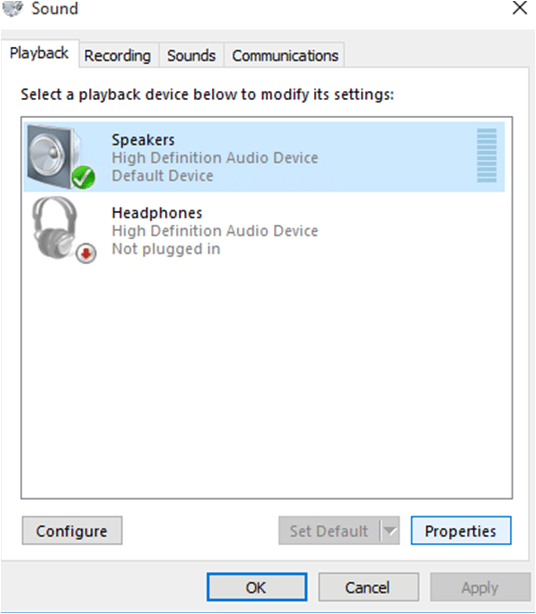
Select ‘Speakers’ option and click on ‘Properties’ tab. On the ‘Speakers Properties’ box, select ‘Advanced’ tab
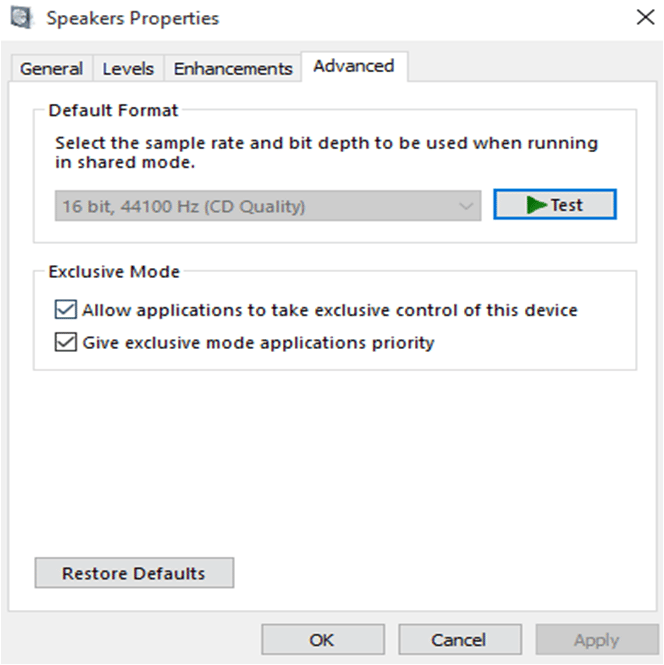
Now, choose the sample rate and bit depth to be used.
In this example, it is set to default 16 bit, 44100 Hz (CD Quality). It is recommended to set it to this default ‘CD Quality’ mode and click on ‘Test’ to ensure that it is fine to listen.
Or else, you can choose another option (if it is listed in your system) and ‘Test’ it again.
Click ‘Apply’ and ‘OK’. Congrats! It’s done.
2) Disable Sound Enhancement
In case, you want to try another method then follow the steps mentioned below-
Right Click on ‘Sound Icon’ > ‘Playback Devices’ > ‘Speakers’ > ‘Properties’ > Go to ‘Enhancements’ tab
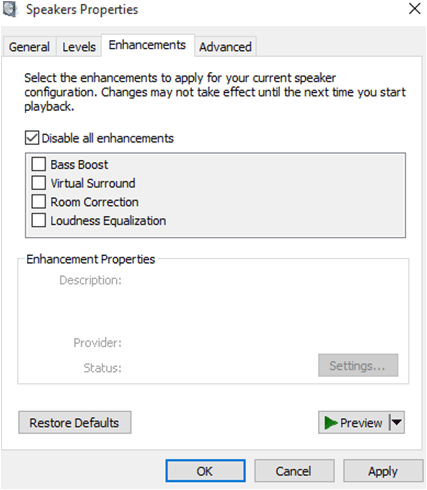
Tick ‘Disable All Enhancements’, Click on ‘Apply and ‘OK’
Note:
In some crackling audio Windows 10 laptop or PC, this function won’t run due to the difference in software drivers. No need to worry, let’s try the next one!
3) Update Audio Driver
After all these resolutions if nothing works, there is a need for driver update.
In case, you don’t have updated driver software to resolve the issue. No worry at all. You can do it online and get rid of audio crackling Windows 10 problems.
Certainly, this is an effective solution and it works fine in most of the cases.
Fortunately, there are several download and update audio driver utility tools available. Out of which, you can choose Driver Easy or Driver Talent.
Once you go with the process, it scans your system within a few seconds and asks for installation of the best-suited version for you.
It is the ideal way to get rid of laptop speakers crackling issues.
Alternative Method – How To Get Rid Of Audio Crackling Windows 10 Issue?
Though this method is an optional one, this has its own importance of reducing power usage. The users can try it if they are unable to get desired results from above-discussed methods.
Change Power Settings
Possibly, a change in the power settings can make it work-
Click on ‘Start button’ and type ‘Control’
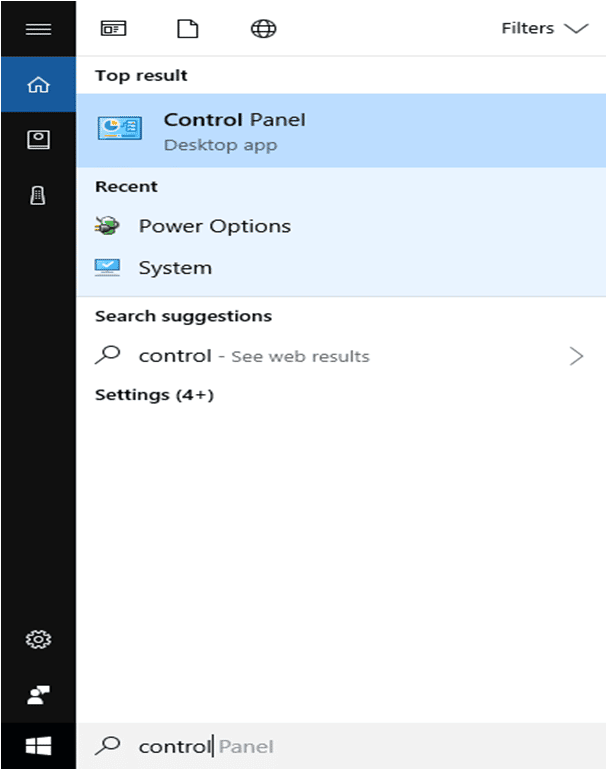
Select ‘Control Panel’ and change the view to ‘Large Icons’
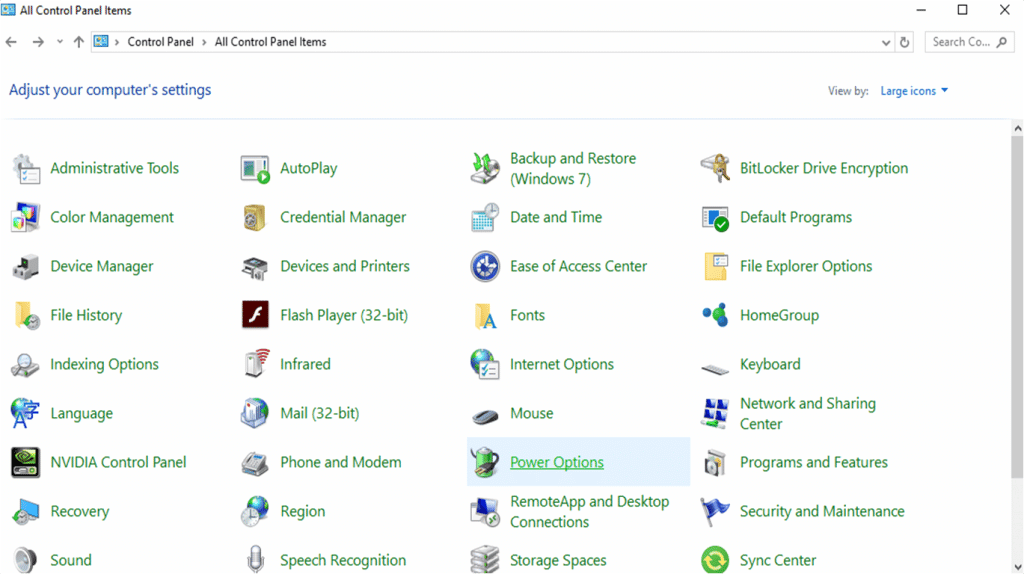
Click on ‘Power Options’ and select ‘Change Plan Settings’ from the listed ‘Preferred Plans’
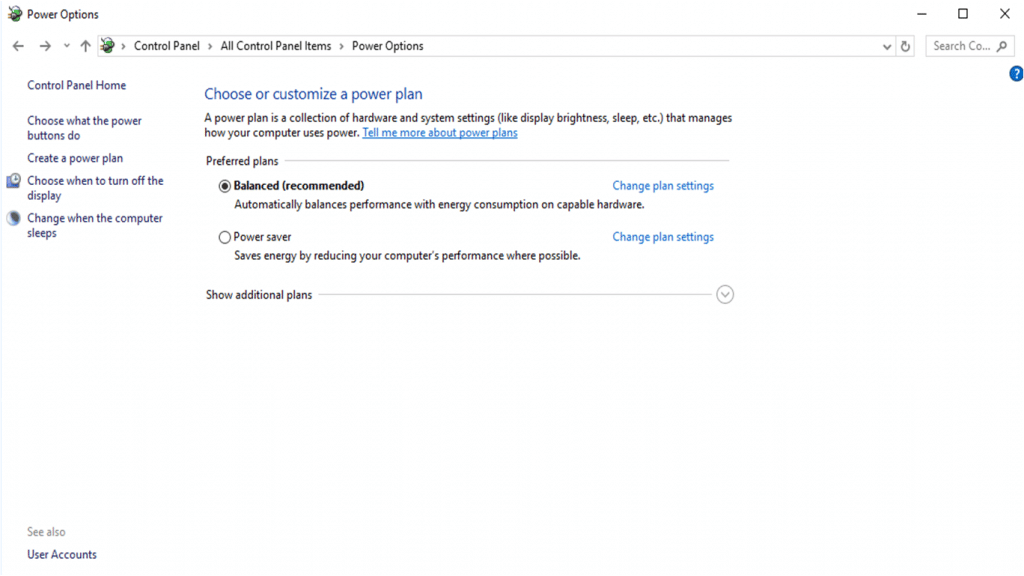
As in this case, there is no additional ‘Preferred Plans’ rather than ‘Balanced’ and ‘Power Saver’.
Suppose you have installed any other plans for your laptop and PC, you have to do the following steps-
- Select the plan and click on ‘Change Plan Settings’
- Go to ‘Change Advanced Power Settings’ à ‘Processor Power Management’ à ‘Minimum Processor State’
Here, change the Setting (%) to 100. Then, click on ‘Apply’ and ‘OK’

Bottom Line
If this information is handy for you and it solves your purpose, share it with your friends and help them out of Windows 10 sound crackling problems.
For any query, comment in the below box.

