While attaching a debugger to a program, you may want to know the application processes that are running in the background. The application processes give you a quick idea about the applications running in the background, allowing you to determine any suspicious applications which might cause a privacy breach.
While the Windows Task Manager has come a long way, and now shows much important information under different tabs, it still does not have native support to export the Windows process list. Here, I shall be discussing how to show running processes in Windows and how to save this list to a text file.
Windows Process List
There are many third-party applications such as process Explorer and TaskSchedulerView, which allows users to list all the running application processes and also manage them from within the client software user interface. The built-in Windows task manager is also very capable, but the additional features are quite limited as you cannot execute any commands here.
If you cannot ditch your love for command-line interpreters, you will be glad to know that you can list all processes in Windows 10 from the terminal.
Note: A Simple Trick
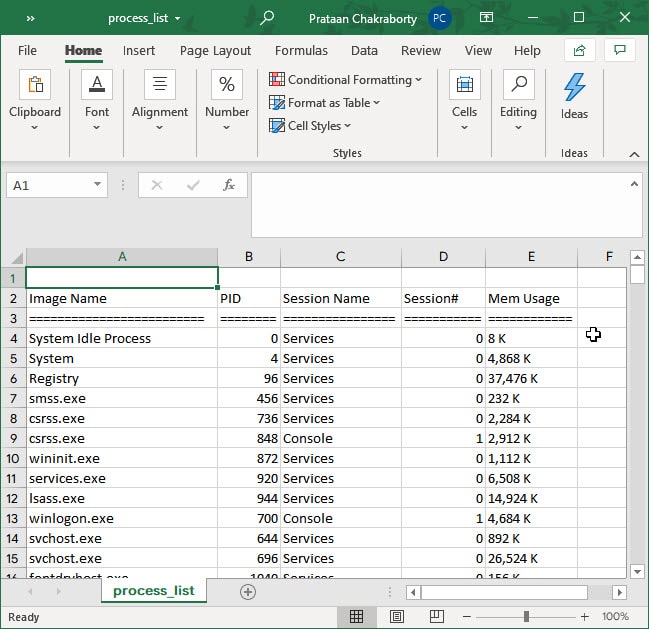
Before going on with the methods to list the processes, here is a simple trick you should know while opening the exported file. Microsoft Excel now has built-in support for tab-delimited files containing headers, so you should be able to view the process list in Microsoft Excel if you own the productivity suite application.
- Open Microsoft Excel, and press Ctrl + O.
- Navigate to the location you export the file in and open the file.
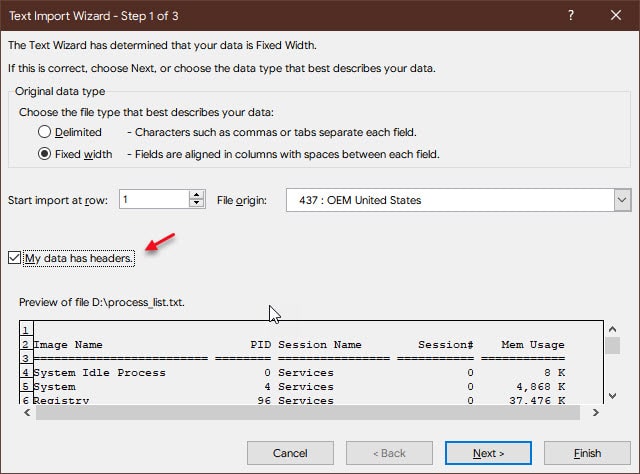
- You should see the text import dialog, make sure the checkbox next to ‘My data has headers’ is checked.
List All Processes Windows 10; Tasklist Command
Similar to the taskkill command, you can use the tasklist command in Windows 10 to list and filter the lists. You can also use this command directly with a parameter 2 save the output in a text file anywhere on your computer. Moreover, you also do not need administrative privileges to view the Windows process list, making it an effective tool for monitoring the tasks running on your computer.
Open an elevated command prompt using the Run dialog. Type cmd in a Run dialog and press Ctrl + Shift + Enter to directly launch the command prompt with elevated privileges. Next, simply use the tasklist command without any parameters and press Enter to view the list of Windows processes.
Each Process in the list will be displayed with their Image Name, Process ID, session name and number, and the memory that is used on your device. To attach a debugger to a process, you will need to keep a note of the Process ID.
Export Windows Processes
Both command prompt and PowerShell support exporting Windows processes to your desired location. Here is a brief description and the method provided for the same.
Method 1: Using Command Prompt
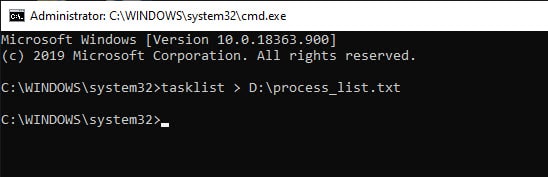
You can use the location parameter along the tasklist command to export the file to any location on your computer that you want. Use the following command for the same:
tasklist > D:\process_list.txt
Note: Replace the location part with your preferred location.
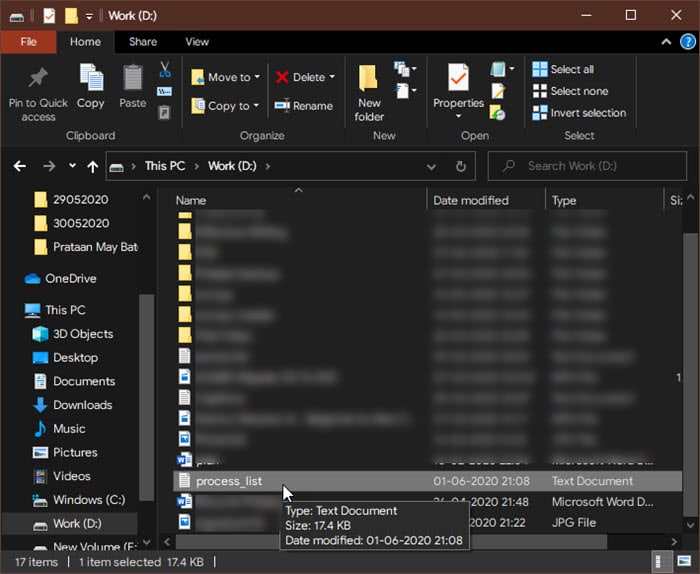
To view this file, all you need to do is simply navigate to the file in File Explorer and open the process_list file with your preferred text editor.
Method 2: Using PowerShell
Since PowerShell is an advanced terminal, using this you can get much more information regarding the Windows processes. The PowerShell command that you will be using is the “get-process” command, and you can add an output parameter to export the list as well.
Open admin PowerShell from the Start menu, or the WinX menu if you haven’t replaced PowerShell with cmd.
Next, simply type the following and press enter to see the list of active processes running on your computer:
get-process
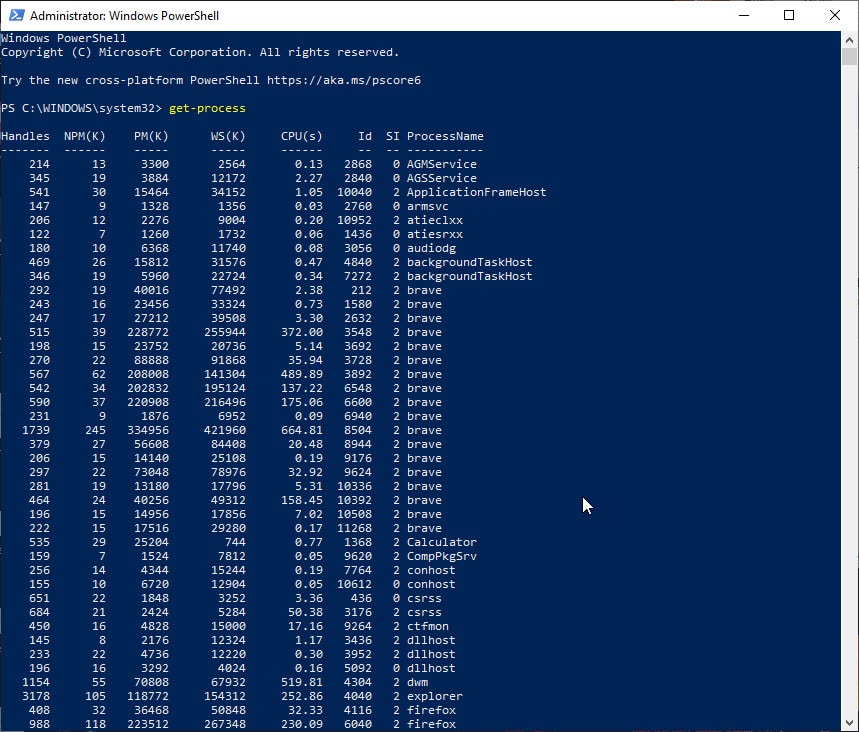
You will see a lot more information under various headings, the full forms of which are provided below:
Note: the letter in brackets refers to the units of measurement. Thus, K means kilobytes, M means megabytes, and S means seconds.
- NPM(K): Non-paged memory used by the process
- PM(K): Pageable memory used by the process
- WS(K): Pages in recent memory used by the process
- VM(M): Virtual memory (if any) used by the process
- CPU(s): Processor time taken by the process on all CPU cores
Use the following command to export file to text file:
Get-Process | Out-File -FilePath .\Process_list.txt
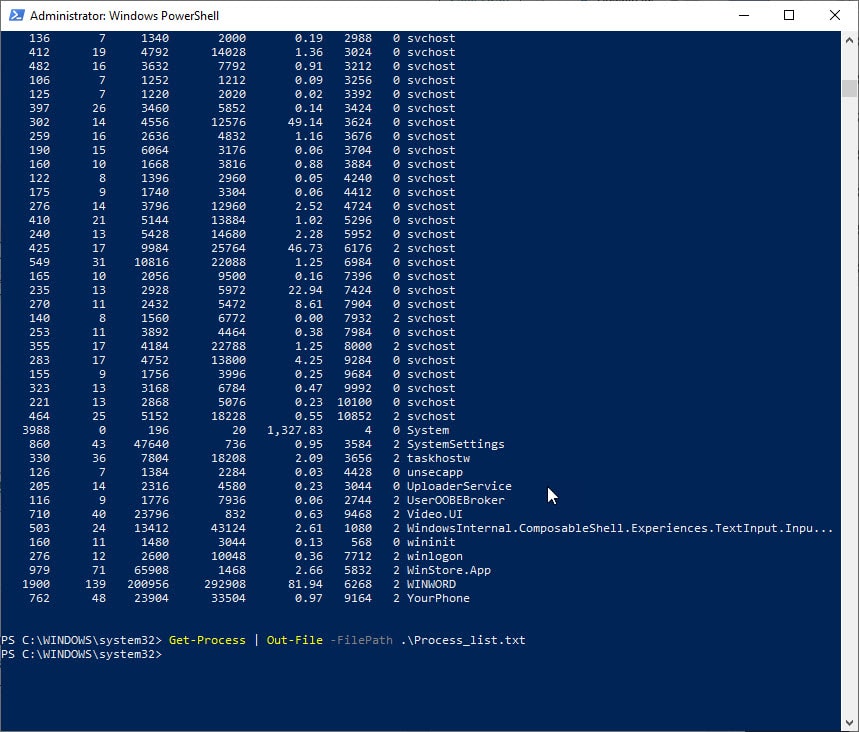
Again, navigate to the file in Explorer and open the Windows 10 process list using your desired text editor.
Wrapping Up
So there you have it. Now you know how to export the Windows process list using the methods provided above. Comment below if you found this useful, and to discuss further the same.

