“On certain sites when I click on a link (or anywhere on the page, i.e. input fields or just the middle of nowhere) it opens the link (or the same page) in a new tab, and the previous tab where I was originally, loads some ads or other unwanted stuff.”
Many websites online have certain ad overlays over important links that open new tabs uncontrollably. This is a new trend that is used by many websites to monetize your clicks, but can become quickly annoying if you are in a pinch for time. Here I will discuss how to stop websites from opening new tabs in Firefox.
Why Firefox Keeps Opening New Windows?
Website monetization is the process by which the traffic to a target website is used to generate revenue. What this means is that the website owner is paid a certain amount from the ads placed over the website. To earn the revenue, the user must click on these ads (Pay per click monetization) or view the ads a certain amount of time (Cost per impression), etc.
These ad overlays are a general method of deception used by website owners to make the user click on the ads and therefore generate revenue in the process. This method of deception is used by many websites and streamers to monetize your clicks.
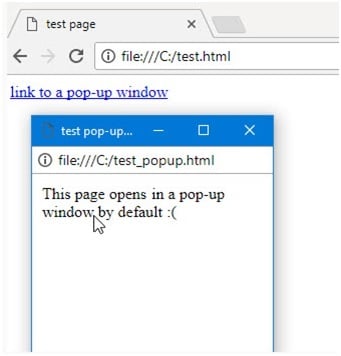
This can become very annoying if the redirects are regular and repetitive, especially when you are short on time and need quick solutions.
How To Stop Websites From Opening New Tabs In Firefox?
New windows are opened by the JavaScript Window.open() command. If you wish to block new windows from opening permanently, you can disable JavaScript from running on your browser.
Although, this will turn off some other important features as well, so this may not seem a viable option. Instead, follow these steps as fixes for the query How to stop websites from opening new tabs in Firefox.
Mozilla Firefox has some inbuilt tools that can be used to fight this situation. Although we don’t recommend blocking ads completely, you can turn off the intrusive ad overlays that hamper productivity.
To stop Firefox opens multiple tabs uncontrollably in Mozilla Firefox, follow these steps:
- Open a new tab in Mozilla Firefox.
- Go to the following website:
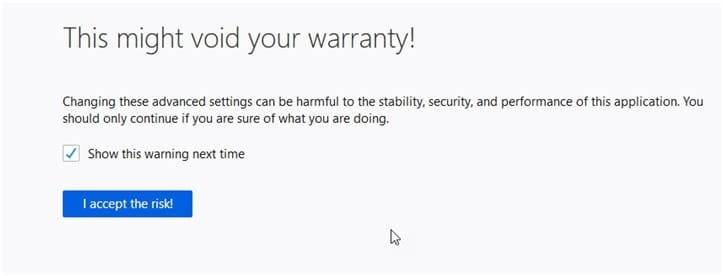
about:config - Click on I Accept the Risk! Button to open the Mozilla Firefox configurations page.
4. Now search for the following entries by copying and pasting them in the Search toolbar:
dom.disable_window_open_feature.location
dom.disable_window_move_resize
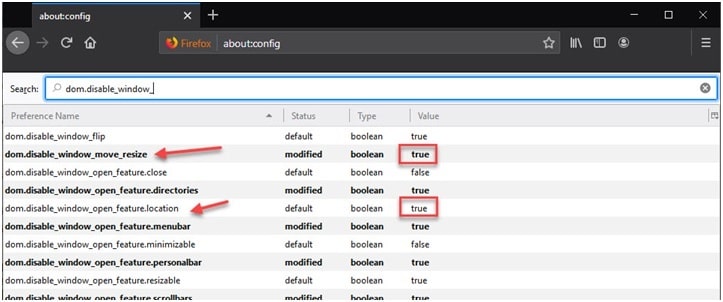
5. Right-click on these entries and click Toggle to change their values to True.
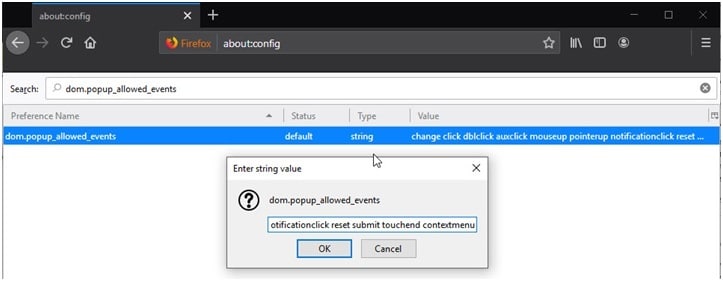
6. Next, look for “popup_allowed_events”
7. Restrict the events that can cause popups. By default, that is set to: “change click dblclick mouseup pointerup notificationclick reset submit touchend”. Remove some, or all of these events according to how you see fit.
The Document Object Model service is responsible for calling the APIs and Object modules present in the browser. The popups that open behind are a function called the DOM service. In fact, you can set all the “dom.disable_window_xxx” features to true to prevent the websites from doing their shenanigans.
8. Next, change the following entries as well to the data value mentioned next to them.
-
- browser.link.open_newwindow => 3
- browser.link.open_newwindow.override.external => -1
- browser.link.open_newwindow.restriction => 0
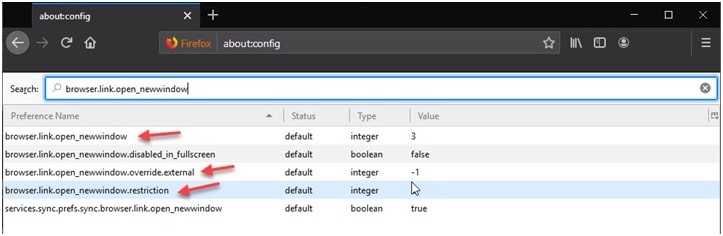
Using this method, you can turn off the feature when clicking on a link opens a new tab.
For Advanced Users (User.js Instructions)
If you are an advanced user, you can deploy a more permanent solution to prevent the ‘Firefox opens multiple tabs’ from opening additional windows in the browser. The JavaScript file will lock the changes and prevent them from being changed by advertisements.
Note: Once an entry for a preference setting exists in the user.js file, any change you make to that setting in the options and preference dialogs or via about:config will be lost when you restart your Mozilla application because the user.js entry will override it.
For this, you need to run a JavaScript file that will apply the changes. Here are the steps you can follow:
- Close all instances of Mozilla Firefox open on your system.
- Open a Run dialog box by pressing Win + R.
- Type %APPDATA%\Mozilla and press Enter to open the configuration folder of Mozilla Firefox.
- Here, double click on Firefox.
- Next select Profiles.
- Now open the folder that ends in .default-release. It is preceded by a random number that is based on the installation of your browser. In my system it is 0cncspd2.default-release.
- In this folder, open your preferred text editor and save the file as User.js
If you are using notepad, make sure that you change the File type as All types. If you don’t do this, the file will be saved as User.js.txt which is basically useless for this purpose.
If you are using Visual Studio like me, right click in the folder and select Open with Code. Next click on New file to open a new editor and name it as User.js
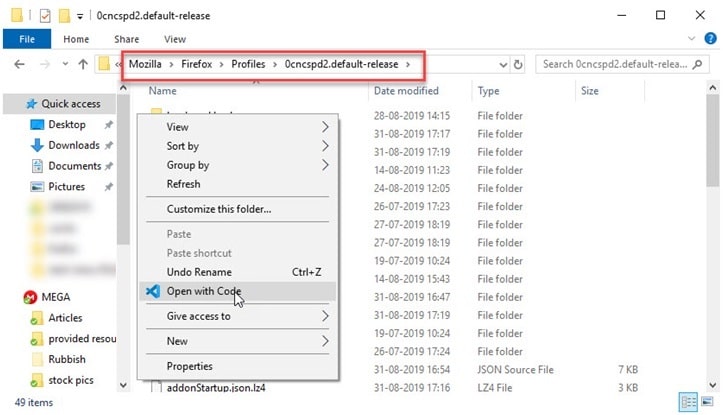
8. Copy the following script and paste it into your text editor.
// advanced JavaScript Options:
user_pref(“dom.disable_window_move_resize”, true);
user_pref(“dom.disable_window_open_feature.directories”, true);
user_pref(“dom.disable_window_open_feature.menubar”, true);
user_pref(“dom.disable_window_open_feature.personalbar”, true);
user_pref(“dom.disable_window_open_feature.scrollbars”, true);
user_pref(“dom.disable_window_open_feature.toolbar”, true);
9. Save the file with the extension given above and close your editor.
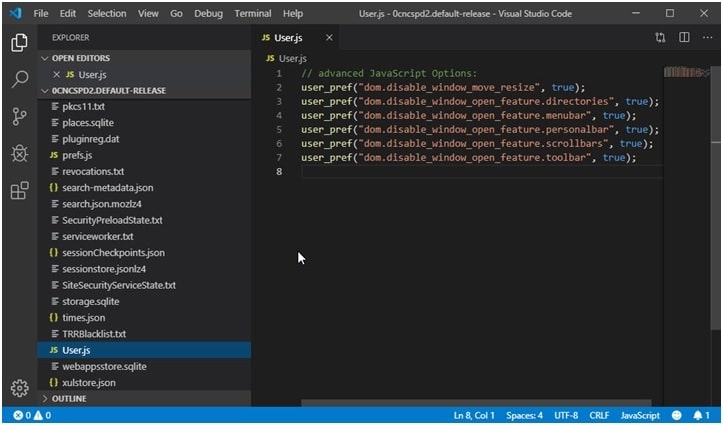
10. Refresh the folder and start Firefox.
Now you will see that all external links including on-click ads are opening in a new tab, and overlays don’t open at all.
Caution: Valid preferences you’ve added to the user.js file are automatically copied to the prefs.js file (located in the same profile folder) where all user-set preferences are stored. For this reason, you should make a backup copy of the prefs.js file before you create or edit the user.js file.
Conclusion
Ad revenue is used by many websites to monetize their traffic. But deceiving their audience with ad overlays, where clicking links opens new window can become irritating. Now you know how to stop websites from opening new tabs in Firefox using the method given above. Comment below if you found this useful, and to discuss further the same.

