The other day, I opened YouTube and was immediately greeted with the frustrating “Something Went Wrong” error. Videos wouldn’t load properly, thumbnails were missing, and refreshing the page didn’t help at all.
At first, I thought it was just a temporary glitch, but the problem kept coming back. After trying a few fixes, I updated the YouTube app, and that actually solved the issue for me.
However, if updating the app doesn’t work in your case, don’t worry. Sometimes you can get a white or black screen also with other YouTube errors. There are several other proven fixes that can help get YouTube working normally again. So in this guide, I’ll discuss all the methods that have helped users fix the “Something Went Wrong” error.
What Causes the YouTube “Something Went Wrong” Error?

Before we jump into the fixes, let’s quickly look at some of the common reasons why this error appears on YouTube:
- An outdated YouTube app or web browser
- Corrupted cache and cookies
- Slow or unstable internet connection
- Temporary YouTube server issues
- Incorrect date and time settings on your device
- Browser extensions interfering with YouTube
- VPN or proxy connection conflicts
- Problems with your Google account session
- Network or DNS configuration issues
- Temporary app glitches or bugs
Solutions to Fix the YouTube “Something Went Wrong” Error
Now that we’ve covered the possible causes, let’s go through the solutions that can help resolve the issue and get YouTube working properly again.
Try the following fixes one by one until the error disappears:
Close and Reopen the App
To fix the “something went wrong” error on YouTube, try the simplest solutions first, like closing and restarting the app or your device.
- So, fully close the YouTube app and then relaunch it.
- If you are accessing YouTube from your PC then exit YouTube and then reopen it.
- If you are on your Smartphone, then press and hold the app icon and select the app info option.
- Choose the Force stop option. Then reopen the app and see if this could fix the issue.
- You can reboot your computer or mobile device.
Check Your Internet Connection

Make sure you are connected to a stable internet source by trying to visit another website in a web browser.
- So, first of all, visit speedtest.net and see the status of your internet connection. If your internet connection is unstable, contact the local service operator.
- You can also change to some other Wi-Fi or internet connection if possible.
- If you are watching YouTube from your Smartphone then you can use mobile data from Wi-Fi and vice-versa.
Update the App
The next thing you can do is update the app. Go to your device’s app store to see if there is a new version of the YouTube app available. If available, download and install the latest version and then relaunch it.
Clear Cache and Data
Due to cache build-up on the browser, you can have problems while playing YouTube. Sometimes this cache can become corrupted and cause YouTube connectivity issues.
Clearing the web browser cache can help fix the problem.
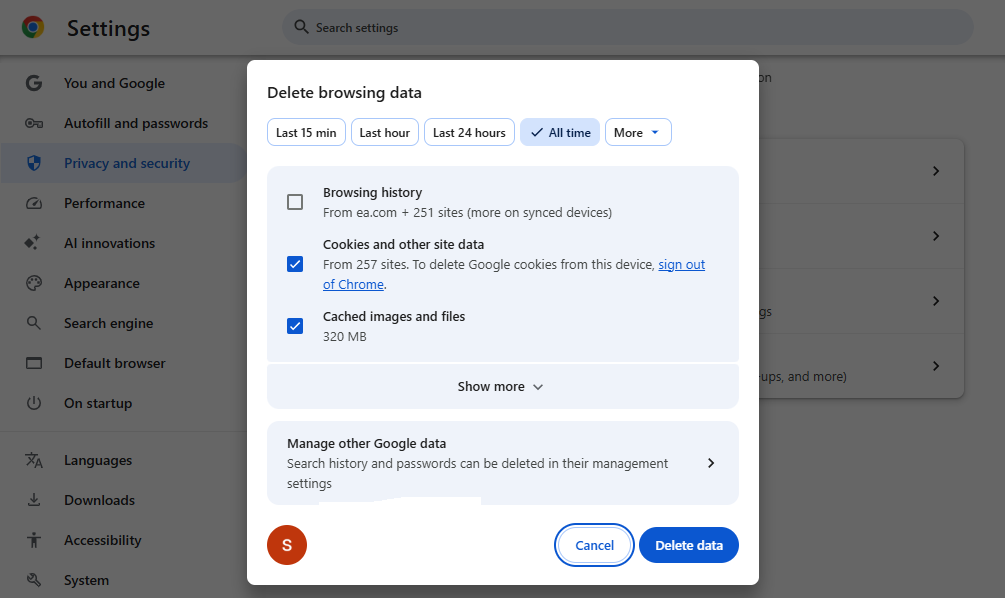
Here is how to clear the cache on Google Chrome:
- Open Google Chrome and click on the three-dots menu.
- Next, head to Delete Browsing Data.
- Choose the time range from the given options.
- To delete all the data, select All Time and click on the Delete data option.
- Open YouTube and check.
- On a mobile device, tap hold the YouTube app. Then tap on the i icon.
- Select Storage. then select Clear data option.
Disable Ad Blocker
Adblockers can prevent you from accessing YouTube and this is the reason you can see ‘you’re offline check your connection YouTube’ on PC.
So, disable the adblocker and see if this can fix the issue.
To disable Adblocker, follow these steps:
- Click on the three dots menu and go to More Tools.
- Select Extensions and click on the Remove option next to the Adblocker.
Turn off VPN

VPN services help to hide your IP address, but sometimes VPNs can cause connectivity issues on YouTube.
If you are using any VPN service, disable that and see if this can fix the issue. If this couldn’t solve the problem, reinstall YouTube.
Use a Different Browser and Disable Extensions
Try opening YouTube in a different web browser to see if the issue is specific to your primary browser.
The next thing you can do is disable browser extensions, especially ad blockers, that might interfere with YouTube.
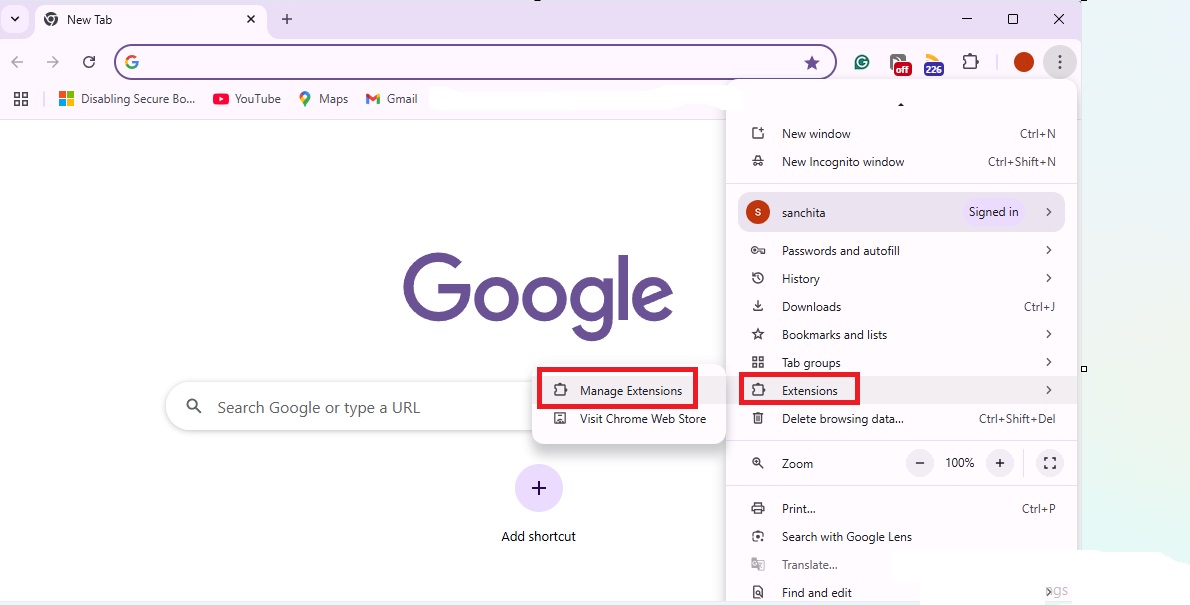
- To do that, click on the three dots menu in the Chrome browser.
- Then select Extensions. Then, Manage Extensions. Now turn off the toggle for the extensions you want to disable.
Also Read: How to Bypass or Remove Paywalls with Bypass Paywalls Clean Browser Extension
Use an Incognito Window
Open YouTube in a private or incognito window. If it works, the issue is likely related to your browser’s cache or extensions.
- To open an incognito window on Chrome, click on the three dots menu.
- Then select New Incognito window or you can use Ctrl + Shift + N key combination to open an incognito window.

Wrapping Up
And that’s it — YouTube should be back to normal, no more cryptic errors blocking your binge. If this helped or you are still stuck or found a different fix that worked, drop it in the comments — let’s help each other out and keep the stream rolling.
