Avast introduced a new feature quite some time ago called the Avast SafePrice. Here I will discuss what is Avast SafePrice browser extension and also show you how to remove it.
What is Avast SafePrice?
Avast SafePrice is a part of the Avast Online Security browser extension. It was introduced as a method to help you find the best offers available for a product you are looking to buy across all the online vendors. It is free to use browser plugin.
When online shopping suddenly became very popular among users, Avast launched this feature as a security measure so that you have the option to see and compare the online vendors for a cheaper price. This makes sure that you are buying a product from a trusted vendor faster as you are not manually searching for an offer.
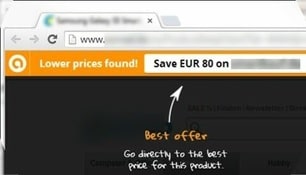
After you have installed Avast SafePrice, the next time you visit an online vendor, Avast SafePrice will show you the best prices available for that particular product across all the trusted vendors at the very top of your web browser.
Why You May Like This Plugin
- First of all, it shows you the best prices you can get for a product online.
- You get access to some amazing online shopping deals.
- You can see various coupons that you can use while shopping.
- You don’t have to leave your browser to access SafePrice.
- It won’t show up when you are not shopping, so it is unobtrusive.
How To Get It On Your Computer?
Since this is a plugin from Avast, you can install it from one of the two ways given next:
- You can get this browser plugin while installing the Avast antivirus application.
You can opt to install it from the customize menu that shows up before the app install.
2. You can also install this from the chrome webstore.
Avast SafePrice exists as a free chrome extension (visit) that you can download if you feel the need of it.
Permissions It Asks For?
Unfortunately, comparing the permissions it requires, it comes under the category of adware. Here are the permissions it requires to run on your system:
- Display popup ads
- Change default search engine
- Change default homepage
- Automatically update Avast software
- Allow publisher cookies to be stored on your system
- Change default error pages of your browser
How To Remove Avast SafePrice?
If you are concerned about your privacy, you may be thinking of removing this browser extension from your system. Here I will tell you how to get rid of the Avast SafePrice browser plugin easily:
# Fix 1 (From Control Panel)
Since this extension is installed as part of the Avast antivirus client software, you can change the installation from the control panel.
- Open Control Panel. Click on Programs and features.
- In the list of the available applications, click on Avast! Free antivirus.
- Click on Change in the toolbar.
- In the following window, uncheck the box next to Avast SafePrice.
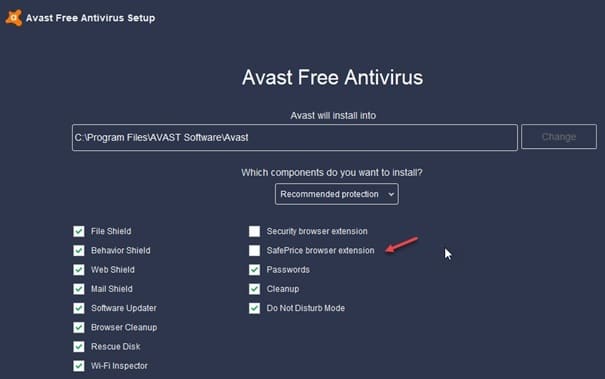
5. Click on the big green Change button at the bottom to modify the installation of Avast software.
This will remove Avast SafePrice plugin from all the browsers it was installed on (usually your default browser).
However, if it was not removed from browsers other than your default browser, you can remove it from the extensions page of the browsers installed.
# Fix 2 (Remove From Extensions)
To remove the remaining traces of the plugin from your browsers, you can turn off the Avast SafePrice extension from your browsers individually.
In Google Chrome:
Visit the following page to open the list of installed extensions and click the trash icon next to the extension to remove it from chrome:
chrome://extensions
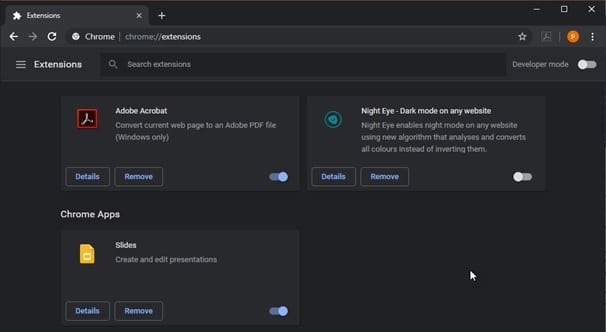
Restart your browser to complete the changes.
In Mozilla Firefox:
- Visit the following page in Firefox to open the list of installed themes and extensions
about:addons
2. Click on Extension from the left panel.
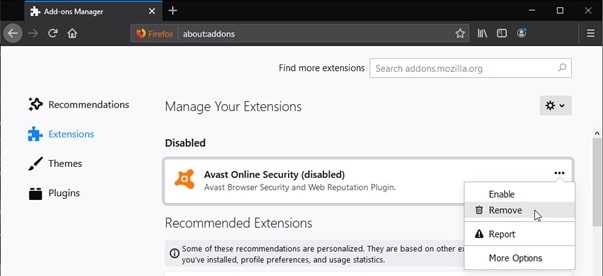
3. Locate the Avast extensions and disable them from the three-dot menu.
Restart your browser to complete the changes.
In Brave Browser:
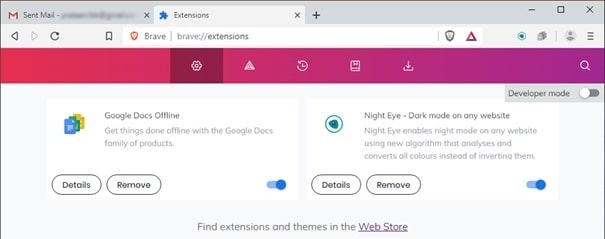
Brave is based on the same engine as Chrome. So, you need to visit brave://extensions to visit the list of installed extensions. Here you can disable the Avast SafePrice extension by selecting the toggle button next to the extension.
In Edge Browser:
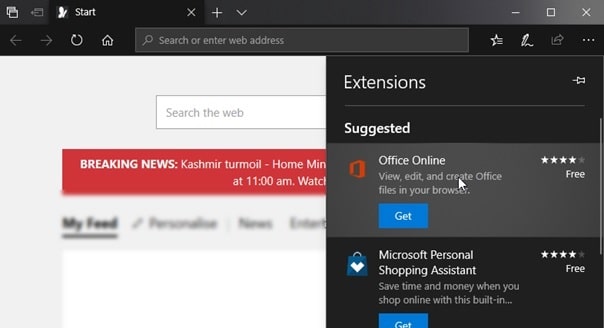
You can access the Edge Extensions from the three-dot menu in the top toolbar and delete the extension from there.
Conclusion
To the right user, the Avast SafePrice browser extension may be a useful tool to save some money online and find cheaper deals. However, it can cause a data breach with the list of permissions it asks. After reading this guide, now you know What is Avast SafePrice and How to remove it from your PC. Comment down below for a further discussion on the same and tell us about your experience with Avast products.

