While you may have previously used VLC to open your local media files, you can actually also use the media player to stream videos over the internet. One of the hidden yet most appreciated features of VLC is the ability to stream network files, which allows users to play a live stream in VLC.
However, recently some users have reported that they cannot play live streams in VLC. Instead, they get an error message that says the following:
“Your input can’t be opened. VLC is unable to open the MRL.”
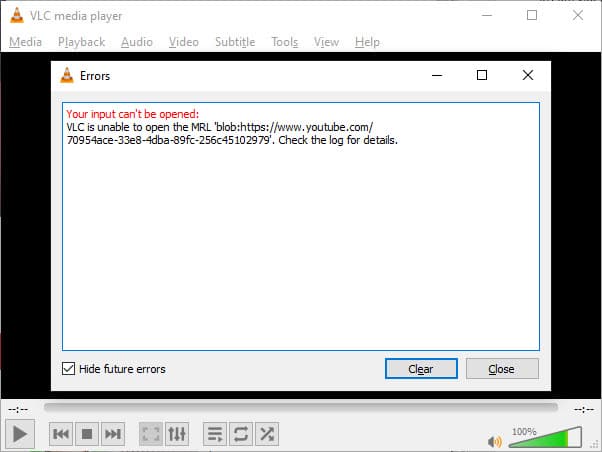
Playing live streams in VLC is very beneficial to those users who do not wish to download and use extra codecs to play network videos, as VLC usually supports an enormous number of audio and video formats. Here I shall discuss how you can easily solve the ‘your input can’t be opened’ VLC error.
How To Fix The VLC Is Unable To Open The MRL Error?
MRL stands for Media Resource Locator, which is used to load the resources from network streams. Thus, when VLC cannot connect using the MRL, you will not be able to play network streams and see this error. While there are many different reasons why you may be seeing the VLC your input can’t be opened error, here are some simple yet effective solutions that you can use to solve this error.
Solution 1: Check If The Stream Is Active
One of the things VLC cannot do is play live streams once they are finished. Thus, if you are looking to play a stream that has finished streaming and is now available as a video, there is a chance that VLC will not be able to play the stream. This is especially true for YouTube live streams, where VLC is unable to play videos that are not being streamed live.
To check this, simply paste the MRL in a browser window and check if the Stream loads. If the webpage fails to load, then the stream might have finished, or there might be some error with the stream itself. If the stream has finished, you can download the video using third-party services to view it offline.
Solution 2: Update VLC
Due to some limitations imposed from Google and other video hosting services, an outdated version of the media application will not be able to play the live streams without errors. Thus, if you had been skipping the VLC updates, now may be the right time to update the app.
Check the stream after you have updated VLC to the latest version. Your error should now be resolved.
Solution 3: Allow VLC Through Firewall
A firewall is an imaginary shield designed to protect your computer from malicious files by closely monitoring the network. However, if the firewall is not configured properly, it may block important applications from transferring data over your network connection.
To check if this is the case, allow VLC through the firewall and check if the error persists. You should be able to play live streams using VLC media player.
Solution 4: Turn Off Antivirus Shields
If you do not use Windows Firewall and have a third party antivirus service, it can also have the same results. When your antivirus blocks VLC from accessing the servers, you will see the ‘VLC is unable to open the MRL in Windows 10’ error.
Turn off the antivirus shields temporarily, or add VLC to the antivirus exceptions. Now check if the error persists.
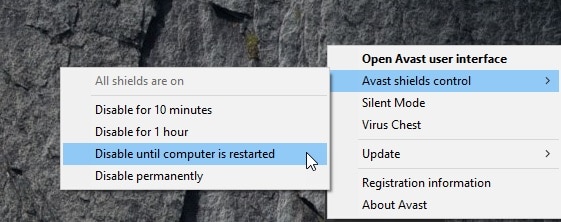
Note: Avoid installing any applications or services while the antivirus shields are down. Your privacy may be at risk.
Solution 5: Take Ownership Of VLC
If none of the solutions provided above helped you, there is a possibility that VLC may not have enough permissions to execute the necessary services for live streaming. If this is the case for you as well, VLC will not be able to access the MRL over your network connection and fetch the necessary resources.
In such scenarios, you will have to take ownership of VLC and then change the permissions to allow VLC to make all changes to your computer. Now when you play a live stream, you should be able to play the media without any restrictions.
Wrapping Up
So, there you have it. Now you know how to solve the ‘VLC is unable to open the MRL’ error using one or a combination of the solutions provided above. Comment below if you found this useful, and to discuss further the same.

