If you are like me and spend long hours typing on the keyboard, you may have thought of at least once using your keyboard as a mouse. Apart from experimenting with your device, you can also use Windows mouse keys in case you see your mouse or trackpad not working on your computer.
Here, I shall discuss how to use keyboard instead of mouse on your Windows 10 computer.
How To Use Keyboard As Mouse On My Computer?
There are a few different ways to enable or disable mouse keys in Windows 10. if you want to use the keyboard as a mouse, here are all the methods available right now to control your mouse using the keyboard mouse keys.
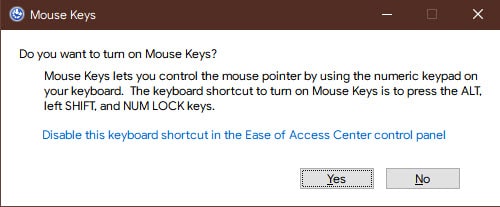
Method 1: Use The Keyboard Shortcut
There is a simple keyboard shortcut Which allows you to quickly toggle Windows mouse keys on or off. On your keyboard, use the following shortcut keys for the same:
Alt + left Shift + NUM lock
If your keyboard does not have the number pad, here are the other methods you can use.
Method 2: From The Settings App
Microsoft is really pushing the settings app as the primary control centre on Windows 10, and it now has almost all the options that can be used to configure your computer. You can also turn on Windows mouse keys from the ease of access centre inside the Settings app.
- Open Windows 10 settings app. You can use the keyboard shortcut Win + I.
- Go to the Ease of Access section.
- From the left pane menu, click on Mouse. (Use the tab and arrow keys if you do not have access to a mouse)
- In the right pane, turn on the toggle under the following option:
Control your mouse with the keypad
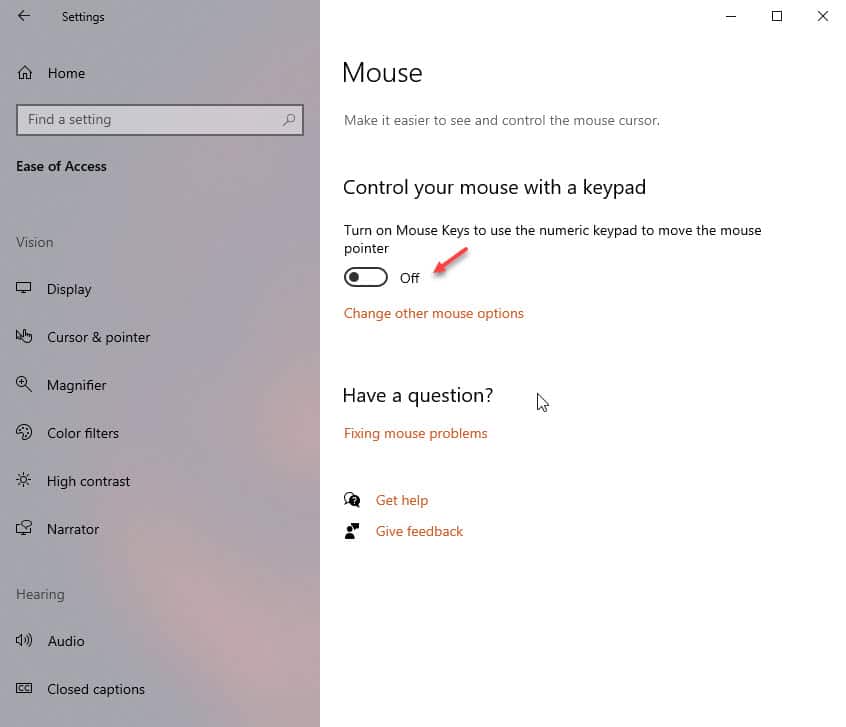
There are also various options to configure this setting. Have these options include using mouse keys only when the NUM lock is on, holding the Ctrl key to speed up and the shift key to slow down the mouse pointer. you also get sliders to control the speed and acceleration of the mouse pointer.
Method 3: From The Control Panel
You can also enable this setting from the traditional home of the ease of access options, which is the ease of access centre in the control panel. Follow these steps for the same:
- In a Run dialogue or Windows search, type control and press enter to launch the Control Panel.
- change the ‘View by’ to small or large icons according to your preferences.
- Go to the Ease of Access Centre.
- Click on Make the Mouse Easier to use option.
- Here, check the option next to Turn on Mouse keys to enable the feature.
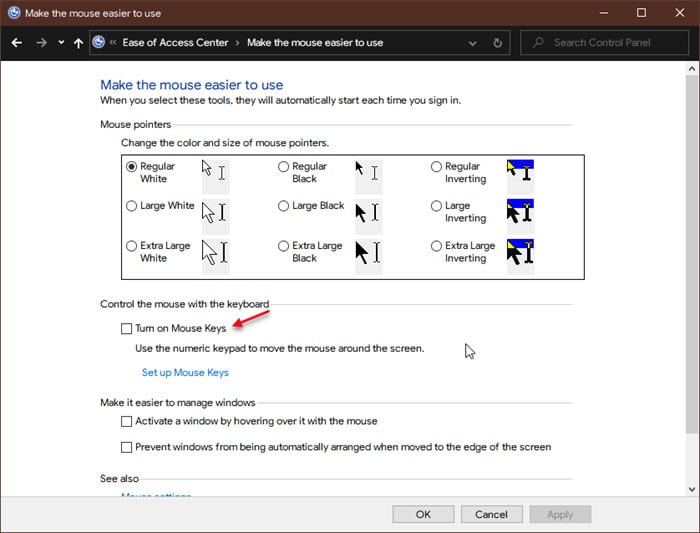
To customize the feature, you will have to click on Set up Mouse Keys option under the box mentioned above. use the Top speed and Acceleration sliders to adjust the mouse speed. Finally, click on Apply followed by OK to save the settings.
How To Use Mouse Keys In Windows 10?
Now that you know how to activate Windows mouse keys, let us now discuss how to use keyboard as mouse as well. Here are some of the things you will need to memorize, which will allow the keyboard controlling mouse feature to be used to the full extent.
| Action | Key |
| Left Mouse button | Press Divide (/) |
| Right Mouse button | Press Minus (-) |
| Middle Mouse button or both buttons | Press Multiply (*) |
| Click on an item | Press 5 |
| Double Click on an item | Point to an item and press Plus (+) |
| Drag an item | Point and press 0 |
| Drop after dragging an item | At the desired location, press Point (.) |
To move the mouse pointer around on the screen, use the Numpad keys as relative directions. Here is a tabulated action result for the keys:
| Numpad key | Direction |
| 7 | Left and Up |
| 8 | Up |
| 9 | Right and Up |
| 4 | Left |
| 6 | Right |
| 1 | Left and Down |
| 2 | Down |
| 3 | Right and Down |
Wrapping Up
So there you have it. Now you know how to use keyboard as mouse using the methods and directions provided above. Comment below if you found this useful, and to discuss further the same.

