While trying to open Microsoft Word recently, I ran into the frustrating “Something Went Wrong – Error 1058-13” message. The error prevented Office from working properly and appeared every time I tried launching the application.
After doing some troubleshooting, I discovered that the issue was related to the Microsoft Office Click-to-Run Service. In my case, enabling the service and then running an Office Repair resolved the problem completely. Word started working normally again without any further errors.
If those fixes don’t work for you, don’t worry. There are several other proven solutions that can help fix Office errors. In this guide, I’ll discuss all the methods that can fix Error 1058-13 on Windows.
Why Does Error 1058-13 Occur
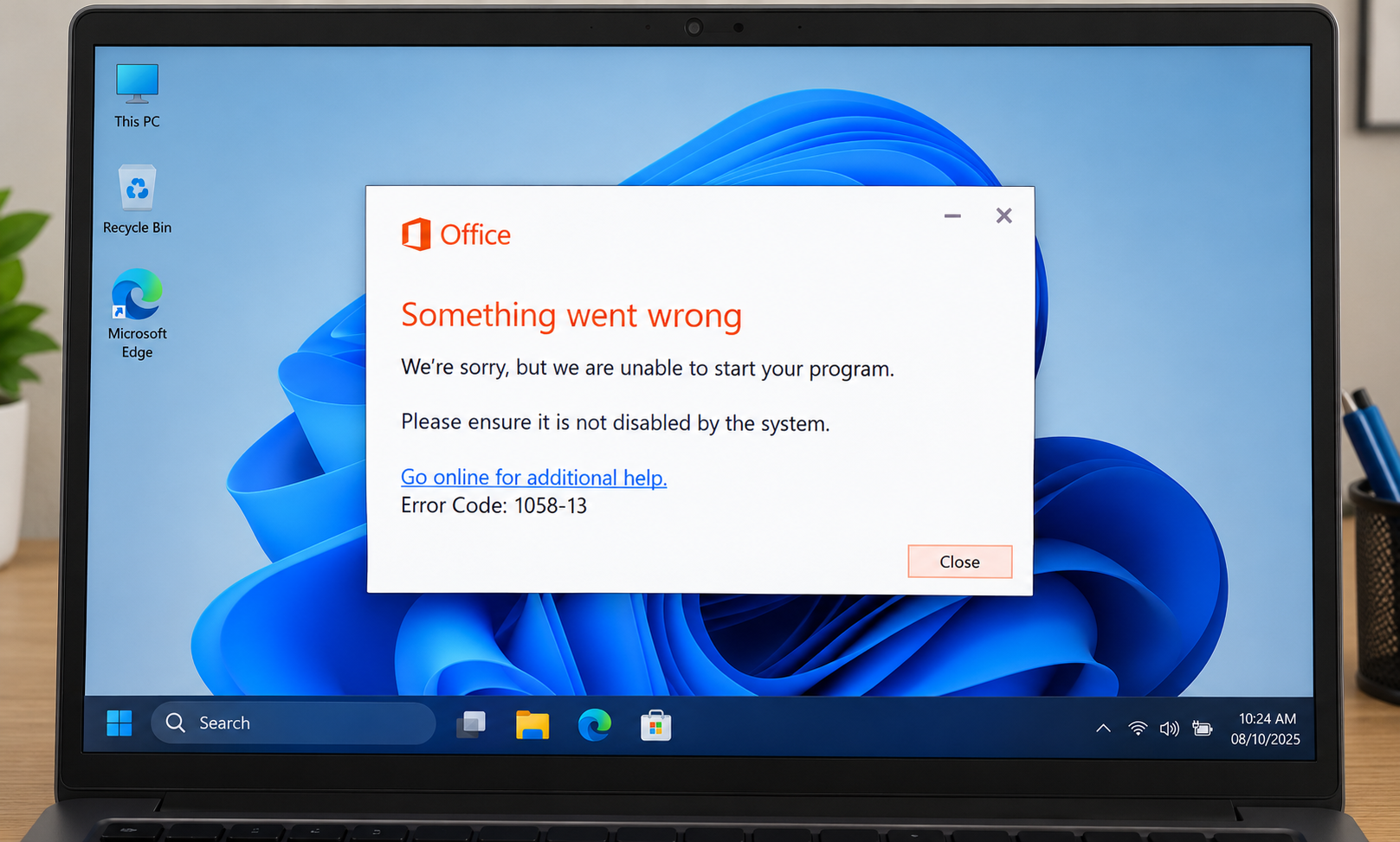
This error usually appears when Microsoft Office cannot start a required service. Common causes include:
- Disabled Microsoft Office Click-to-Run Service
- Corrupted Office installation
- Damaged Windows system files
- Faulty Windows updates
- Software conflicts from antivirus or third-party applications
- Incorrect service settings
- Corrupted Office update files
- Issues with the Windows component store
How to Fix Something Went Wrong – Error 1058-13
Now that we understand the possible causes of Error 1058-13, let’s go through the most effective solutions, starting with the fix that resolved the problem in my case.
In my case, enabling the Microsoft Office Click-to-Run Service and repairing Microsoft Office fixed the error. If you’re still facing the issue, try the following methods one by one until the problem is resolved.
Enable the Microsoft Office Click-to-Run Service
Error 1058-13 in Microsoft Word commonly occurs when the Microsoft Office Click-to-Run Service is disabled or not running. Follow these steps to enable it:
- Press Windows + R to open the Run dialog box.
- Type services.msc and press Enter.
- In the Services window, locate Microsoft Office Click-to-Run Service.
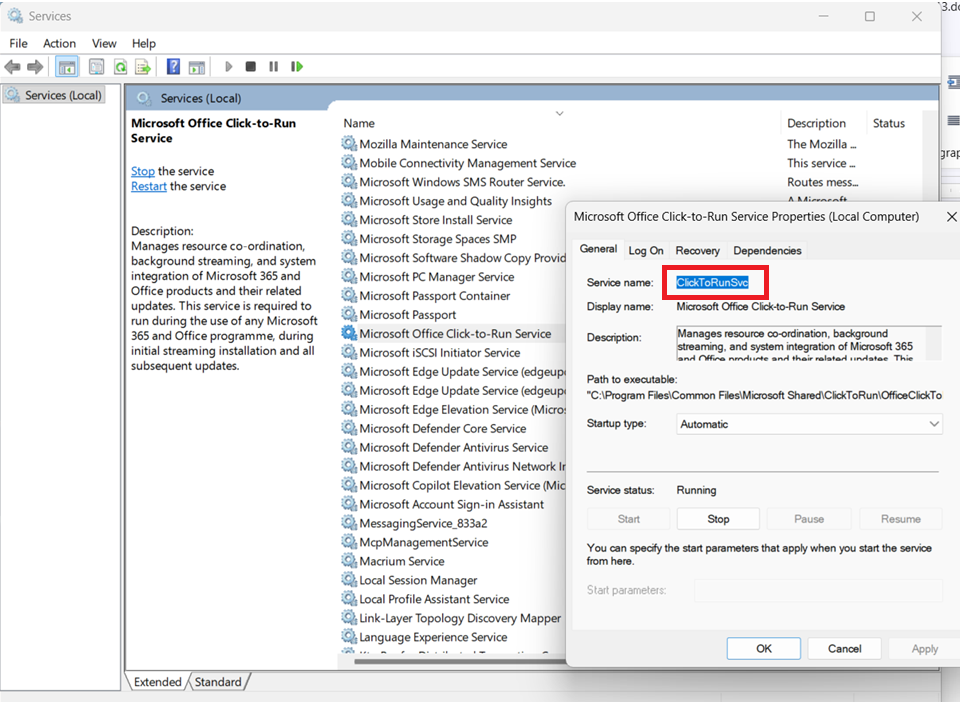
- Double-click the service to open its properties.
- Under Startup type, select Automatic.
- Click Apply.
- If the Service status is Stopped, click Start.
- Click OK to save the changes.
- Close the Services window and restart Microsoft Word to check if the error is resolved.
- Alternatively, press Start, type cmd.
- Right-click Command Prompt and select Run as administrator.
- In the elevated Command Prompt, type the following command and press Enter this command:
sc config ClickToRunSvc start= auto
- If the command is successful, you should see a message similar to this:
[SC] ChangeServiceConfig SUCCESS
- Next, start the service by running:
sc start ClickToRunSvc
If the service starts successfully, close Command Prompt.
Launch the Office application again or retry the repair or uninstall process.
Repair Microsoft Office
The next thing you can try is repairing the Office installation. Microsoft itself recommends this whenever Office applications fail to open or behave unexpectedly.
To do this:
- Open Settings.
- Go to Apps then Installed Apps.
- Locate Microsoft Office or Microsoft 365.
- Click the three-dot menu.
- Select Modify.
- Select Repair.
- Restart your PC after the repair finishes. Also make sure Word is updated.

Repair Windows System Files Using SFC
Damaged Windows system files can prevent services from starting correctly. SFC scans Windows and automatically repairs corrupted files.
Here’s how to do it
Open Command Prompt as Administrator and run:
sfc /scannow

Wait until the scan reaches 100%.
After it finishes, check whether the error has disappeared.
Repair the Windows Image Using DISM
If Windows itself is damaged, SFC may not be able to repair everything. DISM repairs the Windows image, allowing system services to function normally again.
Here’s how to do it
- Open Command Prompt as Administrator and run these commands one by one:
DISM /Online /Cleanup-Image /CheckHealth

DISM /Online /Cleanup-Image /ScanHealth

DISM /Online /Cleanup-Image /RestoreHealth
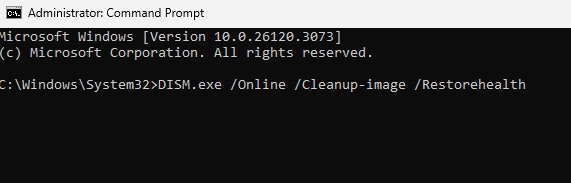
- Once they’re finished, run:
sfc /scannow
Check whether the error has been resolved.
Perform a Clean Boot
Sometimes antivirus software or another background program prevents Windows services from starting correctly. A clean boot helps identify software conflicts.
Here’s how to do it
- Press Windows + R.
Type:
msconfig
- Press Enter.
- Open the Services tab.
- Check Hide all Microsoft services.

- Click Disable all.
- Open the Startup tab.
- Click Open Task Manager.
- Disable every startup application.
- Apply the changes and test whether the error is gone.
If the issue disappears, re-enable startup items one at a time until you identify the conflicting application.
Update Windows
Windows updates often include fixes for service-related bugs and compatibility issues that may trigger Error 1058-13.
Here’s how to do it
- Open Settings.
- Go to Windows Update.
- Click Check for updates.

- Install all available updates.
- Test whether the issue has been fixed.
Reinstall the Affected Application
If the error appears only in one application, its installation or service may be corrupted. Reinstalling replaces damaged files with fresh ones.
Here’s how to do it
- Open Settings.
- Go to Apps. Select Installed Apps.
- Click on the three dots menu next to Word or Microsoft Office.
- Click Uninstall and follow the onscreen prompts to finish the process.
- Download the latest version from the application’s official website.
- Install it again.
- Launch the application and check if the error is resolved.
Wrapping Up
That’s all for this guide on fixing “Something Went Wrong – Error 1058-13” in Microsoft Office.
For me, the issue was resolved after enabling the Microsoft Office Click-to-Run Service and performing an Office Repair, but if that doesn’t work on your system, the other methods covered in this video should help you identify and fix the underlying cause.
If one of these solutions worked for you, let us know in the comments below. Your feedback may help other users facing the same issue.
