Many Windows users have reported that their installed extensions stopped working randomly and showed the message “This extension may have been corrupted”. Here I will discuss how to solve the “Internet Download Manager: This Extension May Have Been Corrupted” error.

Why Is IDM Not Working?
The extensions you install are stored as files for your user account that provide the functionality that you desire. The Internet download manager also installs its own extension called the “IDM integration module” that allows it to be integrated with the web browsers.
This extension allows IDM to take over the downloads from the Chrome download manager and then download it using its advanced mechanics. This is how you can enjoy the third party download function of Internet Download Manager.
However, it is possible that the extensions files can get changed or corrupted, thereby showing you the ‘idm integration module cannot contact idm application’ error. To protect you, Google Chrome will block the extension and allows you to repair the extension using the repair button.
How To Solve “Internet Download Manager: This Extension May Have Been Corrupted” Error
If the IDM integration module is broken on your device too and shows the error on Google Chrome as well, here I will discuss how to solve the error using the methods given next.
Note: This is assuming you are on the latest version of both IDM and Chrome. If not, update them first to check if the error is resolved.
# Fix 1: Repair
Chrome allows you to repair the broken extensions natively. Most of the broken extensions can be fixed using this method itself.
To repair the IDM extension, follow these steps:
- Open Google Chrome.
- Click on the hamburger menu (≡).
- Hover over More tools to expand the list. Select Extensions to go to the extensions page.
Alternatively, you can open the Extensions page directly using chrome://extensions/ URL in the address bar.
4. Locate the IDM integration module showing the error message.
5. Click on the Repair button at the bottom of the extension.
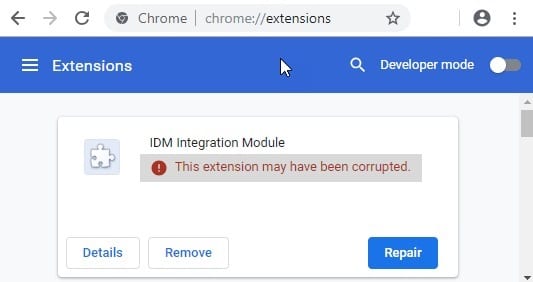
Chrome will repair the extension and that should resolve the error message that was being displayed.
If the repair does not work for you, here is another method to help you out.
# Fix 2: Enable On Web Store
Repairing the extensions one by one can be tiresome and sometimes not work for all the extensions. Some extensions can be corrupted because of Chrome’s Extension Content Verification feature (which is also responsible for flagging some extensions in the past with message: This extension may have been corrupted by malware).
For such a scenario, you can enable the extension from the Chrome web store as well.
Open the IDM integration module in Chrome web store. Here is the link if you don’t want to search for it manually.
The page will show up with the following message in a yellow box at the top:
This item has been disabled in Chrome. Enable this item.
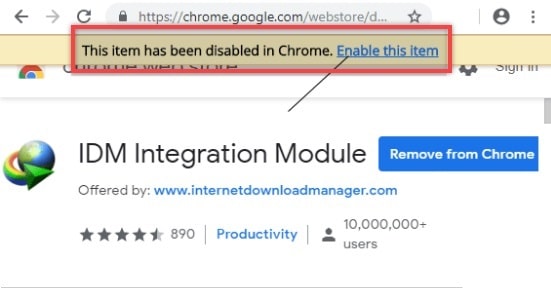
Click on Enable this item button link.
This will repair the corrupted extension immediately in Google Chrome. To confirm, go to the extensions page as shown in FIX 1 and check if the IDM module has been enabled this time.
# Fix 3: Enable Advanced Browser Integration
In Chrome, IDM uses an advanced integration feature that lets it capture the downloads properly. If you recently installed an app or updated some settings, it is possible that this might have changed and caused this error.
To confirm that the feature is turned on, follow these steps:
- Open Internet Download Manager Configuration dialog box.
- Under the General tab, locate Use advanced browser integration.
- Make sure the box next to it is checked.
- Tick the box next to Google Chrome in the list of browsers that IDM can capture downloads from.
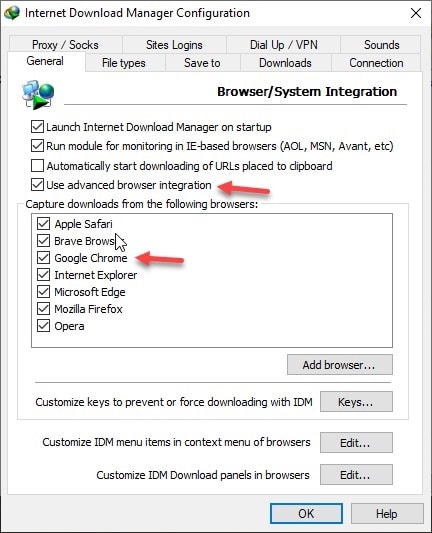
5. Restart Chrome.
If you face some problems while enabling this, it is possible that the service required to start it may be malfunctioning. To fix this, follow these steps:
6. Open a Run dialog by pressing Win + R.
7. Type services.msc and press Enter to launch the services page.
8. In the list of available services, locate Base Filtering Engine and right-click and select Properties.
9. Change the Startup type to Automatic.
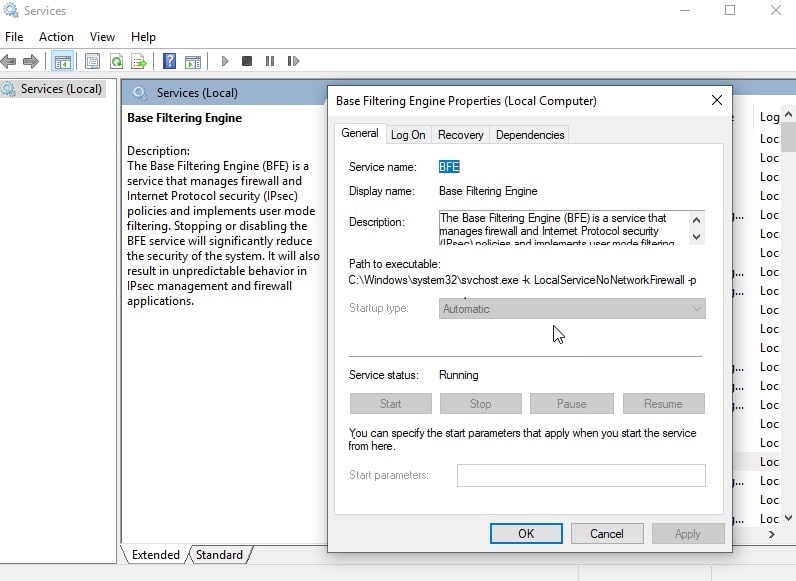
10. Click on the Start button to launch the service.
11. Click on Apply followed by OK.
After this retry enabling the Advanced browser integration. This should solve the error message that was being displayed with IDM not working.
# Fix 4: Reinstall IDM Extension
If the above steps don’t help you, you can reinstall the IDM integration module to install a fresh copy of the extension with all files intact.
To reinstall IDM integration module, follow these steps:
- Open Google Chrome.
- Click on the hamburger menu (≡).
- Hover over More tools to expand the list. Select Extensions to go to the extensions page.
Alternatively, you can visit chrome://extensions/
4. Locate the IDM integration module.
5. Click on Remove button to remove the extension.
6. Now open the IDM integration module page in Chrome web store.
Here is the link if you don’t want to search for it manually.
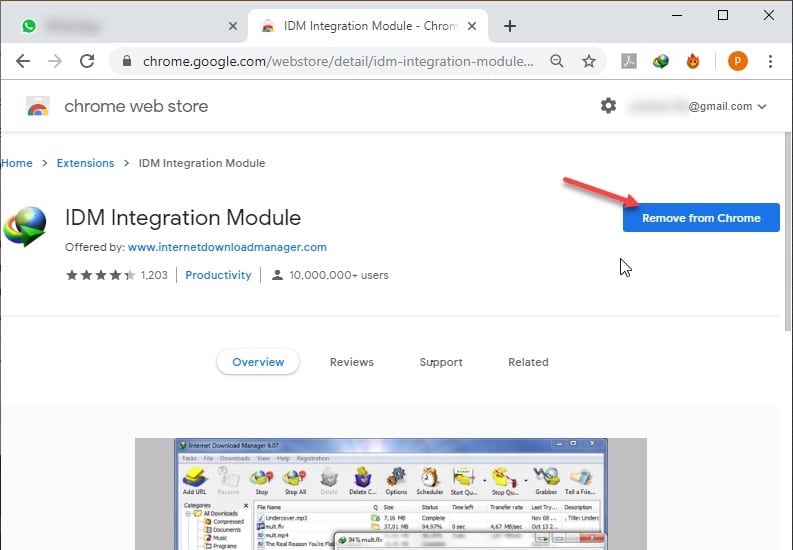
7. Click on Add to Chrome button to install the extension.
8. Restart
Now you should have fixed the “Internet Download Manager: This Extension May Have Been Corrupted” error you were facing in Google Chrome.
Wrapping Up
IDM is a very good third party download manager that captures nearly all downloads and provides excellent speeds and resume capabilities for downloads. If you face the “Internet Download Manager: This Extension May Have Been Corrupted” error, now you how to solve it using the four fixes above. Do comment below to discuss further the same.

