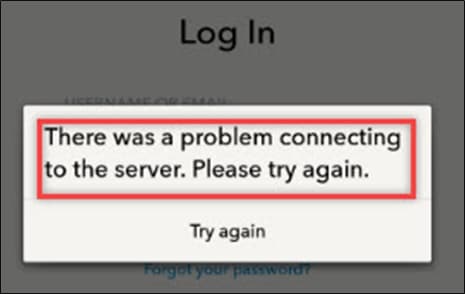
Snapchat is one of the best social media platforms in the world. There are many Snapchat users worldwide. According to their reports, at the time of login or sign up, the ‘Snapchat could not connect to the server’ error message appears repeatedly. This is a very frustrating and common problem.
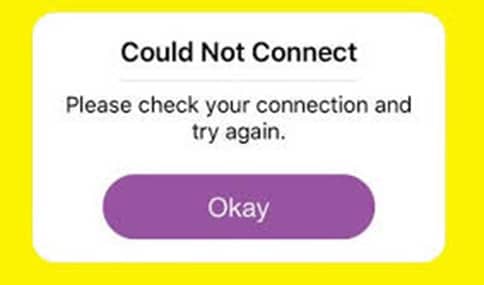
When you face such an issue, you may try the methods provided below to fix the Snapchat connection error.
Why Are You Having This Error?
There are some reasons that can cause you to encounter an error while logging in or creating a new account in Snapchat. If you resolve the problems listed below, you might stop getting Snapchat connection error.
- Network unavailable
- Wrong user name or password
- Unauthorized plug-in or third-party apps
- Use of VPN
- Rooted android device
- Locked Snapchat account
- Reactivating the deleted account
- Available update for Snapchat application
- Snapchat server down
- Problem with your Snapchat application
How To Fix Snapchat Could Not Connect Error?
Some fixes are discussed below to fix the Snapchat connection error. If you follow the instructions carefully, it can be easily resolved.
Solution 1: Check Network Connection
It is possible to have some network connection issues so that you are having an error while logging into your account or signing up in the Snapchat application. You should check your network status and internet connection settings for your Snapchat.
If your network is not working properly or you have not enabled the internet connection in your Snapchat app network settings, you can experience the server could not connect Snapchat error.
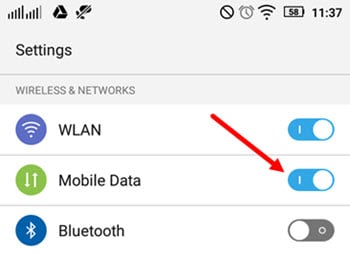
Restart your router/modem or turn off and again turn on your data connection to check if it works. You should also go to your device settings and check the network settings of the Snapchat application.
Solution 2: Check User Name And Password
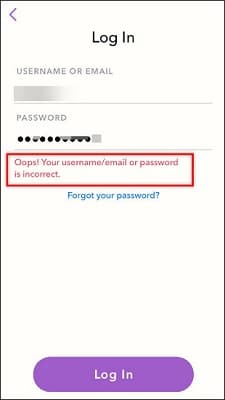
Check if you are using the wrong user name or password that can cause you such errors.
In case your user name is not right, Snapchat will show you ‘User not found’ error message on the screen. If you can’t remember your user name or password, try resetting your login credentials to fix the error.
Solution 3: Remove Unauthorized Plug-Ins And Third-Party Apps
If there is any third-party app or unauthorized plug-in installed on your device, it can cause you to experience Snapchat connection error. There are some apps trusted and approved by Snapchat and they don’t stop you to connect with the Snapchat server. But when you are not able to connect, you should uninstall all the third-party apps and plug-ins and use the official Snapchat app.
Solution 4: Stop Using VPN
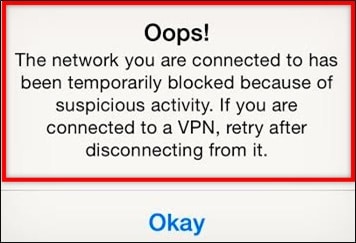
If you are using Snapchat through VPN, it can show you that your Snapchat could not connect to the server. It is recommended to close or uninstall VPN while using Snapchat to check if it resolves your problem.
Solution 5: Un-Root Your Device
If you are using a rooted device, it can cause you to see error messages on Snapchat application. You should unroot your device firstly, and reinstall the Snapchat application from the official website.
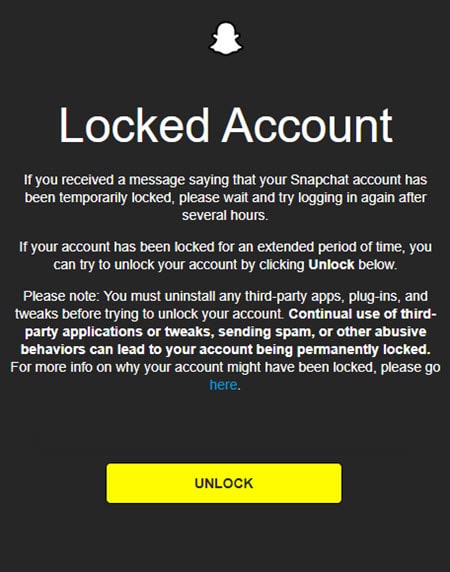
Solution 6: Unlock Snapchat Account
If your Snapchat account is locked for some reason, you cannot log in or access your account. Your account might get locked due to unauthorized activity, sending spam or abusive behavior, adding too many friends, etc. If you receive a message that your account is compromised and locked for safety, you should write to the support team of Snapchat official as soon as possible to get it unlocked.
Solution 7: Reactivate Your Deleted Account
You can log in to your deleted Snapchat account using your user name and password if you have deleted it not more than 30 days ago. But if you try to log in using your email address or try changing your password, you may notice ‘User not found’ error message. In case, you have deleted your account more than 30 days ago, then your account is deleted permanently and it cannot be recovered.
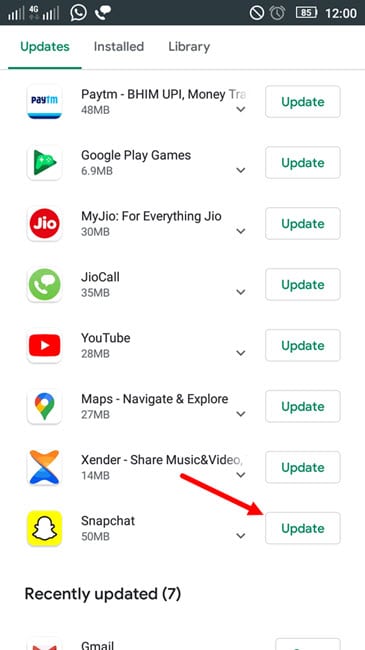
Solution 8: Check For Update Of Snapchat Application
Keeping an application up to date is very necessary for users. If there is an update waiting for your Snapchat application, it might cause you to face Snapchat could not connect due to the bugs or problems in the older version. You should update your application to its latest version to avoid such errors or other issues.
Solution 9: Check If The Snapchat Server Is Down
It is a common reason why you are having an error on your device display. Sometimes, the Snapchat server gets down due to server maintenance. When you get ‘Snapchat could not connect’, you should also check the Snapchat server to see whether it is working or not. If it is the maintenance of the server behind this error, you should wait until the server starts working properly and then try to log in again.
Solution 10: Try Reinstalling The Application
There might be another reason behind Snapchat connection error is a corrupted Snapchat application. To remove the crash file, you should uninstall the app from your device completely, reboot the device and again install the application from the official site. Sometimes, just a fresh installation might resolve your problem easily.
Conclusion
Now you know the reasons why your Snapchat could not connect to the server. Follow the above-said instructions properly, it will help you to know how to fix Snapchat could not connect and you can resolve the error easily. If you found this article helpful, let us know by commenting below. If you still have queries regarding Snapchat connection error, feel free to tell us here.
