What if you can visualize the exciting online music player Spotify with the help of a Rainmeter?
The fantastic tool like Rainmeter can customize your desktop and spice it up.
Now you can enjoy a much better, motional, and interactive desktop with just few steps. If you have not installed the best rainmeter skins yet feel free to choose them from here.
In today’s article I am going to discuss how to add Rainmeter Spotify visualizer and some troubleshooting steps to mend if it is not working for you!
Rainmeter Spotify Visualizer
Spotify can react after adding some visual effects but with a customization tool like Rainmeter, you will be enjoying every single thing streaming on Spotify!
You will be able to showcase the cool visualizer of music in the form of a default music player via Visualizer skins.
Let us now directly dig into the details of how to get the Rainmeter Spotify visualizer and add the new playing plugin.
You are just a few clicks away to do so. Have a look!
1. Getting Spotify Visualizer
You can get Spotify Visualizer through Rainmeter. You may choose from a huge number available on the internet but I will be just showing you one.
Follow the steps mentioned below to get Rainmeter Spotify Visualizer.
Step 1: Visit the official website for downloading the latest available version of Rainmeter and then proceed with the installation process.
Make sure to download from the official website only to ensure safety.
Step 2: Now get the preferable Rainmeter skin downloaded from https://www.deviantart.com/rainmeter/gallery/23941137/Skins.
Step 3: Now proceed to unzip the RAR files that you have downloaded and then simply copy & paste the Epoca file to Documents>Rainmeter>Skins.
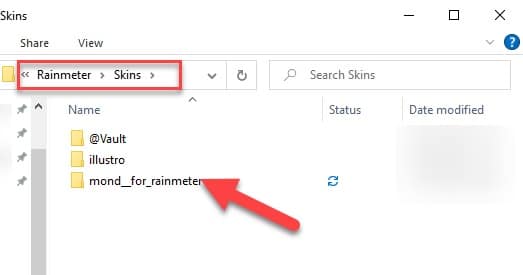
Step 4: Now launch your Rainmeter and then hit the refresh all button.
Step 5: Now make sure that the Simple Epoca skin is added to the Skin file. Click twice on it to locate the Visualizer .
Step 6: Choose one visualizer and hit the Load button. This will make the visualizer appear on your desktop.
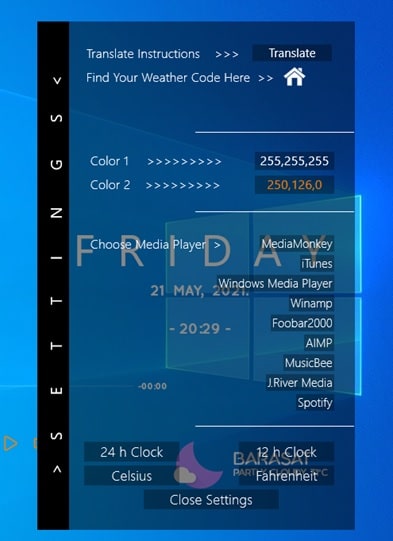
Step 7: You can now try playing a song on Spotify and check your visualizer amazingly react to the song!
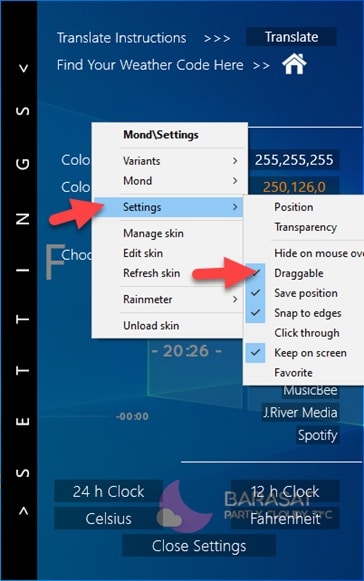
Step 8: It’s time for few tweaks now! Right-click on the Visualizer and then go to Settings. Now choose Draggable to adjust the Visualizer’s position.
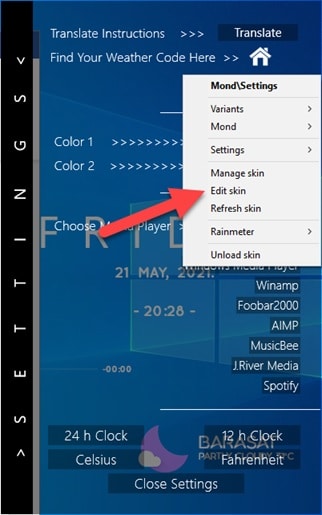
Step 9: You also have options to make some alterations in the parameters to give it a more natural look by clicking on the Edit Skin button.
Now enjoy your Rainmeter Spotify Visualizer!
2. Rainmeter Now Playing Plugin Feature
Previously, Rainmeter had many skins to display the Rainmeter now playing plugin status with a comparatively user-intuitive interface.
But right now, with the continuous updates of Spotify, some of those do not work properly.
Some skins still have control over Spotify playback but they somehow fail to showcase the song details and the album art.
Now check how to get Spotify Now Playing on your rain meter.
3. Display Rainmeter Now Playing Plugin
For getting Spotify plugin Rainmeter, you will have to play some tricks that I am going to vividly discuss now.
It is quite difficult to display what is being played on your Spotify via the Rainmeter widget, you may see the Spotify songs by playing those as local files.
It will then get displayed as what is being played on the local media player.
There is a smarter way to download Spotify songs. You can take the help of TunesKit Spotify Music Converter. With the help of this tool, you will be able to download the Spotify songs directly. After downloading any media player can play the songs.
You will have to just set the default player on Rainmeter and you can enjoy the now playing feature of Rainmeter Spotify Player.
Follow the basic steps mentioned below:
- Tuneskit
Step 1: Download TunesKit and then try to import the songs from Spotify.

When you open the software, Spotify will get launched automatically. You will just have to use your drag and drop facility to copy the tracks from Spotify to TunesKit.
After adding your favorite band of music, go to the output audio format, and then you will get six options– M4A, AAC, WAV, MP3 & FLAC. You will simply have to select the sample rate, bit rate, or output channel.
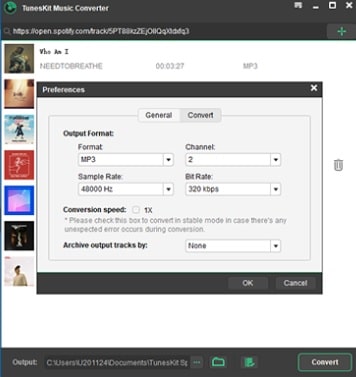
Now after doing all the tweaks to settings, hit the Convert button to load the songs from Spotify.
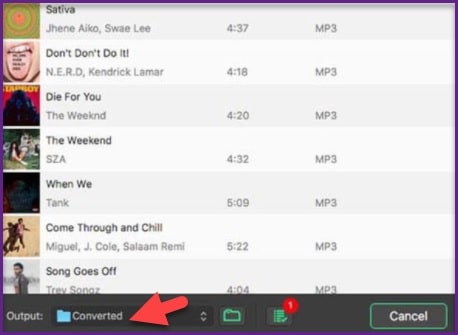
Now the files will be saved to the folder and you may click on the Converted option for browsing all the Spotify songs.
- AudKit
Audkit Spotify music converter is also another popular tool with an easy user interface designed for your convenience.
With the help of this tool, you can download and then convert Spotify to some common formats.
With a single click, you can make a choice of 100 songs as one batch.
Step 1: First launch Audkit and then start to import the Spotify songs.
Step 2: After downloading and installing Audkit Music converter, just drag and drop the media to the main window from the Desktop.
Step 3: Then select the Menu button and click on Preferences for launching Settings.
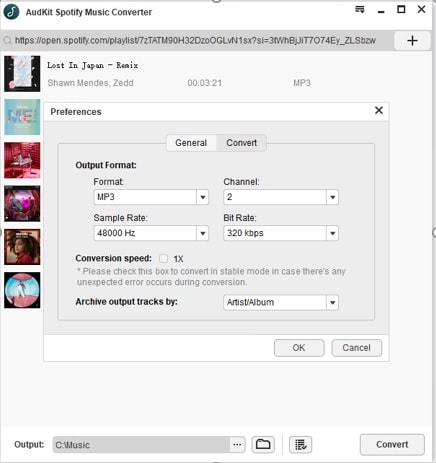
Step 4: Go to the Convert tab for adjusting the output settings. That’s all!
4. Get Rainmeter Now Playing Plugin
After you have the Spotify tracks on your Computer you may now get access from the File Manager.
You may choose to play them now without Spotify via the default media player.
Now follow the steps mentioned below for showing what is being played on Rainmeter:
Step 1: First of all launch a Player skin and then open settings.
Step 2: Next select the player with which you wish to play the downloaded tracks.
Step 3: Now play the track via a specific player and you will get to visualize the now playing feature on your Desktop.
Frequently Asked Questions (FAQs)
- What Is Rainmeter Spotify Visualizer?
Rainmeter Spotify visualizer is a customization tool that helps the user display real-time visualizer effects on their desktop while playing music from Spotify.
2. How Can I Connect Spotify To Rainmeter?
For connecting Spotify to Rainmeter, you can easily use a Spotify plugin for Rainmeter. This will display information such as the currently played song, artist, album, and album art on the desktop.
3. Can I Play Spotify Music With Rainmeter?
Yes, you can easily play Spotify music with Rainmeter by connecting the Spotify plug to Rainmeter. Doing this will allow you to control and display Spotify’s music player on your desktop.
Concluding
Hope this article could solve all your queries related to Rainmeter Spotify Visualizer. You can also try out the best clock skins to spruce up your PC
You are always welcome to come up with your queries in the comments section provided below
You may also shoot us a mail with your ideas or suggestions. We always look forward to hearing back from you.


Will Spotify cause any problems using this? Like, as any issues like slow down, etc.