It is in no doubt that Adobe Creative suit is one of the most popular set of applications among creators. Adobe Photoshop and Lightroom are the most popular photo editing apps among the users. This is highly because of the ease of use and the host of features that the suite of apps provides.
Some users have recently reported an error where they see the pen pressure sensitivity not working in Photoshop. Here I shall discuss some simple solutions that you can use to solve this error on your computer.
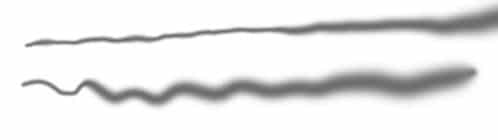
How To Turn On Pen Pressure Sensitivity In Photoshop?
Before taking a look at the solutions, make sure to check if the pen pressure sensitivity is enabled for your Photoshop application and the pen that you are using. Follow these steps for enabling the pen pressure in Photoshop:
- Open Photoshop on your computer.
- From the tools section, select the Brush tool.
- Open Brush Settings panel from the right pane.
- Here, select Shape Dynamics from the left section.
- In the right section of the panel, you will find a Control drop down menu.
- Here, select Pen Pressure from the drop-down menu.
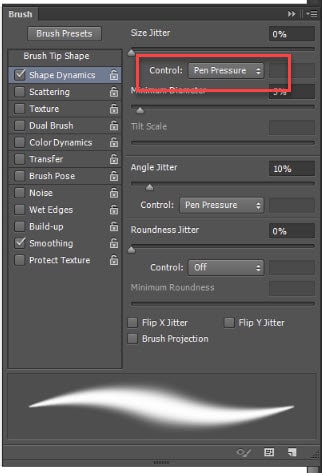
This will enable Pen pressure as an input dynamic in Photoshop on your computer. If it was disabled, you may have seen Photoshop not recognizing pen pressure.
How To Fix Pressure Sensitivity Not Working Photoshop?
If you too see that Photoshop doesn’t recognize pen pressure on your computer, it may be due to various reasons like outdated drivers, hardware fault, misconfigured settings, etc. As reported by users, here are some of the solutions that helped them solve the Photoshop no pressure sensitivity recognized error.
Solution 1: Reconnect The Pen And Tablet
One of the simplest solutions that you can apply to solve if you see pen not working in Photoshop is to simply reconnect the pen and tablet to your computer. It is possible that the tablet may have gone into a lockdown after being connected to the computer for a long time.
Simply disconnect the tablet from your computer, wait for some time and then reconnect the tablet. The pen pressure should be detected properly now.
Solution 2: Change The Pen Nib
As suggested by one user on the Adobe Support Community, the error can also be caused by a locked-up pen nib. If you have extra pen nibs for your stylus, change the nib and check if the error persists to diagnose this problem.
If you do not have extra nibs, remove the current nib and attach it again. Your error should be resolved.
Solution 3: Reinstall The Drivers
If reconnecting the device did not help you solve the pressure sensitivity issue in Photoshop, the issue might be with outdated drivers that is causing the hardware malfunction.
This can be easily resolved by reinstalling the device drivers for the tablet. Check out our article dedicated to device drivers in order to get help on the steps that you need to follow for the same.
If your computer was unable to find the latest drivers, you will need to visit the website of your graphics tablet manufacturer and manually download the device drivers. Then install the latest drivers and your pen sensitivity error should be resolved.
Solution 4: Restart The Driver Service
It is also possible that the driver service that is responsible for the communication between your pen and the computer has frozen, leading to pressure sensitivity not working in Photoshop. If you think this is the case, restarting the service associated to this should solve the error.
Simply follow these steps to restart the service:
- Open the Services console by typing services.msc and pressing Enter in a Run (Win + R) dialog.
- Under the list of available services, locate the services that start with the name of your tablet manufacturer and double click on it.
- In the Properties window for this service, first click on the Stop button to stop the service.
- Then, change the Startup Type to Automatic from the drop-down menu.
- Finally click on the Start button to restart the service.
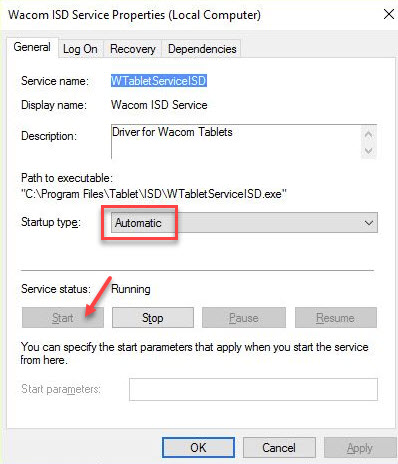
This should solve the error for your device.
Solution 5: Change The Configuration Files
This is a simple workaround that many users used to reportedly solve the pen not working in Photoshop error. This involves changing the configuration files inside the Settings folder of Photoshop. Simply follow these steps:
- Open a Run dialog by pressing Win + R.
- Navigate to the following folder by entering this name in the editor box after replacing the xx with the version of the Photoshop application on your computer:
%appdata%\Adobe\Adobe Photoshop CC 20xx\Adobe Photoshop CC 20xx Settings - Inside this folder, open a text editor like notepad or MS Visual Code inside this folder.
- Paste the following text in the editor:
UseSystemStylus 0
# Use WinTabUseSystemStylus 0 - Save this file with the following name:
PSUserConfig.txt - Restart your PC.
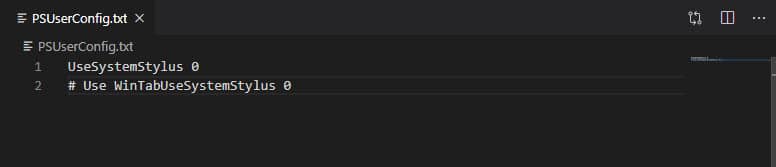
This should solve the pen pressure error on your computer.
Solution 6: PowerShell Workaround
In the same thread, many users used this PowerShell workaround to solve the pressure sensitivity not working Photoshop error on their computer. This involves making a Registry change using the PowerShell. You can read here how you can make changes to your registry using command line editors.
Here are the simple steps that you can follow to solve this:
- Open an elevated PowerShell You can find this option from the Windows Start menu, or from the WinX menu.
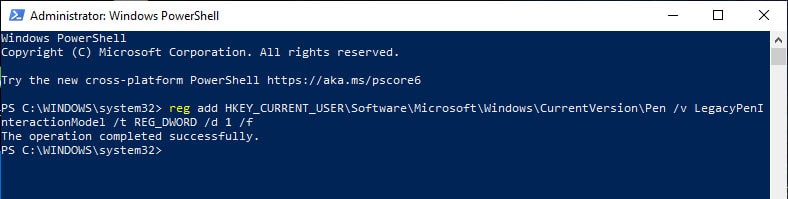
- In the admin PowerShell window, type or paste the following text and press Enter:
reg add HKEY_CURRENT_USER\Software\Microsoft\Windows\CurrentVersion\Pen /v LegacyPenInteractionModel /t REG_DWORD /d 1 /f - Restart your computer to implement the changes.
Check if the error persists. This should solve the pen not working in Photoshop error.
Wrapping Up
So there you have it. Now you know how to solve if you see pressure sensitivity not working in Photoshop using one or a combination of the solutions provided above. Comment below if you found this useful and to discuss further the same.

