If you have ever played games on your Windows PC, you must have heard of the Origin platform at least once. Origin is one of the most popular online gaming platforms that allow users to play online multiplayer games. The Origin Store is the digital store for the games, and you can buy and download fan-favorite popular games over the internet. Origin is most popular for social networking integration features, which can be accessed in-game.
Why Is Origin Not Working On My Device?
While Origin hosts some of the most popular games on its store, the app is not perfect by any means. many users have reported that the Origin application does not load properly on their device. Some users have also reported of the Origin app not loading even after closing and re-launching the application.
There are many reasons as to why you may see Origin not loading on your Windows 10 device. You may find the reason to be one of the following:
- Origin updates: The Origin app has an update process running in the background. When the Origin client updates in the background, you may see the application crashing or not responding.
- Corrupted cache files: if there is an issue with the stored cache files, there is a chance that the Origin app may be malfunctioning because of these mismatched data.
- Malfunctioning Temporary files: The Origin application, just like other applications, also stores some temporary files, which are used to smooth the user experience of the application. These temporary files, when corrupted can prevent the app from loading up at all.
- Incorrect installation or corrupt core files: Although rare, if the Origin app was not installed properly, or the core installation files are corrupted for some reason, the Origin application will fail to load.
How To Repair Origin; Origin Not Loading Fixed!
Now that you know why the Origin client is not loading on your device, here are some simple solutions that you can use to troubleshoot the malfunctioning Origin client.
Solution 1: Check Your Internet Connection
One of the most common reasons why you may be facing this error is an unstable internet connection. Your operating system stores the IP address of the websites and the applications that you visit to load them faster the next time you visit them. This network cache, when corrupted, can disrupt the internet speeds.
On nearly every kind of network, there is a timeout period, after which the connectivity throttles upon continued usage. Restarting your router and putting your device on Airplane mode and back, will reset the network, and the throttle should be over. This will clear the network errors, and you should be able to resolve the Origin error loading webpage error message.
On Windows, you can try clearing the DNS cache as well. To do that:
- Open an elevated Command Prompt. To do this, open a Run window by pressing Win + R. Type cmd and press Ctrl + Shift + Enter to launch Command Prompt with administrative privileges.
- Type the following command to flush your DNS cache:
ipconfig /flushdns
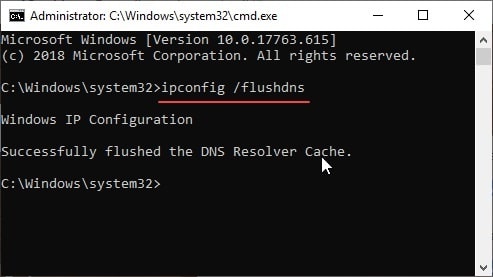
Wait for the confirmation message and then try loading the Origin website again. Origin error loading webpage message should now be resolved.
Solution 2: Update Origin Client
As mentioned earlier, there is a built-in update process that runs in the background to update the Origin client without you having to manually update the app. This comes in very handy when you forget to check if the Origin platform client is updated to the latest version or not.
However, some users have reported that the Origin client malfunctions when the Update process runs in the background. This can be annoying, but updating the client is necessary, as each update contains multiple bug fixes and element changes.
If you have the Origin application running when a new update launches, it will not update automatically. Instead, you need to close the application and restart it to begin the update. Close the application from the task manager to force quit the application.
- Open the task manager. You can use the keyboard shortcut Ctrl + Shift + Esc.
- Under the Processes tab, locate the Origin application.
- Use the End task button in the bottom right corner of the window or select the option from the right-click context menu.
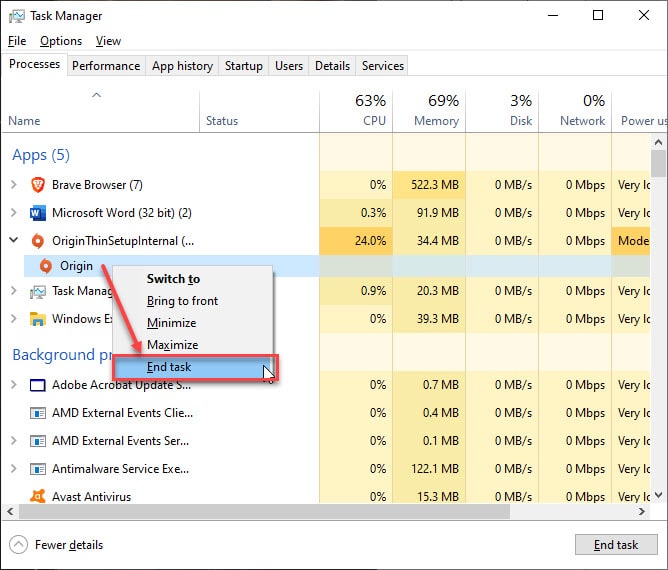
- Next, launch the Origin application again.
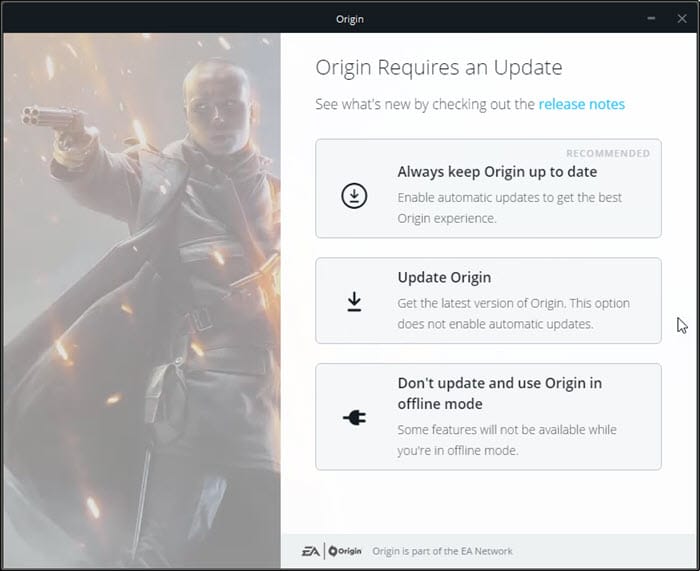
This should start the update process, following which the Origin not loading error should be solved.
Solution 3: Delete Local Cache For Origin Application
Cache refers to the data stored that is stored by websites and applications locally, to load them faster the next time you launch them on your device. The cache is very important in decreasing the loading time of the websites and applications, and without it, every resource would have to be downloaded again every time.
However, missing or corrupted cache data can be very troublesome, as these can prevent you from loading the application at all. You need to clear the local cache in order to improve the loading times of the application.
- Close the Origin client from the task manager as shown in solution 2.
- Open a Run dialog by pressing Win + R.
- Type %ProgramData% in the dialog box and press Enter to launch the ProgramData folder.
- In the ProgramData folder, open the Origin folder by double-clicking on it.
- Inside the Origin folder, delete all the files and folders except the LocalContent folder.
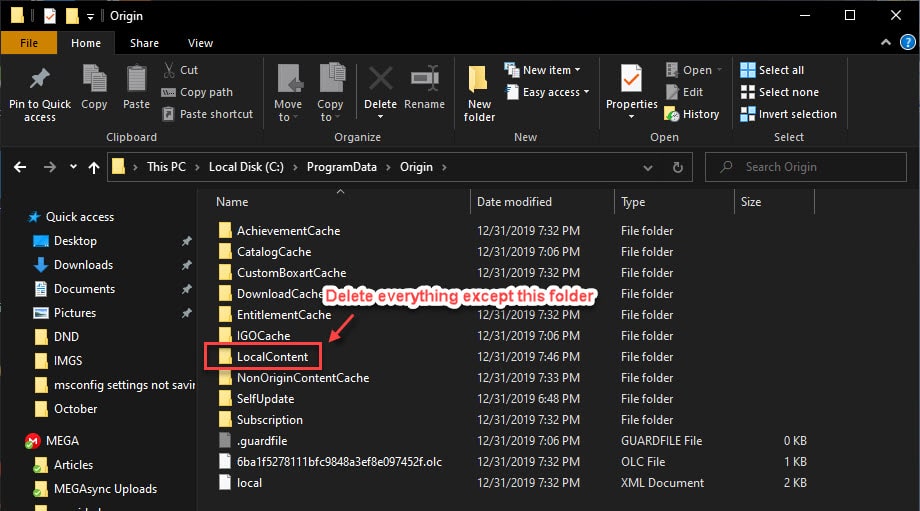
Caution: Do not delete the LocalContent Folder.
When you open the Origin client next, the cache library will be rebuilt, and your Origin not loading error should be resolved.
Solution 4: Delete Origin Temporary Files
Origin also creates temporary files in the AppData folder. These temporary files are helpful in keeping the app up to date, and handle other background processes, but can cause the Origin app not loading error. You need to delete these files, which will create them again, therefore solving your error.
These temporary files are hidden by default. Follow these steps to view and delete these files:
- Open File Explorer. You can use the keyboard shortcut Win + E.
- Under the View tab in the top ribbon, click on the Options
This will open the File Explorer Options dialog. - Under Advanced Settings, select the radio button next to Show hidden files, folders and drivers.
- Select Apply followed by OK.
- Now, open another Run dialog by pressing Win + R.
- Type %AppData% and press Enter to launch the AppData folder.
- Here, delete the Origin folder located in both the Local and Roaming folders inside the AppData folder.
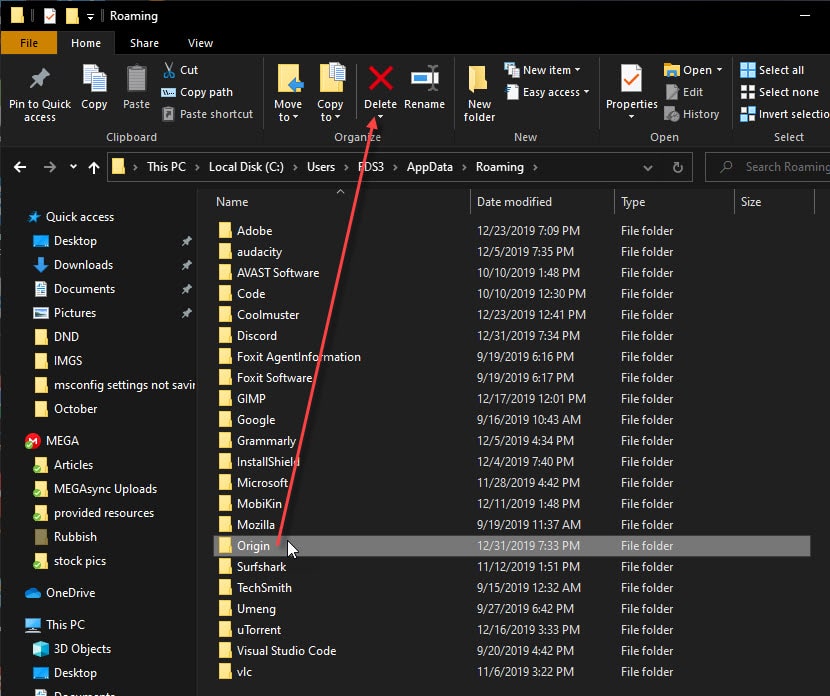
- Restart your device.
Now, launch the Origin client to check if the error is resolved on your device.
Solution 5: Reinstall The Origin Application
If none of the solutions provided above helped you solve the Origin not loading issue, there might be some core installation files that are malfunctioning leading to the error. In situations like these, you need to reinstall the Origin application.
Uninstall the Origin application from either the control panel or using third party batch uninstallers. Remember to remove the residual files as well and restart your device after the uninstall finishes.
Next, download a fresh copy of the Origin application from the official EA website. Install a new copy of the Origin application on your device. The UI should load in this fresh install of the app.
Wrapping Up
So there you have it. Now you know how to troubleshoot the ‘Origin not loading’ error using one or a combination of the solutions provided above. Comment below if you found this useful, and to discuss further the same.

