It happens many times that you may hit the big red X instead of closing just one tab. You can lose all the progress you made in other tabs just by this silly mistake.
Chrome is probably the most used web browser out there thanks to its speedy and efficient user interface. Google developers want Chrome to be fast and reliable. A drawback of this is that some important features like exit warnings are not included in Google Chrome for Windows.
Response From The Google Chrome Developers
The reason that Google Developers have provided for not including this feature is:
Thank you all for your feedback. At this time, we don’t have plans to implement this feature. Part of Chrome’s design philosophy is to avoid interrupting you with annoying questions that only sometimes matter. Still, we do see how accidental closing of tabs can be frustrating, and we are thinking of a better solution.
Exit Warning Is Already A Feature In macOS
In the same community forum, this was also said by the Developers:
This feature already exists on Mac because ⌘ + Q (quit/close application) is often mistakenly hit instead of ⌘ + W (close tab/window). To enable this feature, go to the Chrome menu in the upper-left and select Warn Before Quitting. The next time you press ⌘ + Q, a floating window will appear, instructing you to Hold ⌘+Q to Quit.
How To Make Chrome Ask Before Closing All Tabs In Windows?
Google is trying their best to keep Chrome design simple and fast, so they have opted out of this exit warning feature. But there are some workarounds you can deploy to prevent all tabs from closing in Chrome for Windows.
→ FIX 1 (JavaScript Pinned Page)
There is a JavaScript page that I will leave the link below to, that uses a special script that will prevent Chrome from shutting down all tabs in the open Window. This actually works on all chromium-based browsers.
You can add this page to your startup pages, or pin this tab to the current window by selecting Pin Tab from the right-click menu on a tab.
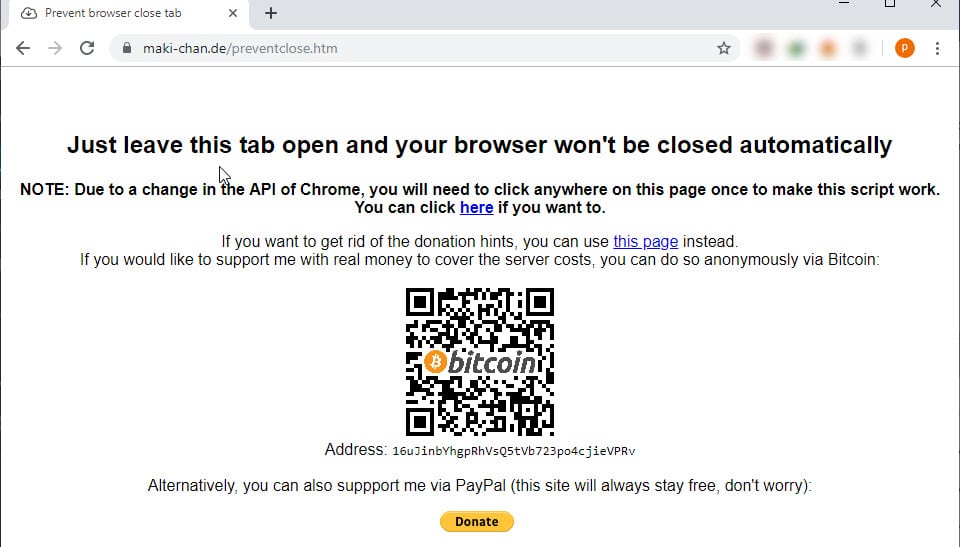
http://www.maki-chan.de/preventclose.htm
To add this page as your startup page:
- Go to chrome://settings and select the radio button next to Open a specific page or set of pages.
- Then click on Set pages and add the link to the address path.
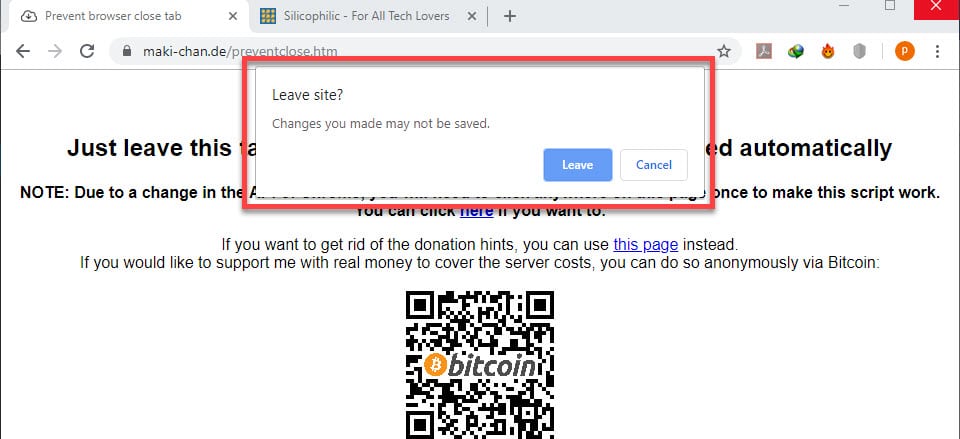
If you are dissatisfied with pinning a page on your window or keeping a page at all times, you can set Chrome to open all the tabs that you closed on your last session.
→ FIX 2 (Continue Where You Left Off)
You can alternatively use this method to continue your session from your last time if you don’t want to open individual tabs again and again. Here is how it can be done:
- In Chrome, open the hamburger menu (≡).
- Click on Settings.
- In the On startup settings, select ‘Continue where you left off’.
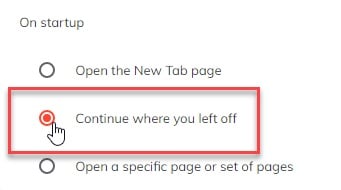
This will restore the previous tabs from your last session the next time you open Google Chrome.
Conclusion
Keeping in flow with the simple design and speed features of Chrome, it is shocking that such an important feature like exit confirmation would be skipped. However now you know how to make Chrome ask before closing using the two methods given below. Comment below if you found these methods helpful or want to discuss further.

