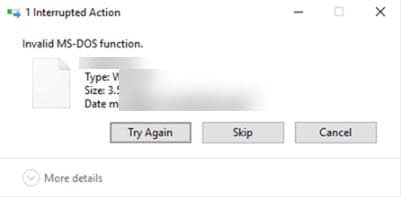
With the complexity in the code of Windows 10, system errors are a common occurrence. There are many such system errors that we have already discussed, and here we shall discuss an issue where users get an error message that says invalid ms-dos function.
Let us take a look at why you may see this error and how you can solve this easily on your computer.
FIXED: Invalid Ms-Dos Function Windows 10
This file system error occurs while copying, moving, renaming or deleting a file from your formatted storage.
While this error is mostly prevalent on Windows 10, some users have reported seeing it on earlier iterations of Windows as well. There are many reasons why you may see this error, so just one fix from the solutions provided may not be sufficient for you. Try and mix all of the solutions below to fix this on your computer.
Solution 1: Check The File System
Windows 10 disks are usually formatted in the NTFS format, while some older storage systems use the FAT32 storage system. Similarly, the newer server grade storages use the ReFS file system. This generation gap in file systems can sometimes lead to this error, and Microsoft is aware of this issue.
On this Microsoft docs page, you will find the appropriate information regarding how to use the Get-hotfix cmdlet. In short, you will require pulling the updates using the cmdlet.
Alternatively, update Windows to the latest firmware patch which will automatically install HotFixes on your computer.
Solution 2: Optimize And Defrag Your Storage Device
If you see this error while transferring some file from one partition to another, you may need to optimize the storage device, as this error is likely being caused by the fragmentation of the storage sectors on your HDD. There is a built in defrag tool in Windows 10 that you can use to optimize the hard disk, follow these steps for the same:
Note: You cannot use this to optimize your SSD.
- Open File explorer using the keyboard shortcut Win + E.
- Go to the drive that you wish to defrag using the built-in utility.
- Right click on any empty space to reveal the context menu.
- Click on Properties from the additional menu revealed.
- Switch to the Tools tab.
- Under the Optimize and defrag drive section, click on the Optimize
- Select your drive in the next window, and click on Analyse button first.
- Once that completes, click on Optimize to defragment the storage device.
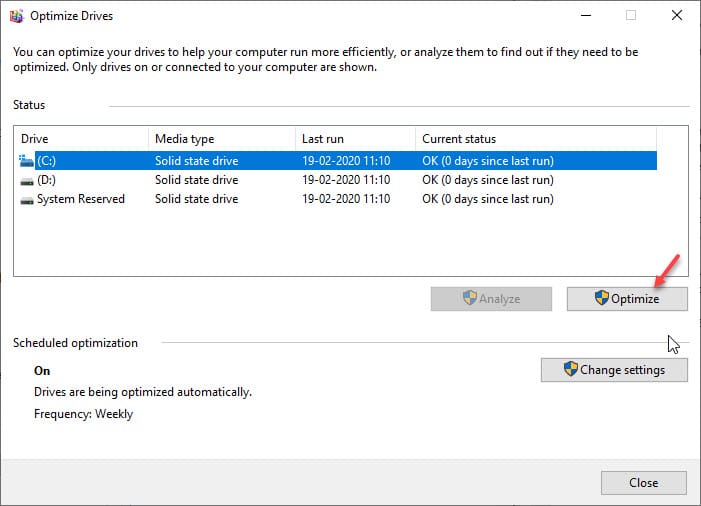
While you wait for the process to complete, Windows will optimize the storage device by defragmenting the disk drive.
Solution 3: Run System Utility Scans
If optimizing the storage device did not help you, there might be something wrong with your system that requires immediate attention. To eliminate this as a possibility, run the system utility scans that are built into Windows.
First, run the CHKDSK scan from an elevated command prompt window.
Then run the SFC and DISM scans to scan for and repair any broken system files.
Solution 4: Make A Registry Change
If there is no broken or missing system file, you will need to make a change to the registry in order to permanently remove the error from your computer. This involves adding an instruction to the Windows system. Follow these steps for the same.
- Open a Run dialog using Win + R shortcut.
- Type regedit and press Enter to launch the Registry Editor. Click Yes on the user account control prompt.
- Navigate to the following location by pasting the path in the address bar of the Registry Editor:
Computer\HKEY_LOCAL_MACHINE\SOFTWARE\Policies\Microsoft\Windows\System - In the right pane, right click to reveal the additional menu.
- Select DWORD (32-bit) value from the context menu.
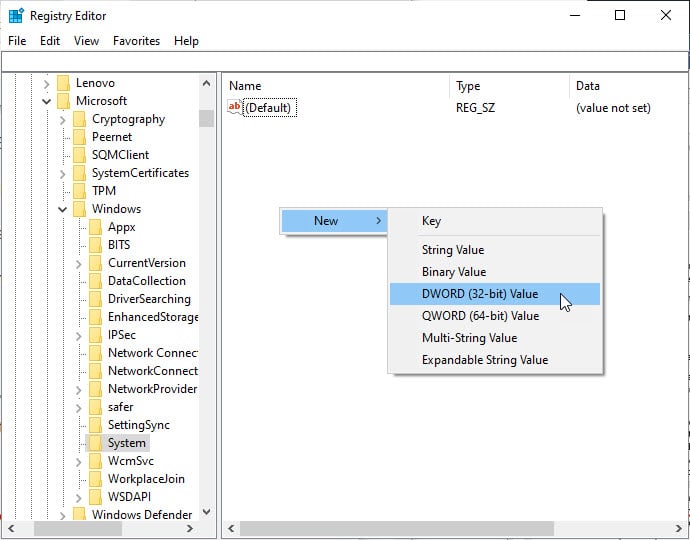
- Name the DWORD value as the following:
CopyFileBufferedSynchronouslo - Set the Value data to 1 and press Enter to save the value.
- Restart your computer.
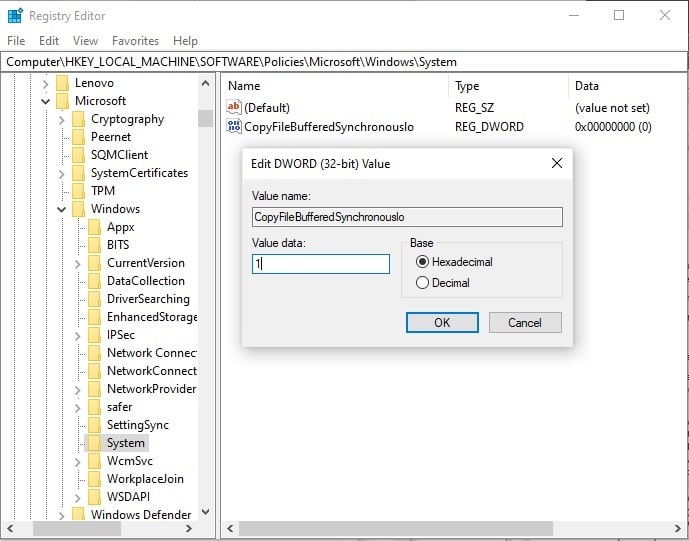
Now when you try to manipulate the files again, you should not face the same error again.
Wrapping Up
So there you have it. Now you know how to fix the invalid ms-dos function error on your PC using one or a combination of the solutions provided above. Comment below if you found this useful, and to discuss further the same.

