Google Chrome is one of the most popular browsers available right now. It has earned this popularity among users thanks to the increased focus on speed and reliability. Google developers have tried their best to keep the app clean and secure, and that can be seen when using the browser for browsing the internet.
Not all is perfect for the application. Many users have reported an error where Google Chrome keeps freezing on their device while browsing the internet. Here I shall discuss how you can solve the problem where Google Chrome freezes your PC.
Why Does My Google Chrome Keep Freezing?
One area where Google Chrome falls behind its competitors is resource usage. Chrome is notorious in using system resources, and this effect can be seen clearly on older devices where the system can freeze if many tabs are open simultaneously in the browser.
There are many reasons why Google Chrome may be freezing on your device. This can be attributed to various reasons like:
- Corrupt cache data is one of the most common reasons why you may be facing this error.
- You can also face this error if some extension that you installed on your device is misbehaving. This is very common, and you need to diagnose which extension may be failing and causing the error.
- Outdated device drivers can also lead to many errors on your Windows 10 device, including misbehaving applications.
- There are also some problems with your internet, which may cause the browser to fail loading sites. This can be attributed to corrupt DNS cache or network configuration.
- Malware hidden on your device can be the source of many errors on your device. If Google Chrome keeps freezing on Windows 10, malware or virus infection can be the potential cause of this error.
How To Solve The Google Chrome Keeps Freezing Error On Windows 10?
Now that you have some knowledge about why you may be facing this error, here are some potential fixes if your Chrome freezes the computer.
Solution 1: Check If Chrome Is Added To The Firewall List
A firewall refers to the shield between your device and the internet. It prevents malicious users and files from being downloaded onto your device, as the internet traffic passes through the firewall. If any app has been disabled through the firewall, it will not be able to communicate over the internet freely.
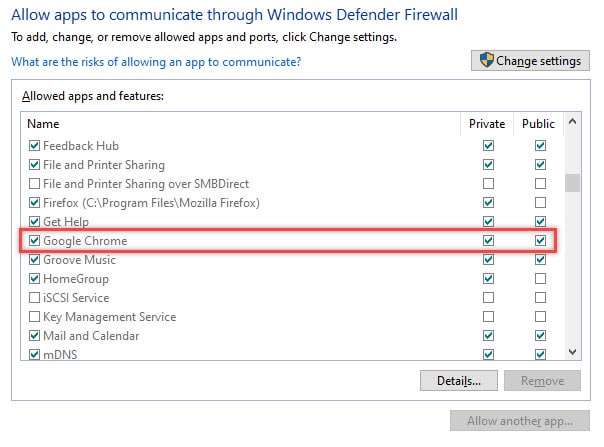
If Google Chrome has been removed from the firewall, it may not be able to load pages normally. Check if this is the case for your device as well, and to do this follow these steps:
- In Windows Search, type Firewall.
- Locate and click on Allow an app through Windows Firewall.
- Locate the Google Chrome application. Make sure that it is enabled through both the public and private firewalls.
- If it is not, click on the Change settings button at the top.
- Check the boxes next to the app under both Private and Public networks.
- Close the control panel and restart your computer.
Now launch Google Chrome again and check if you still get the error on your device. Chrome should run without any problems now.
Solution 2: Check And Update Your Drivers
Drivers are the configuration files, which facilitate the communication between your hardware device and your operating system. Corrupt or missing device drivers can lead to many errors on your system which revolve around your device malfunctioning.
This is actually one of the most common causes that this error can happen. If you have skipped some device driver updates, those outdated drivers can conflict with your hardware and can result in many different errors including this Chrome keeps freezing error.
To check and update your device drivers, follow these steps:
- Open a Run dialog box by pressing Win + R.
- Type devmgmt.msc and press Enter.
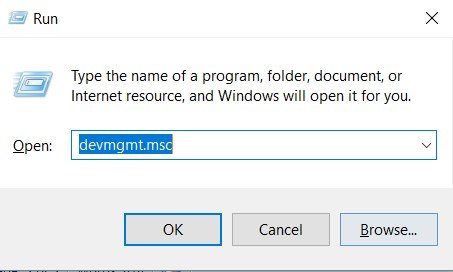
- This will open the Device Manager.
- Here, locate the devices that may be associated with your error e.g. the Graphics card drivers, display adapters drivers, etc.
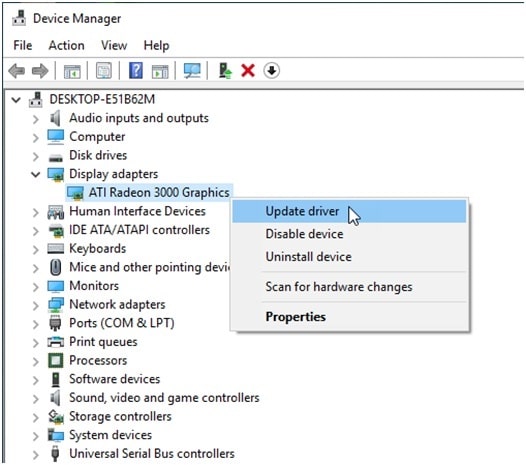
- Right-click on these devices, and select Update Driver.
The Windows assistant will search for and prompt you to install the latest version of the device drivers. - Restart your system.
If your Chrome error was caused by some outdated drivers mismatch, this should solve the error and Chrome should run normally on your device.
Solution 3: An Experimental Workaround
An experimental workaround was posted by a user in the Google Community forum, which helped some users solve the ‘Chrome keeps freezing’ error on their devices and may help you solve the error as well. Follow these steps to try this solution:
- Right-click on your Google Chrome desktop icon. If it does not exist, create a desktop icon first and then right-click on it.
- Select Properties from the context menu.
- Under the Shortcut tab, you should see a section called Target where the path of the file is mentioned.
- At the end of the path name, add the following text:
–disk-cache-size=9547575258
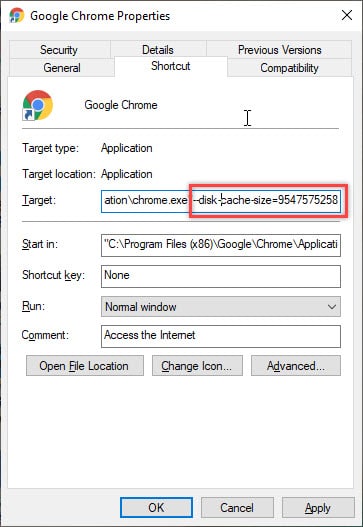
- Click on Apply followed by OK.
- Launch Google Chrome using this keyboard shortcut.
This change deals with changing the default cache size space. This should provide you with a significant amount of time before Google Chrome runs out of disk cache space.
Solution 4: Reset Network Configuration
This is usually done to reset any disrupted or corrupt network settings, which may be preventing you from being connected to the internet.
- Open an elevated command prompt. To do this, open a Run dialog by pressing Win + R, type cmd and press Ctrl + Shift + Enter to launch the command prompt with administrative privileges.
- Type the following commands and press Enter after each command to reset the network configuration data:
ipconfig /flushdns
netsh winsock reset - Reboot your device for implementing the changes for your device.
Solution 5: Scan For Malware
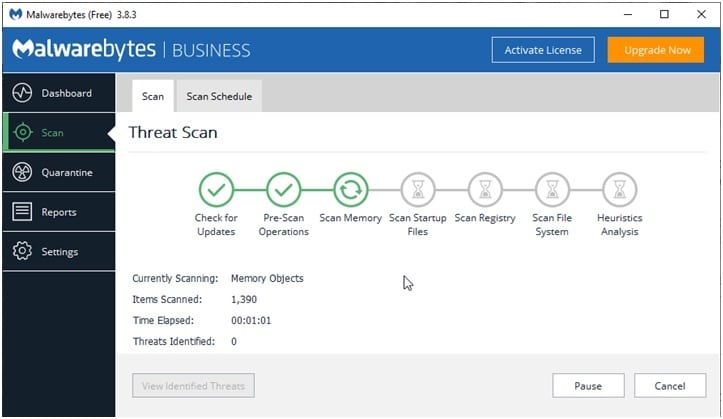
Many users have reported that hidden viruses and malware are the actual cause why Google Chrome freezes their computers. Malware can also cause other threats like data breaches and malfunctioning devices.
If you own third party premium antivirus software, run a full scan of your device to locate any hidden virus or malware. Else, you can also use free alternatives like Avast free antivirus or Malwarebytes free anti-malware.
Solution 6: Disable Misbehaving Extensions
If you started witnessing the Chrome keeps freezing error after you installed an extension, it is possible that some broken extension is causing the error you are facing.
To check if that is the case, open the file page you were having the error on using Incognito Browsing mode. Run an Incognito Window by right-clicking on the taskbar icon and selecting New Incognito Window.
Now try to surf the internet in Incognito mode. If the browser works normally in incognito mode, there is probably some broken extension on your device that is causing this error to appear.
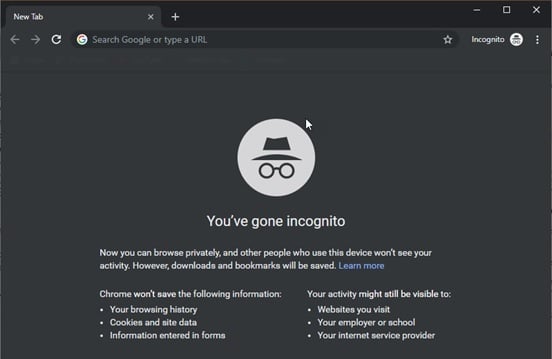
The extensions by default are disabled in this mode, and you can confirm that the error was caused by some broken extension if you don’t face this error anymore in Incognito mode.
Start by enabling the extensions one by one and check if the error persists.
Solution 7: Clear Chrome Cache
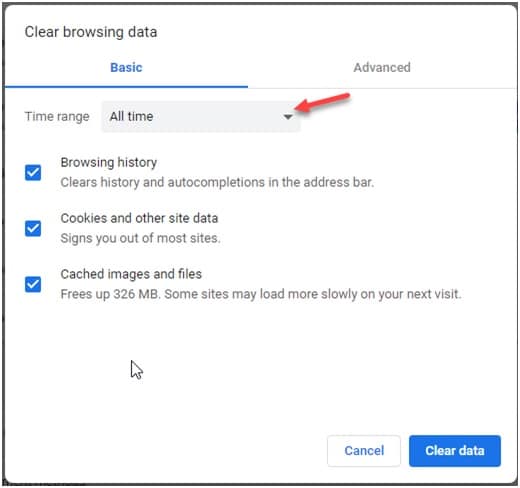
The cache is the data stored on your device by various websites, to load data from them faster the next time you load the website. However, sometimes a mismatched cache data can cause all sorts of errors, and this error is one of them. To solve your Chrome freezes computer error, clear all your Google Chrome data like cookies and cached images and files.
To clear Google Chrome data, press the Ctrl + Shift + Delete in a new tab to open the Clear browsing data dialog box. Here select All time from the Time range drop-down menu. Then select Clear data.
Solution 8: Reinstall Google Chrome
As a last resort, if all other fixes fail, you can try performing a clean reinstall of the Google Chrome browser. This will also help you in case you have a corrupt Chrome installation. A fresh install will reset all the broken files and settings, and form the data libraries again.
- Uninstall the Chrome application from the Control panel. Then remove the residual files as well. To remove the residual files, you can use a third-party junk file cleaner like CCleaner.
- Then download a fresh copy of the Chrome installer from the Google website and run the installer.
- Wait for the installer to finish.
Now check if Google Chrome freezes on your computer.
Wrapping Up
So there you have it. Now you know how to solve the Google Chrome keeps freezing error using the methods provided above. If you still happen to see the error and Chrome still freezes your computer, you may have to switch to other browsers for the time being until the issue is resolved in a future update. Tell us how you solved the error in the comments below.

