Bookmarks allow you to quickly visit the sites that you frequently visit, or may need in the future. Firefox has a robust bookmarks manager that allows you Hey do you add delete and organize the websites that you bookmark in order to find them quickly in your need.
Also read: How to bookmark multiple tabs
While bookmarks are synced automatically across all the devices that you have signed into, there may be scenarios when you want to export bookmarks from Firefox without signing into the Firefox account. Exporting the bookmarks can come in handy if you are formatting your PC, or want to port them over to another device.
Mozilla Firefox: How To Export Bookmarks?
You can backup your bookmarks, which will save your bookmarks to your account. However, you can also export bookmarks from Firefox if you wish to use them on other browsers, or another device. Firefox allows you to export your bookmarks to an HTML file, which can then be stored on any storage device like your SSD or flash drives.
To export bookmarks from Firefox, follow these steps:
- Open the Firefox browser on your computer.
- Click on the Library button on the toolbar. You will find the button adjacent to the address bar on your computer. If you do not find the button on your toolbar, click on the hamburger menu to reveal options, and select the Library.
- In Library, click on Bookmarks.
- At the very bottom, locate and click on the option that says ‘Show All Bookmarks’.
You will also find the shortcut to access this as Ctrl + Shift + B.
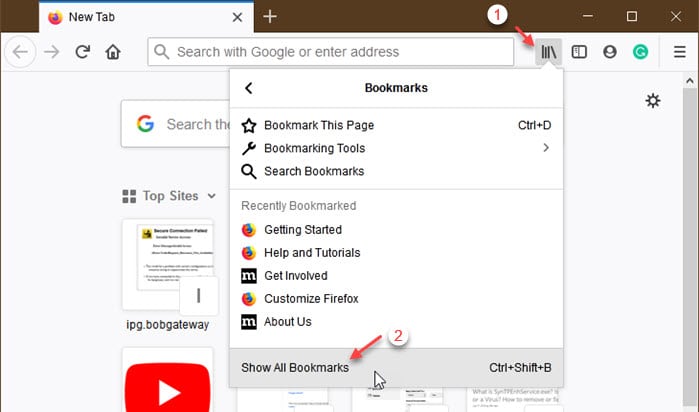
- This will open the Library in a separate window.
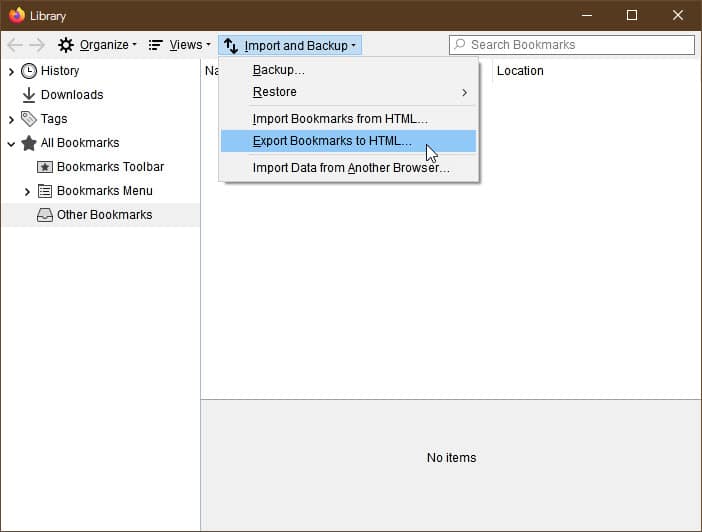
- Click on the Import and Backup button in the toolbar.
- From the extended menu, select the Export bookmarks to HTML… option.
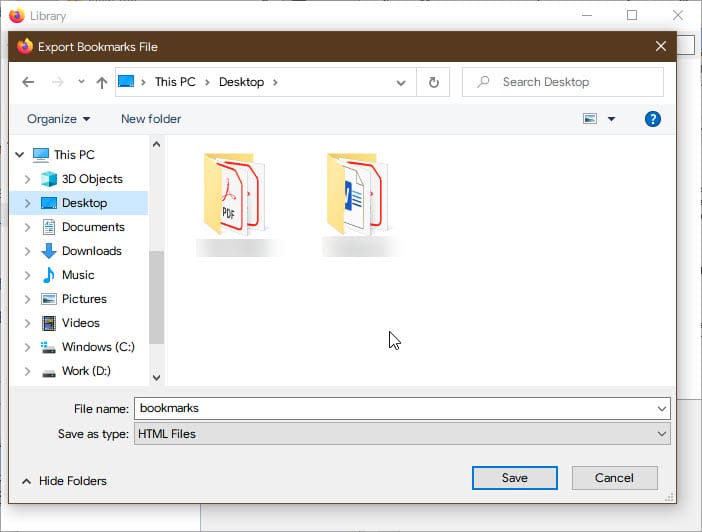
- Finally, select where you wish to save the file and click on the Save button to export your Firefox bookmarks.
How To Import Firefox Bookmarks?
In the library window that you opened in the method above, you will also find the option named ‘Import Bookmarks from HTML…’. This option allows you to import the bookmark file that you exported back into your browser so that you can have all your bookmarks ready to access.
Also read: How to lock bookmarks
Wrapping Up
So there you have it. Now you know how to export bookmarks from Firefox using the method provided above. Comment below if you found this useful, and to discuss further the same.

