Although ported from other browsers, with Chrome 78 was launched the Chrome tab power cards. With this feature, when you hover over a tab in Chrome, you get a card for the tab showing the site title and the permalink for the site.
This feature received mixed reactions, with some loving but some hating the feature altogether. Let us discuss how you can enable or disable Chrome tab hover cards.
A Brief About Chrome Hover Over Tab Cards!
The hover cards were introduced back in Chrome beta 73 as an experimental feature adopted from the older EdgeHTML browser. Usually, when you hover over a tab in Google Chrome, you get a small snippet showing the page title. However, with hover cards, you get the page URL along with the title.
If you enable the thumbnail preview feature, you can also see a thumbnail preview of the web page on the hover card. The hover thumbnail is actually a separate feature, with a different feature flag for the same allowing it to be turned off separately from the hover cards.
The hover tabs cards are also accessible on the new Microsoft Edge Chromium, so the same methods apply to the new browser as well.
How To Disable Chrome Tab Hover Cards?
Chrome hover over tab cards is enabled by default in Chrome 78 and higher. If you do not like the hover cards, you can remove them very easily. This can be done from the Flags menu, where the developers test the experimental features.
Follow these steps for the same:
- Open the Chrome browser on your device.
- Type the following and press Enter to launch the Chrome Flags page:
chrome://flags - In the Chrome Flags page, type tab hover card in the search bar.
This should display two experimental features named Tab Hover Cards and Tab Hover Card Images - From the drop-down menu for Tab Hover Card Images, if you want to just remove the thumbnail from Chrome, select Disabled.
- From the drop-down menu for Tab Hover Cards, select Disabled to remove Chrome hover cards altogether from the browser.
- Finally, click on the Relaunch button that comes when you change the Chrome flags options.
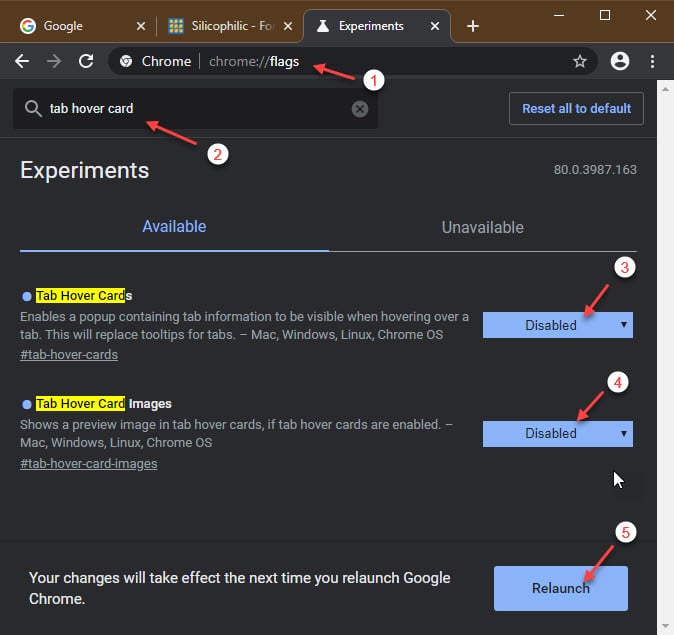
When your browser relaunches, you will have successfully disabled the Chrome tab hover cards on your computer.
Wrapping Up
Chrome tab hover cards have mixed reactions among the users, with some users not preferring the thumbnails taking up a large space of their screen. Now you know how to disable Chrome tab hover cards using the method provided above. Did you find this useful? Comment below if you did, and to discuss further the same.

