The “EA unable to link” error in Star Wars Jedi Survivor is an issue that prevents the game from launching because the player’s account is not linked with the EA account.
We have shown how you can easily fix it, so let’s start.
Also read:
- Star Wars Jedi Survivor Crashing On Startup – FIXED
- Fix: Star Wars Jedi Survivor EXCEPTION_ ACCESS_VIOLATION Error
What Causes The Link Failure Error In Star Wars?
The “EA unable to link” error in Star Wars Jedi is caused due to a variety of reasons.
Here are a few of those:
- Incorrect EA Account Details
- Connectivity Issues
- Server Maintenance
- Outdated Game Files
How to fix the “EA Unable to Link” error in Star Wars Jedi?
We have discussed below some solutions that will be helpful in resolving the “EA unable to link” error.
By following these tips and tricks, you will be able to reduce the chances of encountering this error.
1) Ensure Your Steam Account Isn’t Linked With Any Other Account
Make sure your Steam account is already not linked to another EA account.
If it is, unlink it from that account and link it with the new account.
Follow the steps in order to carry out the unlinking process:
- To do it, you need to visit EA.com on your internet browser and click on the profile icon.
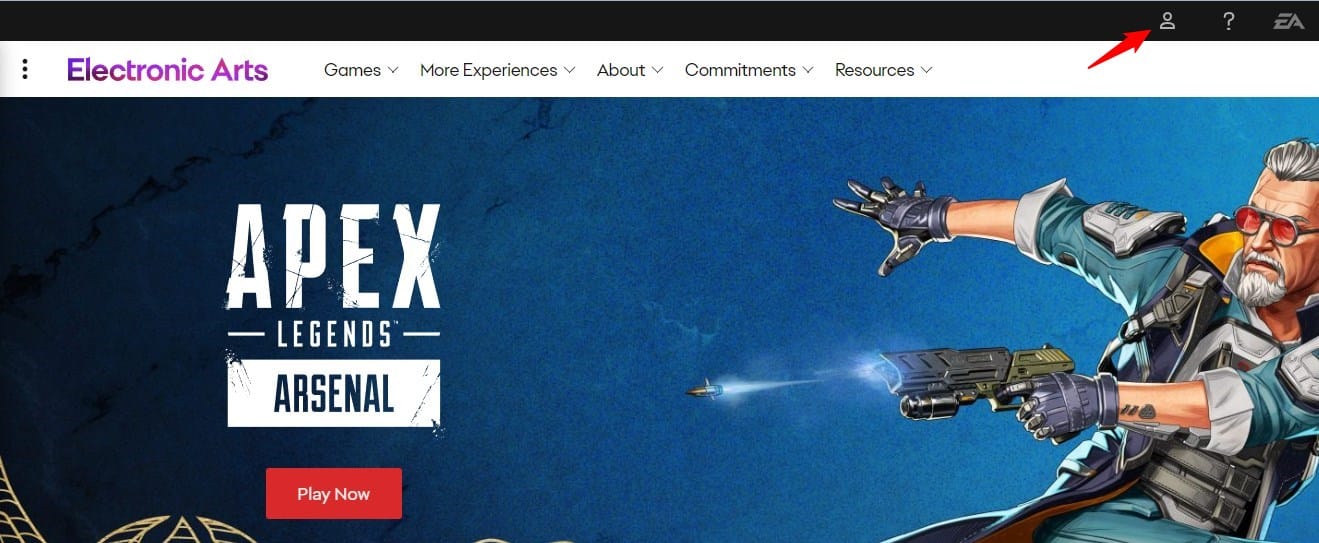
- Select Sign in & then sign in with your linked account.
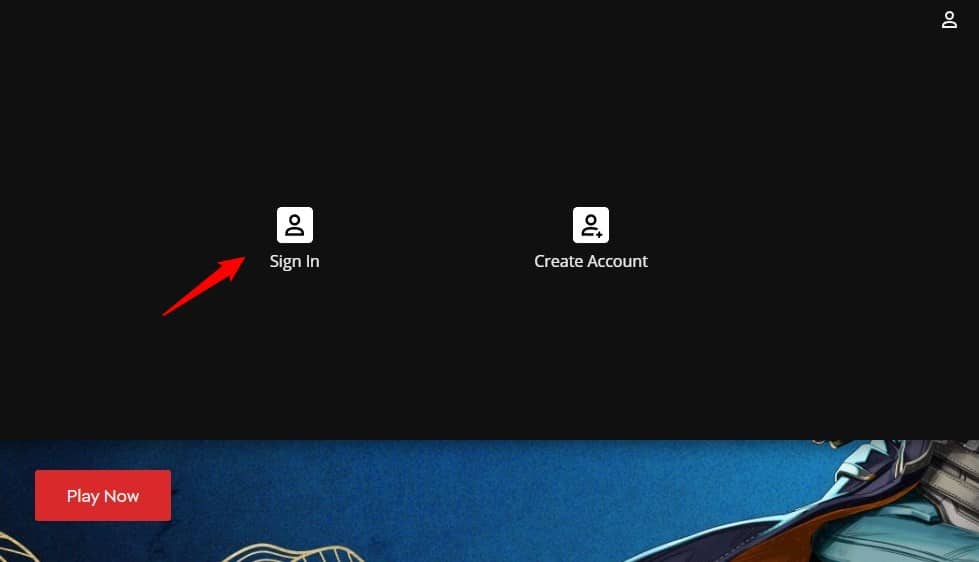
- After you are signed in, click on the Profile icon and select Account Settings.
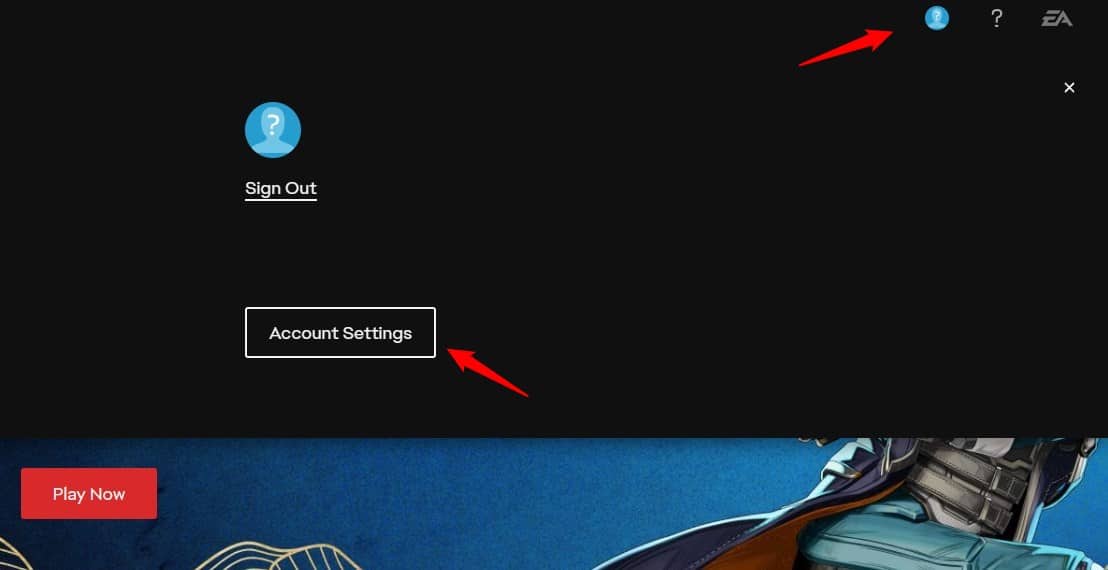
- Next select Connections. Here you will be able to see all the connections you have.
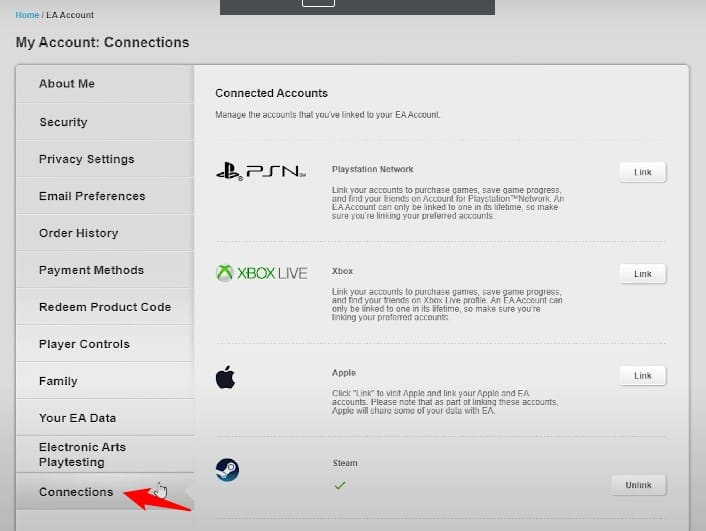
- Find Steam and click on Unlink.
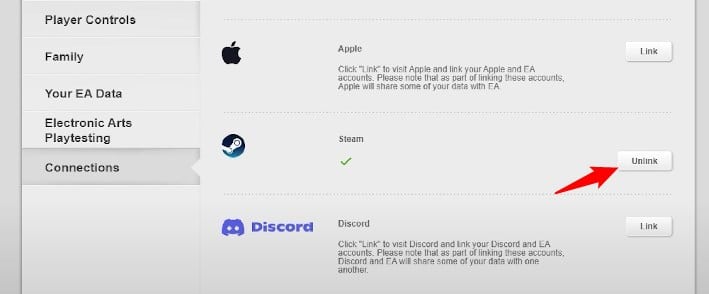
- After you have done this, they will send a confirmation code to your Steam email account.
- Enter the confirmation code to unlink the account.
- After the account is unlinked, install and run the game.
- If you are being asked to log in to your EA account, log in with the account you want to connect.
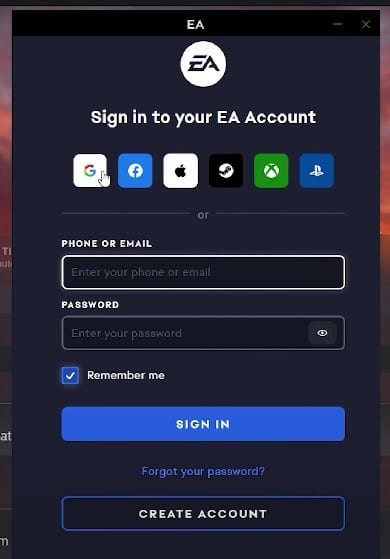
- Soon after, it will get connected.
- But if your Steam account is not linked to another EA account, then unlink your Steam account and then re-link it.
- If it doesn’t solve the issue, then you need to uninstall the EA app.
2) Reinstall The EA App
If the EA app is causing conflicts with the security software or firewall, then uninstalling the EA app is highly recommended.
Uninstalling it can help remove the conflicts and fix the connectivity issues that are causing the error.
Also, if multiple EA accounts are associated with the email ID, the EA app can confuse and prevent you from logging in.
In this case, reinstalling the app can help reset the app settings and resolve the issue.
This is how the EA app can be uninstalled:
- To open the Run utility, press the Windows + R keys.
- Type appwiz. cpl and press Enter.
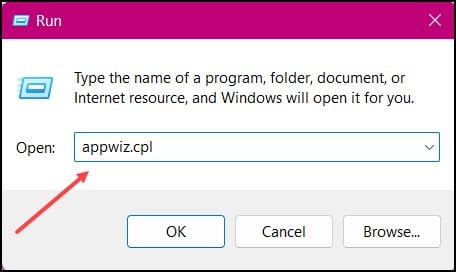
- Right-click on the EA app and select Uninstall and follow the on-instructions to complete the process.
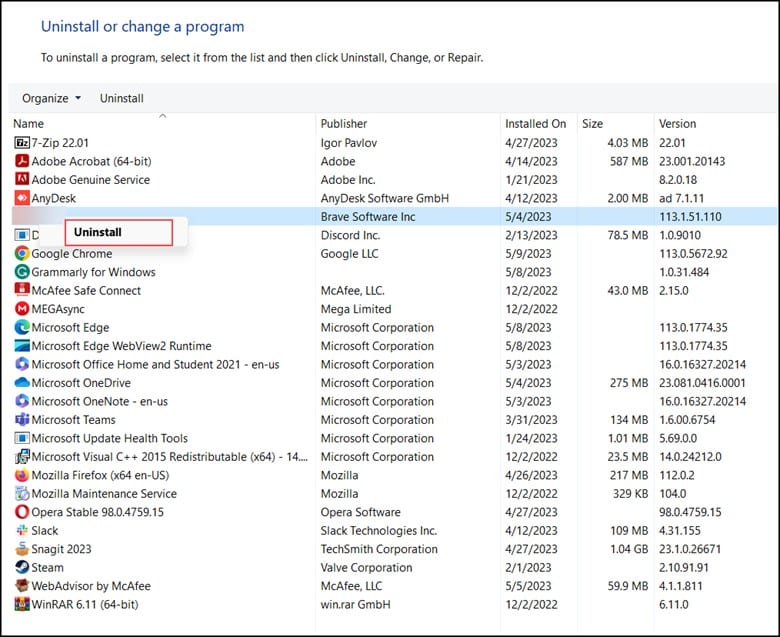
- Now, open Steam and install Star Wars Jedi Survivor.
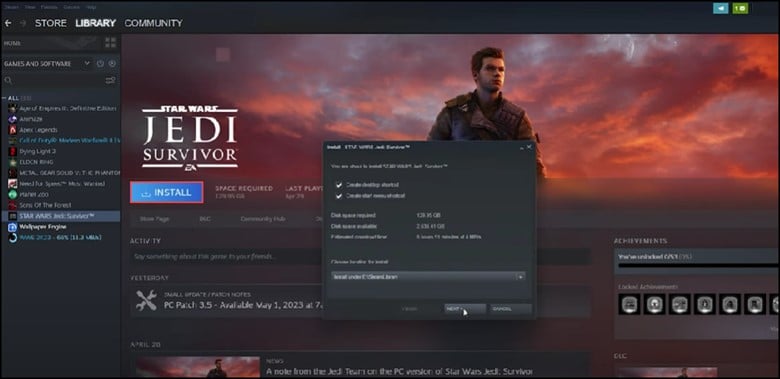
Note: If you already have it installed, uninstall and reinstall it.
Bottomline
So, that was how to deal with the intricacies of the “EA unable to Link” error, and I hope you got back to your gaming adventures without any further issues.
For any related queries, contact us in the reply section below.

