 Windows Firewall protects your computer from viruses, unauthorized users and hackers that may try to gain access to your system online. It filters the information coming to your computer and blocks potential harms if any.
But some users prefer antivirus over Windows Firewall and keep it inactive. This can also help you in preventing your data from unauthorized access through the Internet connection.
If you have an active Firewall, you must know how to disable Firewall in Windows 10.
Remember that experts won’t say to turn off Windows Firewall because it is an effective tool that silently works and protects your computer.
Note that, the process of activating it is also the same. If you have an active Firewall, you can follow these steps to disable Windows Firewall.
How To Disable Firewall Windows 10?
Before turning off the settings, you must have an installed antivirus. This will protect your computer from unwanted access, viruses and other threats.
If your device is connected to the Internet, follow these instructions after turning it off.
Step-By-Step Procedure
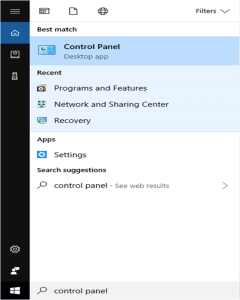
- Type ‘control panel’ in the search box
- Click on ‘Control Panel’ Desktop app
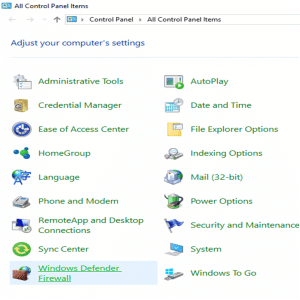
You can a list of items on the control panel window.
- Select ‘Windows Defender Firewall’
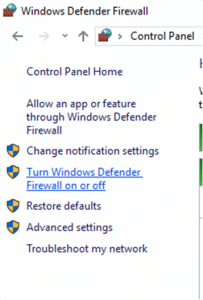
You can see a list of settings on the left side of the new window.
- Select ‘Turn Windows Defender Firewall On Or Off’
If your Windows is not up-to-date, you may find ‘Turn Windows Firewall On Or Off’ settings at the left-hand side of the new window.
It will take you to the customize settings for private and public network.
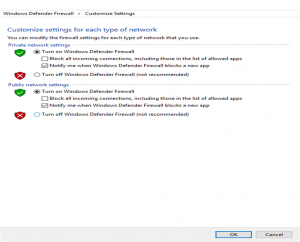
- Select ‘Turn off Windows Defender Firewall (not recommended)’
- Click on ‘OK’ to apply the changes
Once done, you have successfully finished the process. Your Firewall will no longer remain turned on. Now, connect to the Internet and be sure you have an active antivirus.
Hope this information has cleared out how to turn Off firewall!
Note:
In case, you have to turn on the settings after a certain period of time.
Follow the above-explained steps and select ‘Turn on Windows Defender Firewall’ instead of ‘Turn off Windows Defender Firewall (not recommended)’
Here, you get two options to check. Depending on your requirement, you can tick ‘Block all incoming connections………apps’ and/or ‘Notify me……….app’.
Advantages Of Disabling Windows Firewall
According to experts, there is no specific advantage if you turn off Firewall in Windows 10. As its purpose is to block unauthorized packets, it is a good security setting for your computer.
Once you turned it off, you have limited this feature and your computer may be at risk. To avoid this situation, you must have an active antivirus. Alternatively if you would like to turn on the Firewall here is the method to it in case of Avast firewall.
No doubt, the method of how to disable Firewall in Windows 10 is simple. And, it is totally your choice whether you want to disable the settings or not.
For more details or any other query, you are free to comment on the below box. Or, drop a message from the Contact section.

