Often while we type a URL in Google Chrome, we make mistakes. Sometimes we type an extra letter or character by mistake.
In this case, Chrome saves that URL to our autosuggestions and whenever we try to type anything in that URL, Chrome will auto-suggest us.
This may be annoying to get messed up with these and you may be thinking how to delete autocomplete URL suggestions in Google Chrome.
Chrome provides us an extremely easy remedies to delete these unwanted URL suggestions.
Methods To Remove Autocomplete Suggestions
When you’re in search for how to delete autocomplete URL suggestions in Google Chrome, you have various options to do so.
You can use simple methods like keyboard shortcut method or deleting the browsing data. Another advanced technique you may follow is by deleting any specific autofill data and the particular entry you want to remove.
To get rid of delete autocomplete URL suggestions in Google Chrome you can take the help of the Auto-fill password process also. All these techniques are mentioned below in this article to help you delete autocomplete URL suggestions.
Method 1: Use Keyboard Shortcut Method
This is probably one of the easiest ways to delete autofill suggestions for one or two websites. In case you need to deal with multiple websites and multiple entries, then you will have to choose from other advanced solutions.
You need to delete google autocomplete manually while using the keyboard shortcut process. This is a very simple process and you need not change the settings for this.
You just need to follow the steps:
Step 1: First of all visit the website that gives you auto-fill suggestions. Click the input field and in the URL bar, type the first few letters of the URL.
Step 2: From this very point, Chrome will automatically suggest this incorrect URL. Make sure you highlight the URL and Press Shift + Delete (Windows) or Fn + Shift + Delete (Mac) on your keyboard to delete autocomplete in chrome.
In case you are using a third-party keyboard, you may not find the Fn key. So, in this case, use Shift + Delete.
Step 3: You may repeat the steps for all entries that you want to remove.
Method 2: Delete Google Autocomplete Using Clear Browsing Data
When you are searching for the solution to the issue how to get rid of suggestions on google, you may choose this quite simple step to clear you browsing data.
But this method has limited options. Though this method is unable to remove any specific data, it will remove your autofill suggestions from the past days or weeks.
Follow the below mentioned steps to perform this task:
Step 1: Go to the menu button with three vertical dots in the top right corner and select Settings.
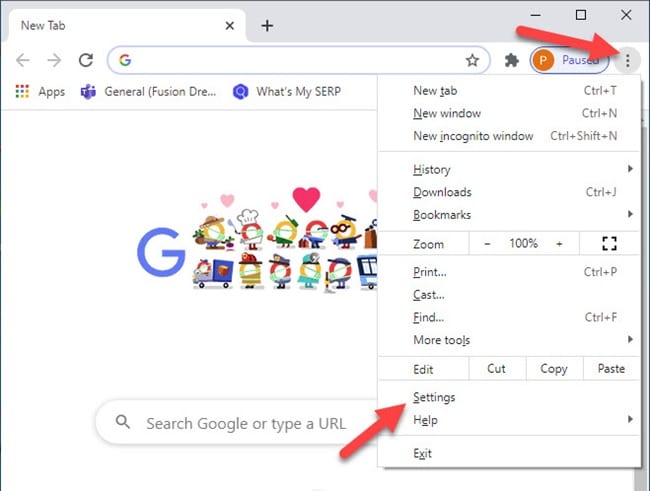
Step 2: You may scroll down to the advanced settings and delete the autofill data.
Step 3: Now to navigate to the Privacy section and hit the Clear browsing data button. Make sure you only check Auto-fill form data option, under Advanced Settings.
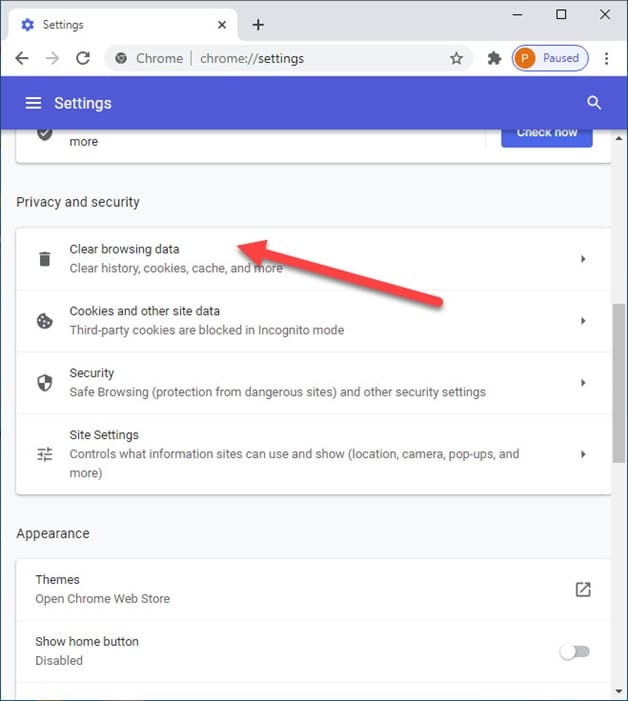
Step 4: From the menu, you are required to select your desired time period to clear the history.
Step 5: Finally, click the Clear browsing data button to completely delete autocomplete in chrome.
Method 3: Remove Any Specific Auto-Fill Data
We have already suggested to simple easy going methods to remove google suggestions but if you want to move on to some advanced solution, this method is recommended for you.
You need to choose your autofill data and choose which particular entry you wish to remove. So, this method enables you to see specific information before you proceed to remove it.
Hence, this is a very useful method proven to remove those specific entries.
Step 1: First of all, open Settings and navigate to the Auto-fill section.
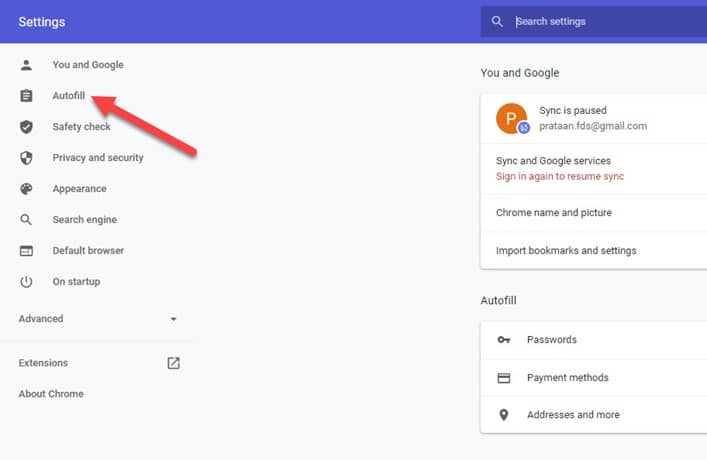
Step 2: Now you will be able to get a view of your auto-fill entries. In each section, you will find each entry has 3 vertical dots at the end. All you need to do is click on them and then choose Remove.
Step 3: You will have to repeat the previous step for all the autofill data you want to get rid of.
Method 4: Use The Auto-Fill Password Process
Like other browsers, Chrome can save your passwords and permit you to log in to your desired websites with quick access. This one is quite useful if you do not wish to share your Windows 10 PC with others.
In case you need to share, you might want to delete autofill data from your system to prevent any unauthorized access to them.
Follow the steps provided to do it:
Step 1: Visit Chrome and open Settings.
Step 2: Go to the Auto-fill section and click on Passwords.
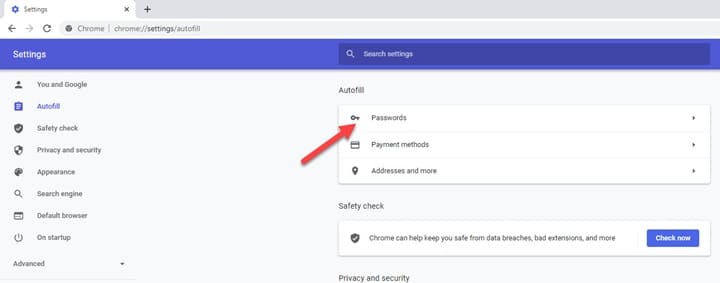
Step 3: You will view a list all saved passwords. Select the desired data you choose to remove and click on the 3 dots at the end of the entry.
Step 4: You will have to repeat the previous step for all the auto-fill entries you want to remove.
Method 5: Google Suggest Gets Replaced By Google Instant
Nowadays in various parts of the world, we find Google Suggest is somehow getting replaced by Google Instant. For this, you need to follow these steps:
Step 1: Visit Google.com or the locally available version, from any browser.
Step 2: Go to the Setting link at the top right and select – Search Settings.
Step 3: Now, scroll down to the Autocomplete section and select – Do not provide query predictions in the search box.
Step 4: Select the Save Preferences button and save the desired changes.
Winding Up
Throughout this article, we have tried to perceive ways to delete google autocomplete.
In case you have queries regarding this or other issues, make sure to intimate us in the comments section below. We look forward to hear back from you.

