Recently, we have had many reports from users of Asus branded computers that their computer boots into Aptio Setup Utility instead of booting into Windows. If this is the case for you as well, here I shall discuss what the Asus laptop Aptio Setup Utility is, and how you can boot into Windows from here.
What Is The Aptio Setup Utility In Asus Computers?
If you have some familiarity with computers in general, you must have heard of the Basic Input Output System or the BIOS. The BIOS is actually one of the most important components of your computer, as it stores many important configuration files that enable the appropriate communication between the hardware and the software.
To access the BIOS, you need to make use of a configuration utility. Since the BIOS differs from system to system, each computer manufacturer puts up a different configuration utility for accessing the BIOS.
Similar to BIOS, most modern-day computers are equipped with UEFI, which also requires a configuration utility to access. American Megatrends makes a specific configuration utility for ASUS computers. This configuration utility is the Aptio Setup Utility, and you will find it with nearly each and every ASUS branded computer and laptop.
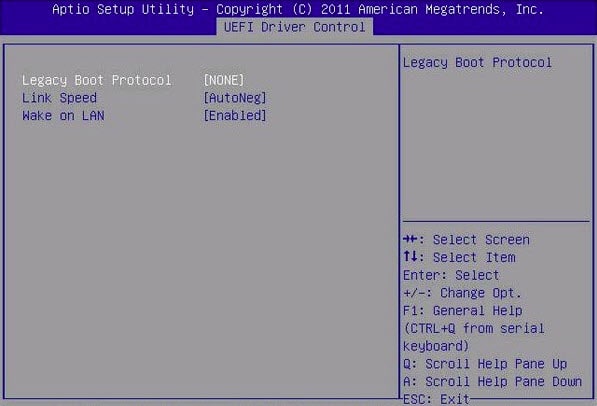
[SOLVED] ASUS Computer Booting Into Aptio Setup Utility Instead Of Windows 10
Some users have reported that when they connect a new HDD or SSD to their Windows 10 device, the device boots into the Aptio Setup Utility with no option to boot into Windows. This is a serious error that prevents users from booting into their operating systems.
If you too are stuck with the setup utility, here are some simple solutions that you can try to solve this error.
Solution 1: Restart your PC
While this may sound silly, a simple restart can fix many errors in Windows 10. If you do not find the option to restart the PC on-screen, simply press the power button once.
This will shut down your PC after arranging all the data back to the intended sectors of your storage unit.
Wait for some time and start your computer once again. Hopefully, your computer will bypass the setup utility and boot into Windows this time.
Solution 2: Check the connection between the storage device and the motherboard
If the restart did not help you in solving the error, there is a chance that there is a connection problem between your computer and the storage device. If you recently upgraded your hard disk, there is a possibility that the connection may not be correct and hence you get this error.
You will have to open the PC cabinet or the laptop unit to get access to the storage devices. Once you are inside the PC, simply reseat the storage devices, and check if the computer boots normally into Windows. Your error should now be resolved.
Solution 3: Set computer to detect external storage devices
Usually, many computers are set not to detect the secondary hard disk or SSD. This is partly because of motherboard restrictions, which prevents booting into Windows if a storage media is connected other than the one that was preinstalled on your computer.
If the Aptio Setup Utility comes up after you have changed the storage device, there is a chance that your PC might be set up to not detect external storage devices. To enable this setting, follow these steps:
- Power on your computer and wait for it to boot Aptio.
- Go to the Security section.
- Disable the Secure Boot option from the security section.
- Now, under the Boot section, disable Fast Boot option as well.
- Locate and enable the Compatibility Support Module (CSM).
- Save these settings, and exit the Setup utility.
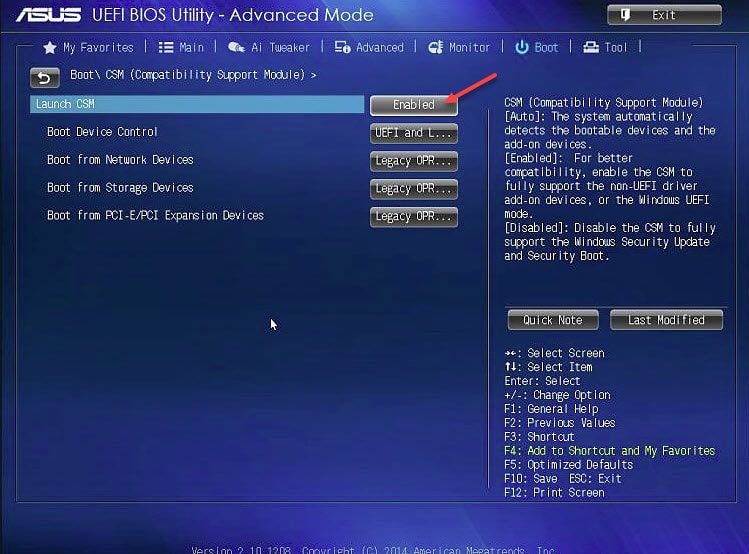
Now, try booting into Windows. You should be able to load the operating system successfully without booting into the setup utility first.
Solution 4: Reset BIOS Settings
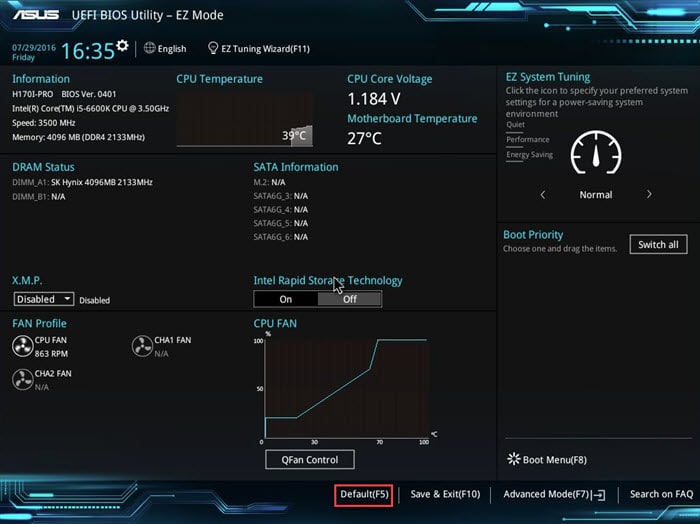
If changing the boot settings did not help you, you might benefit from resetting the BIOS settings to the factory default values. This will reset any changes that you made to the system, which may have been preventing you from booting into Windows.
You will find the Factory Reset option under the Reset Configuration Data option. Use this option to Factory Reset your data and save the default changes. Now when you reboot your PC, you will be able to boot into Windows.
Solution 5: Reinstall Windows
If none of the solutions helped you in solving the error, there might be something wrong with the copy of Windows installed on the storage drive. This can only be repaired by reinstalling the copy of Windows.
Note that you may lose any data that is not backed up. If you have multiple partitions, there is a possibility that there might be some data left on the non-OS partitions.
Once you have reinstalled Windows 10, check if the error persists.
Wrapping Up
So there you have it. This was a simple guide about the Aptio Setup Utility Asus Windows 10, and how you can troubleshoot if you cannot boot into Windows. Comment below if you found this useful, and to discuss further the same.

