While starting up a Steam game, if you encounter an Application Load Error 5:0000065434 message, then you are not the only one. This problem can be triggered due to several reasons that I will discuss in today’s article and also mention how you can potentially fix it.
Reasons Behind Application Load Error 5:0000065434
There are some reasons behind the application loader error 5:0000065434, let’s check them one by one.
- If the Server is too busy to perform your request, then you may face the Steam application load error 5:0000065434.
- Your PC might not find the Game’s installation file.
- If the game files get corrupted then the Steam application load error 5:0000065434 can appear.
- You have accidentally changed the name of the root folder.
Solutions Of Application Loader Error 5:0000065434
After discussing the reasons behind the error, now it’s time to find out the solutions and resolve this issue.
1. Delete the Game Folder
This can be the simplest and easiest one to solve the application loader error 5:0000065434.
So try it out. To delete the game folder in My Documents go through the steps –
- Press Windows + E simultaneously to open Windows Explorer.
- After opening it, select Documents on the left panel.
- On the Documents folder select the My Games folder.
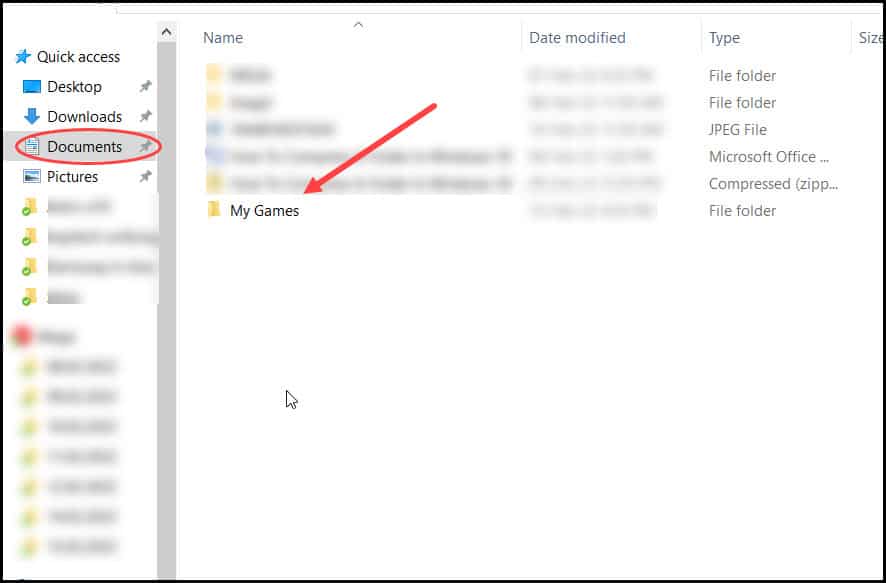
- Right-click on it and select Delete from the menu.
Follow the instructions to completely delete the folder.
After deleting, check if the Application Error 5:0000065434 still pop up. Then try the next solution.
2. Run As An Administrator
If still the Steam cannot launch properly and show the application loader error 5:0000065434 message, then try running Steam as an administrator. Here are the steps to do it-
- Select the Steam icon on your desktop.
- Right – Click on it, and select Run as administrator.
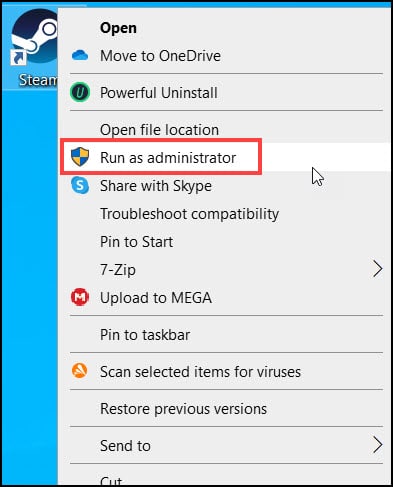
After launching the game, check whether the issue is solved.
3. Copy Steam.exe into the Root Folder
Another simple solution to dismiss the steam application load error 5:0000065434, is to copy the Steam desktop file and pasting it in the Steam installation folder. This can fix the Application error 5:0000065434. Here is how you can do it:
- Select the Steam Desktop icon. Right-click on it and select Copy.
- Again, right-click on it and go to Properties.
- Under the shortcut tab, click on the Open File Location button.
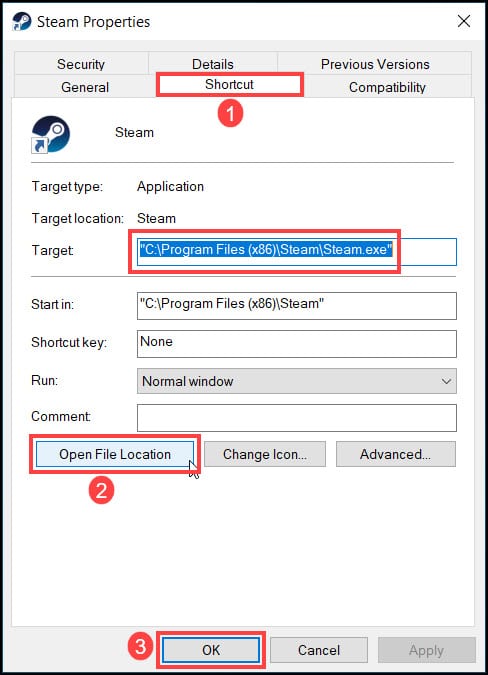
- Paste the Steam.exe file here.
Now go and check if the problem persists otherwise go to the next solution.
4. Using Command Prompt
By the help of command prompt, you can also prevent the issue and resolve the application loader error 5:0000065434.
Before the steps, remind 2 things-
a) Root folder location. By default, the location should be:
C:\Program Files (x86)\Steam
b) Problematic game’s installation folder location:
C:\Program Files (x86)\Steam\steamapps\common
Note – the location may vary from user to user, here we have discussed only the default option.
Now follow the steps mentioned below-
- Type cmd on the Windows Search bar.
- Select the 1st display on the list and right-click on it.
- Click on Run as administrator.
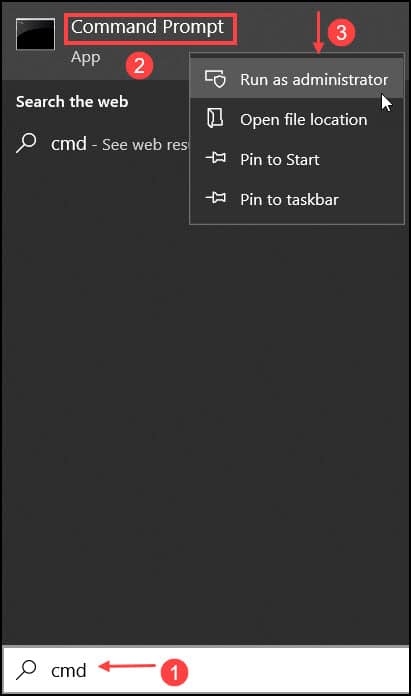
- Now enter the following commands, and hit Enter every time to execute the commands.
a) cd <GameFolder>
example:
cd C:\Program Files (x86)\Steam\steamapps\common
b) mklink steam.exe <SteamFolder>\steam.exe
example:
mklink steam.exe C:\Program Files (x86)\Steam\steam.exe
5. Verify the Skyrim Game File
If you facing the error while tried to launch the Skyrim, then you can try verifying the integrity of the Skyrim Game files. This is one way to have Skyrim application load error p 65434 fixed. Here is how you can do it:
- Locate the Steam icon on the desktop double-click on it to open the Steam launcher.
- Go to the Library tab and select the game.
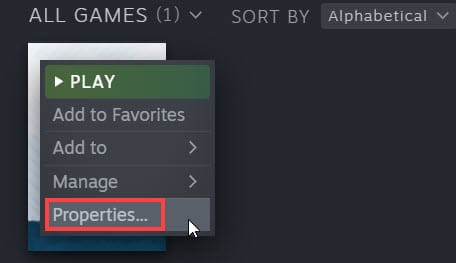
- Right-click on it and select Properties.
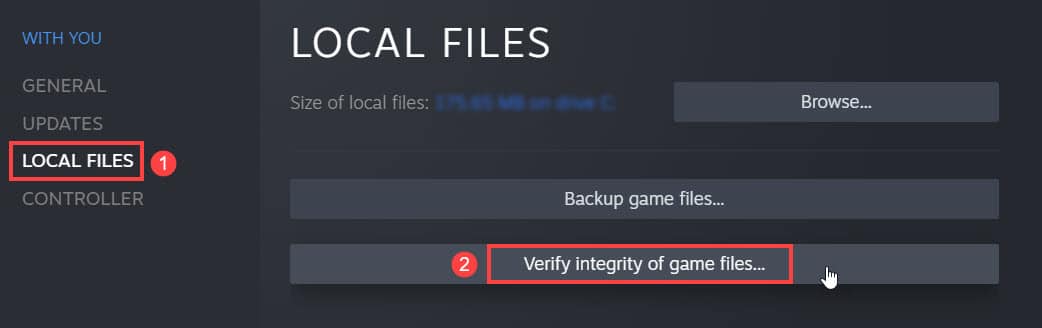
- In the window, navigate to Local Files.
- Click Verify integrity of game files.
Now go and check if Skyrim application load error p 65434 fixes or not.
6. Delete Appcache Folder
Every appcache folder contains various data about their system folder, which remembers everything to have fast data retrieval.
Corruption in the app cache can also lead to the application load error 5:0000065434.
So deleting it can refresh everything, and works perfectly, so here are the steps-
- Locate the Steam desktop icon.
- Right-click on it and select Properties.
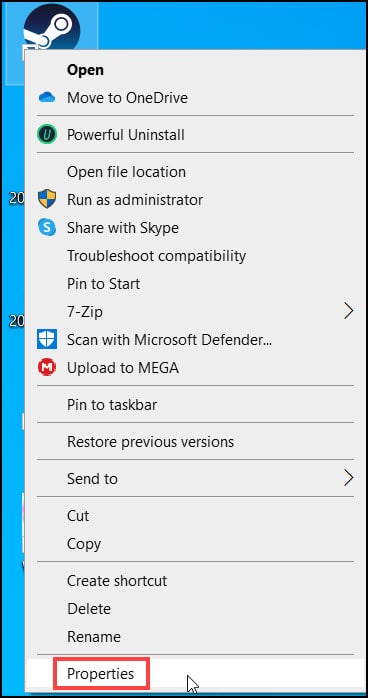
- Under the Shortcut tab, select the Open file location option.
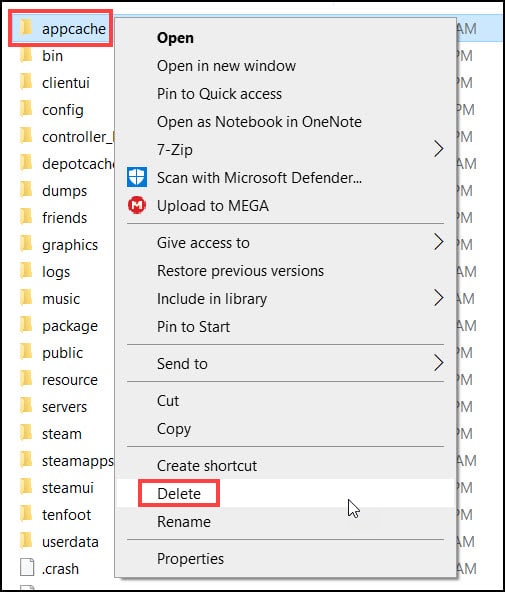
- Now select the appcache folder, right-click on it and choose Delete.
Restart your PC and launch the Steam app and check if the problem is resolved or not.
Final Thoughts
So, there you have it. Now you know how to fix application load error 5:0000065434 on Steam.
If you still have queries related to this topic, ask us in the comment section. Also let us know which method worked out for you. Feel free to share and stay connected.

