If you have accidentally deleted an app from the iPhone home screen, you can get it back.
Read through this article to know how to add an app back to the home screen on iPhone.
How To Add An App Back To Your iPhone Home Screen?
Follow the methods below to add an app back to your home screen.
Add An iPhone App Back To Home Screen
To add an app back to your iPhone screen, follow the steps given below:
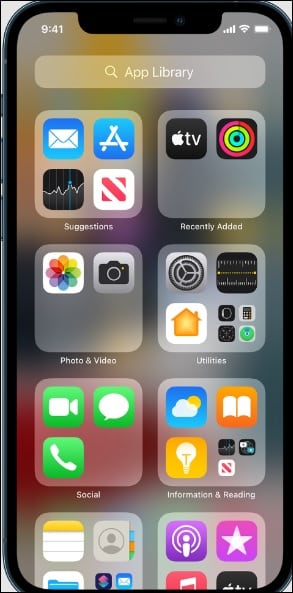
- Swipe left from your iPhone Home Screen till you go to the App Library.
- Find the app that you want to get back on your Homescreen.
- Tap and hold the app till you see a pop-up window.
- Select Add to Home Screen button.
How To Search For An App In The iPhone App Library?
To search for an app in the iPhone app library, follow the steps given below:
- Open App Library and enter the name of the app you want to search for in the Search field.
- Tap on the app and open it. The apps in the App library are automatically arranged into specific categories.
Like under the Social category, you will get the social apps. The frequently used apps will be reordered automatically.
While you install a new app, it gets added to the App library, but you can change the app destination as per your preference.
How To Change The Download Location Of The New Apps?
To change the location of the new apps on your iPhone, follow the steps given below:
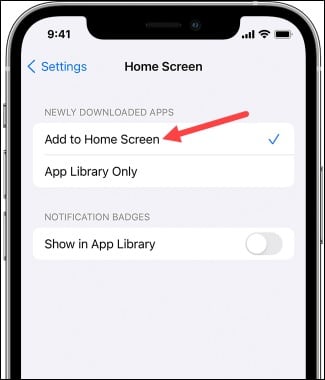
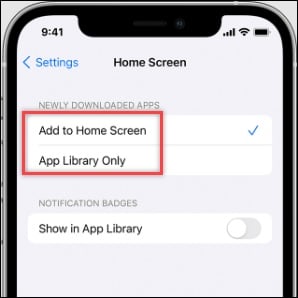
- Open iPhone Settings > Home Screen.
- Select an option such as App Library Only or Add to Home Screen.
How To Delete An App From The App Library?
If you want to delete an app from the iPhone app library, follow the steps given below:
- From the App Library, tap on the search field and expand the list.
- Touch and hold the specific app icon you want to delete from the library. Choose Delete App Trash can.
- To confirm again, tap on the Delete button.
- If you are having a problem deleting an Apple app, disable the parental controls and then delete the app.
How to Move apps to the App Library
If you want to remove apps that you need no longer from the app library, follow the steps given below:
- Touch and hold the app from your iPhone.
- Tap on the Remove App option.
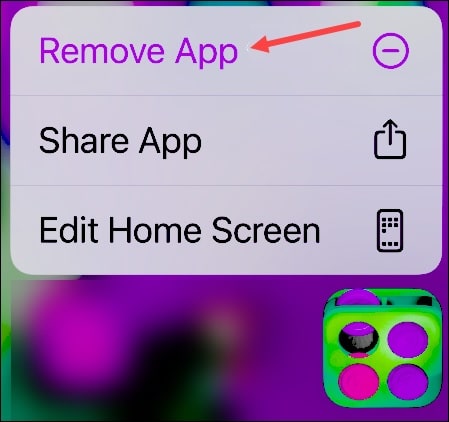
- Tap Remove from Home Screen.
Frequently Asked Questions [FAQs]
1. Is it possible to bring back an app to the iPhone home screen?
Yes, you can bring an app back to the iPhone home screen if you have deleted it from there.
2. How do I delete an app from the iPhone Home screen?
To delete an app from the iPhone Home screen, tap on the search field from the App Library. Expand the list.
Touch and hold the specific app icon you want to delete and select Delete App Trash can. Confirm your action.
If you are having a problem deleting an Apple app, disable the parental controls and then delete the app.
3. How do I find a missing icon on my iPhone?
Use the search bar or scroll down to find the specific app. Tap and hold the app and select Add to Home Screen option.
Final Words
Send us feedback if the article was helpful to you.
For further information, feel free to ask us in the comments section below, and we shall revert soon.

